
NabixSoft Inventory Pro · Practical guide
Keep tools and supplies easier to find and review.
A workshop or supply cupboard can contain a mixture of reusable equipment, spare parts, and items that are consumed every day. Inventory Pro can organize products, photos, storage information, quantities, and movements. The useful starting point is deciding what each record represents and how you will keep it current.
Decide what one record represents
Look at the way the item is actually used. A group of identical supplies may work well as a quantity of units, while an individual tool may need a more specific description. Choose a record structure that lets you recognize and count the item without relying on memory.
Keep different sizes, models, or packaging quantities distinguishable when the difference matters to the work. Two containers can look similar while holding different components. Use the name, photo, SKU or code, and notes to preserve that distinction. Avoid creating detail you cannot maintain, but include enough information to locate the intended item.
Connect the record with the real storage arrangement
Inventory Pro supports locations and storage details. Use names and notes that match what someone sees in the workshop or stockroom. A useful storage description should shorten the search rather than send someone through another set of unexplained abbreviations.
If the physical arrangement changes, review the associated records and labels. A precise note becomes misleading when it still points to an old shelf. Keep the description of the item separate from its current location so you can move stock without losing the stable identity you use to find it.
Use photos to clarify similar items
A product photo can help distinguish items that share a broad name. Select an image that shows the relevant shape, model detail, packaging, or marking. Check it at the size you actually see in the app; a distant picture of several items may add little useful context.
Keep the photo associated with the intended record. If an item is replaced by a different model, review whether the description and image still describe the same thing. Photos support identification, while quantity and movement entries describe the stock information you maintain. Each part needs its own review.
Record usage and location changes consistently
For supplies that are used up, record the relevant removals so that the quantity remains useful. For items moved between storage areas, use the supported transfer workflow and review the destination. Enter changes close to the event while the quantity and purpose are easy to remember.
Inventory Pro’s described movement features include receiving, removing, and transferring stock. This guide does not assume a dedicated equipment checkout, reservation, or maintenance-scheduling system. Use the published product features for the records they support, and keep any separate equipment process clear in your own workflow.
- Confirm the item and unit.
- Record the quantity actually received or used.
- Check locations when stock moves.
- Review the resulting movement entry.
Use low-stock views for consumable items
Frequently used supplies may benefit from a threshold that prompts a check before they run out. Review your usage and replenishment pattern when choosing that quantity. A threshold suited to a box of fast-moving parts may be very different from one suited to a rarely used spare.
Use low-stock and out-of-stock information as a review prompt, then check the physical quantity and recent movements. The low-stock guide explains how to connect an alert with a focused stock check and your own supplier decision.
Keep identification, counting, and recovery together
Set aside a manageable opportunity to review a category or storage area. Confirm that descriptions, photos, locations, and quantities still explain what is physically present. If scanning fits your setup, label and test a few items before relying on a larger printed batch.
The barcode workflow explains how identification and movement recording fit together, and the catalog organization guide covers naming and categories. Export a complete inventory backup after important updates and keep it accessible outside the app. A useful workshop record is easier to maintain when it can also be recovered after a device change.
Common questions
Can Inventory Pro organize tools and supplies?
Yes. The published product describes use for supplies, tools, shops, stockrooms, and collections, with product and storage details.
Can I include photos and notes?
Product photos, notes, and storage information are part of the described feature set.
Is a dedicated tool reservation system described here?
No. This guide focuses on product records, quantities, locations, and supported stock movements.

A practical next step · Available now
NabixSoft Inventory Pro
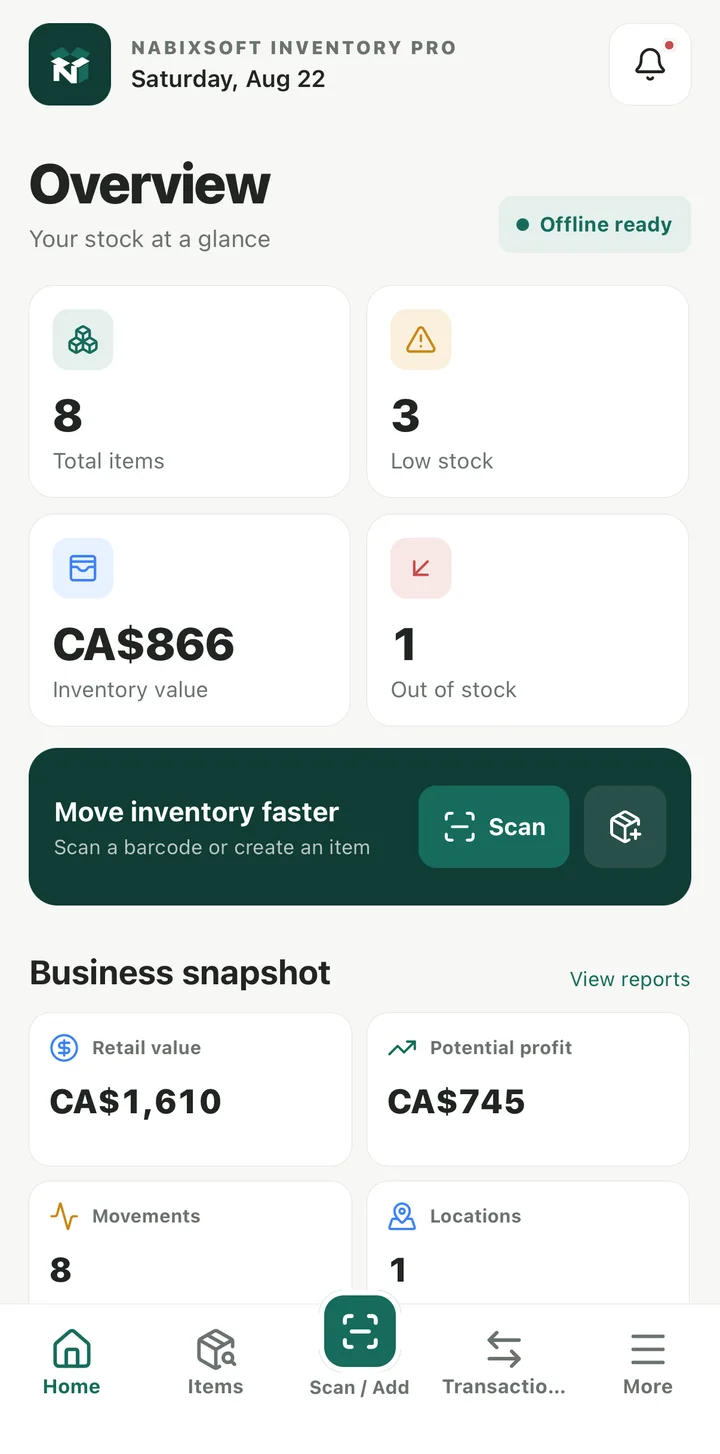
Support this inventory workflow with NabixSoft Inventory Pro’s product records, stock movements, low-stock views, and reports. Everyday inventory management works offline on iPhone and iPad.
Available on the App Store for iPhone and iPad. A Google Play download link has not been confirmed.