
NabixSoft Inventory Pro · Practical guide
When to reorder stock using a low-stock threshold
A low-stock view helps you notice items that may need attention before an empty shelf interrupts your work. Its value depends on the quantities and thresholds you maintain. This guide explains how to use Inventory Pro’s stock views and reminders as part of an ordinary review and replenishment routine.
Start with a clear quantity and unit
Before choosing a threshold, make sure you know what one unit of the product represents. A box, a bottle, and a single piece can describe very different amounts. Keep the unit consistent in your product record and in each receiving or removal entry.
If you count packaging supplies by box, a low-stock quantity should refer to boxes too. Mixing a delivery recorded in cases with daily usage recorded in individual pieces can make an alert misleading even when every entered number looks reasonable. Review the product description and storage notes so that someone checking the shelf can interpret the same unit.
Choose thresholds using your own working pattern
Think about how the item is used and how you normally replace it. A frequently used supply may deserve attention earlier than a slow-moving spare. The quantity you select is a practical setting for your operation, so revisit it when your usage pattern or storage arrangement changes.
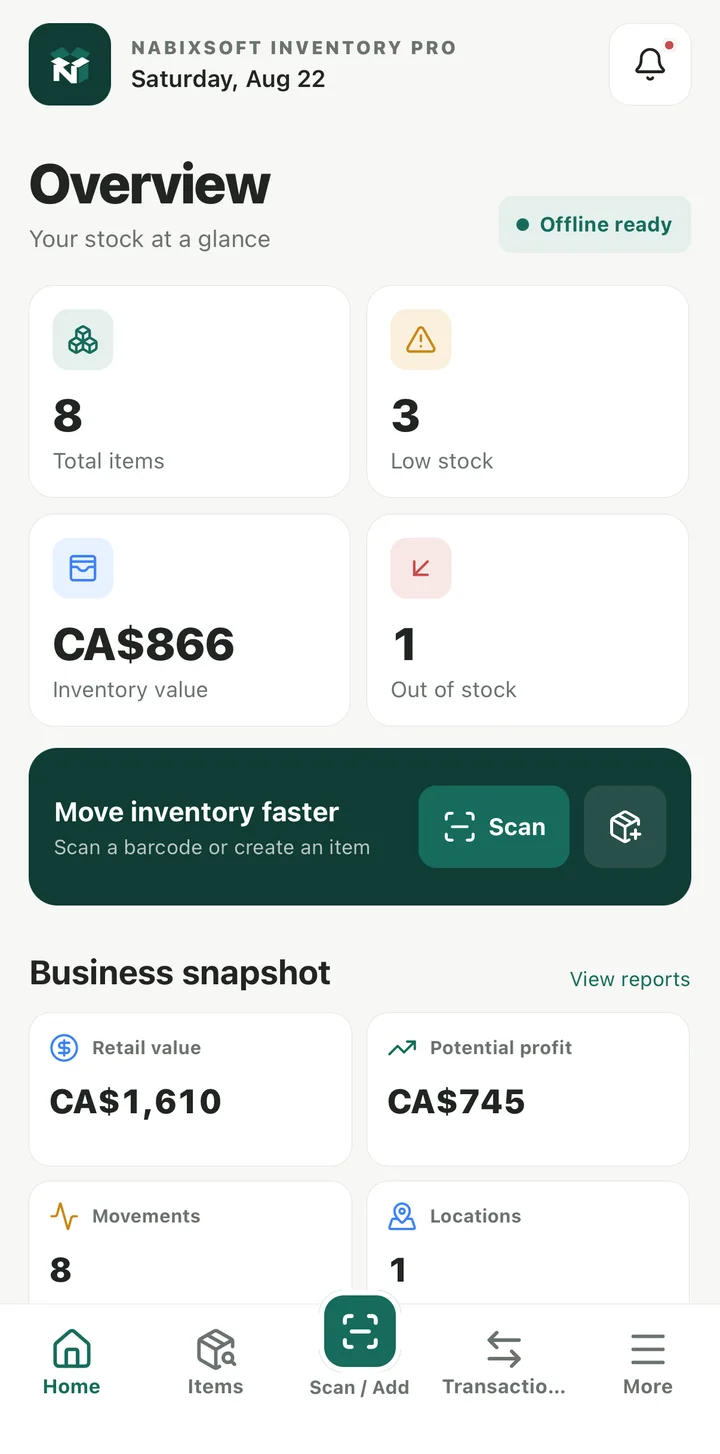
Inventory Pro highlights low-stock and out-of-stock products. Use the current product controls to set the information you want the app to track. Avoid copying one threshold to every item simply because it is easy: identical numbers do not necessarily represent the same amount of useful stock across different products.
Check what the alert is telling you
When an item appears in the low-stock view, open its record and review the relevant quantity, location, and recent activity. A low number may reflect ordinary use, a missed delivery entry, or a transfer that needs checking. Look at the underlying record before treating the alert as a complete explanation.
For example, a shop may have supplies in a main stockroom and another working location. Confirm where the remaining quantity belongs and whether a recent movement has been recorded. The multi-location guide explains how to keep those physical movements connected to the records you review.
Compare the record with a focused physical check
Count the relevant shelf or storage area using the same unit as the product record. Make a note of stock moving during the check so that your comparison has a clear context. If the quantities differ, investigate recent receiving, usage, removals, and transfers while those events are still familiar.
Scanning can help identify the product, but a scanned code does not independently count the quantity on the shelf. Use the code to locate the right record, then do the count and review the movement history. The barcode workflow guide covers that distinction.
- Confirm the exact product and unit.
- Check the intended storage location.
- Review recent movements.
- Count what is physically present.
- Resolve a difference before relying on the summary.
Use reminders to keep the review manageable
Inventory Pro supports daily stock reminders. Use a reminder as a prompt to review a manageable group of records rather than an expectation that every stock issue will be resolved automatically. The timing should fit your own working day and the availability of the people doing the check.
A short routine can begin with low-stock and out-of-stock views, continue with selected physical checks, and end with any updated movement entries. If the same items repeatedly appear without being reviewed, reconsider the timing or scope of the routine. A useful reminder leads to a task someone can actually complete.
Record what happens after the review
Use your own supplier and purchasing process to decide whether and how to replenish the item. An alert does not place an order or confirm that a supplier can deliver. Keep the product and supplier information clear so that your decision is based on the intended item.
When stock arrives, check the delivery and record the quantity received at the correct location. This closes the loop between the alert, the physical change, and the app record. Review whether the threshold still makes sense after a busy period, and export a complete backup after important updates. The receiving guide explains that final entry workflow in more detail.
Estimate a starting reorder point
A simple starting point is typical daily use multiplied by supplier lead time, plus the buffer you want to keep. If a shop uses 4 rolls of labels per business day, delivery usually takes 5 business days, and the team wants 8 rolls on hand as a buffer, the starting threshold is 4 × 5 + 8 = 28 rolls.
Use the same unit and time period for both inputs. Check stock already ordered, stock committed to jobs, and any change in supplier lead time before placing an order. Review the threshold after a promotion or other change in demand. Use a stock count to confirm your current starting balance.
Common questions
Does Inventory Pro show low-stock items?
Yes. The published product includes low-stock and out-of-stock views and daily stock reminders.
Will an alert automatically buy more stock?
Use your own purchasing process. The alert highlights a record to review; it does not place a supplier order.
Why check the shelf if the app shows a number?
Recorded quantities depend on the movements entered. A focused physical count helps confirm that the record matches the stock.

A practical next step · Available now
NabixSoft Inventory Pro
Support this inventory workflow with NabixSoft Inventory Pro’s product records, stock movements, low-stock views, and reports. Everyday inventory management works offline on iPhone and iPad.
Available on the App Store for iPhone and iPad. A Google Play download link has not been confirmed.