
NabixSoft Inventory Pro · Practical guide
Make a stock count easier to repeat and explain.
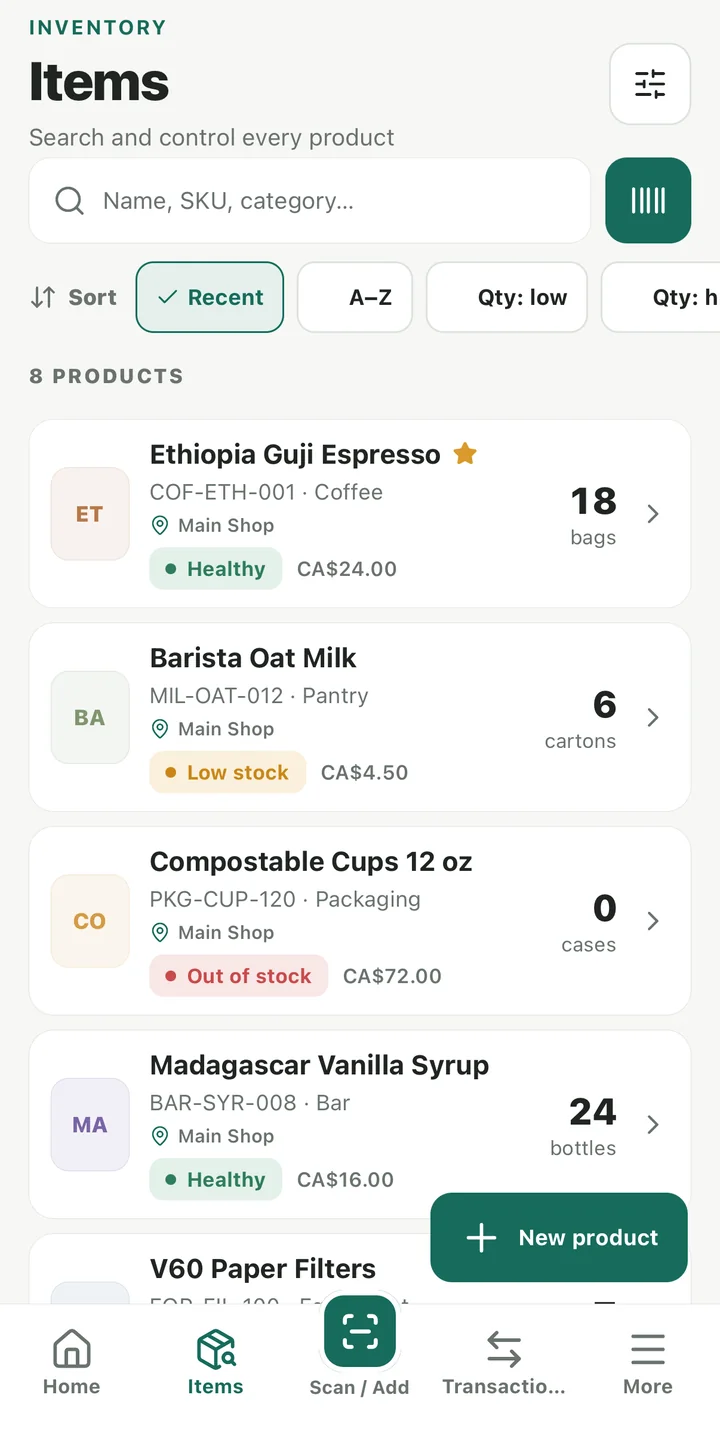
A useful stock count has a clear boundary: which area, which products, which units, and which moment you are comparing. Inventory Pro provides product records, locations, search, and movement history. This guide connects those tools with a physical count that produces understandable results.
Choose a count you can complete carefully
Define the area or product group before beginning. A small, clearly identified part of a stockroom can be easier to count reliably than an undefined attempt to check everything during a busy period.
Make sure the location names and product descriptions in the app are understandable in the real space. Identify any items that could be confused with similar sizes or packaging. The count should give you a meaningful comparison, so start with records that describe the stock you are actually about to inspect.
Use the same units in the room and the record
Confirm whether the product quantity means pieces, boxes, bottles, or another unit you maintain. Count in that convention or deliberately translate the physical packaging before comparing numbers. A box of several pieces cannot be treated as the same unit without checking the record.
Review the product description, storage notes, and any photo that helps identify the item. The app supports these details so that a product is recognizable beyond a familiar name. If the unit is unclear, resolve that question before relying on a quantity difference.
Account for stock moving during the count
Know whether deliveries, removals, or transfers are happening in the area while you count. A physical quantity checked before a move and an app quantity reviewed after it may describe different moments.
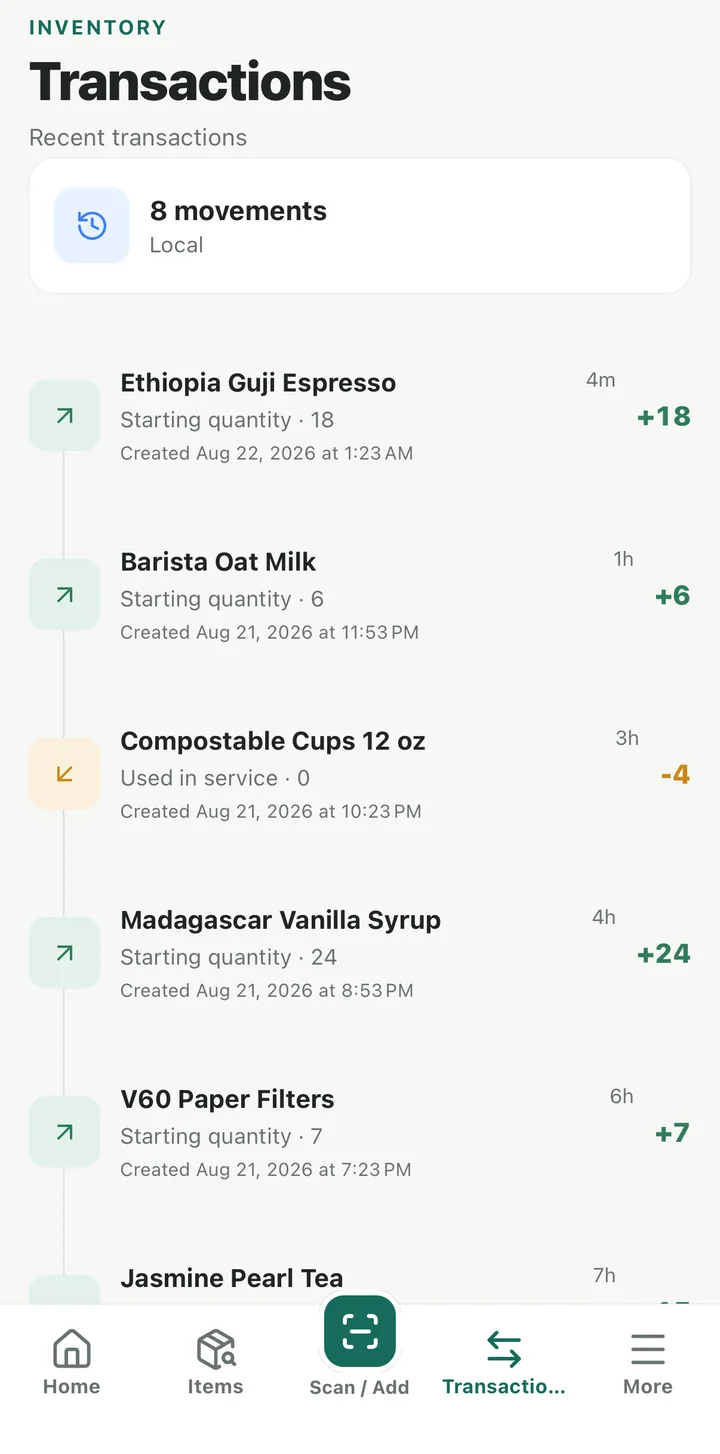
Use a sequence that fits your operation and keep the relevant movement context clear. Inventory Pro supports receiving, removing, and transferring stock, with transaction history. The movement-history guide explains how those entries can help investigate a difference.
Example: checking one shelf during a busy day
Suppose you count a shelf while a delivery is being put away nearby. Define which products and units are included, and check whether any of the incoming stock enters that area before you compare the app quantity.
If the numbers differ, review the relevant receiving or transfer event instead of assuming the shelf was counted incorrectly. Keep the timing of the comparison understandable. This example shows why a focused physical count, a clear quantity unit, and a meaningful movement record need to describe the same product and context.
Identify the right product before comparing quantities
Use search or scanning to locate the intended record, then check the name, unit, and relevant location. Similar labels and packaging can make a familiar-looking result misleading.
Scanning identifies a stored code; the physical count establishes how much stock is present. Treat those as connected tasks with different purposes. The barcode workflow guide shows how a scan can shorten lookup while still leaving the quantity review to your process.
Investigate a difference while the context is available
Look for familiar causes such as a missed receiving event, an unrecorded removal, a transfer entered against the wrong location, or inconsistent units. Compare recent history with what physically happened.
Make a deliberate correction using the current app workflow rather than changing a number simply to finish the task. Review the resulting record and keep enough context to explain what you checked. A count is most useful when a later review can understand the comparison.
Close the count with an understandable result
Review the completed area and identify any item that still needs attention. Keep the scope of the count clear so another day’s review does not assume unrelated shelves were also checked.
- Define the area and product group.
- Confirm product identities and units.
- Account for movement during the check.
- Compare quantities and investigate differences.
- Review updates and export a complete backup.
The reports and backups guide explains the difference between a readable snapshot and the file used to restore working inventory data.
Common questions
Does scanning replace a physical quantity count?
No. A scan helps identify a record; the count establishes the physical quantity you are comparing.
Why does timing matter during a count?
Stock moving between the physical check and record review can explain a difference between the numbers.
Can I check one location at a time?
Choose a manageable scope that fits your operation and keep clear which area and records were reviewed.

A practical next step · Available now
NabixSoft Inventory Pro
Support this inventory workflow with NabixSoft Inventory Pro’s product records, stock movements, low-stock views, and reports. Everyday inventory management works offline on iPhone and iPad.
Available on the App Store for iPhone and iPad. A Google Play download link has not been confirmed.