
NabixSoft Inventory Pro · Practical guide
Manage everyday inventory when the connection is unreliable.
A stockroom, workshop, or storage area does not always have a dependable connection. Inventory Pro’s everyday inventory workflows work offline and keep data locally on the device. This guide explains how to prepare the records, complete useful work, and plan the file-sharing and recovery steps around that local workflow.
Prepare the app and records before starting work
Install the published iPhone or iPad app and review the product records you expect to use. Set up recognizable names, the relevant units, locations, and any codes you plan to scan. A stock task becomes easier when the basic catalog is already understandable.
Check that the device is ready for the work, including available storage for the records and files you intend to keep. Follow the current app instructions for any permissions a feature needs. The aim is to avoid discovering an unfinished setup in the middle of a count where you also need to remember physical quantities.
Know which everyday tasks use local records
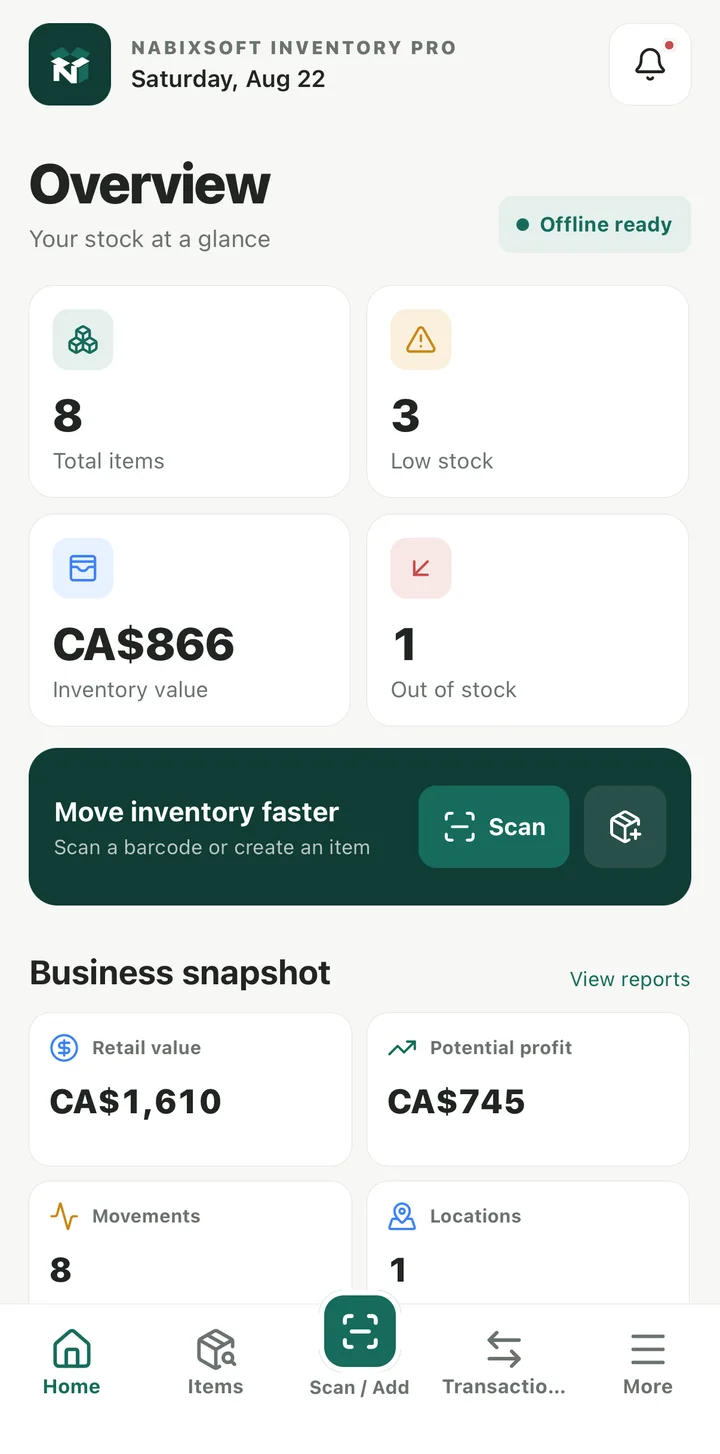
Inventory Pro is described as a private, offline-first inventory manager without a required account for everyday use. Its features include product records, barcode and QR scanning, stock movements, locations, low-stock views, reports, and backups. Work with the current app controls for the task you are performing.
Local records make those ordinary workflows useful away from a reliable server connection. Actions that involve another service, such as sending a file through a network-dependent destination or visiting the App Store, still depend on the service involved. Keep the inventory task and the later delivery step clear in your plan.
Use a simple sequence during a stock check
Start by identifying the product and the area being checked. Use a scan or search to locate the intended record, then confirm the unit and quantity convention. Compare the physical stock with that record and review any event that explains a difference.
Record relevant receiving, removal, or transfer events while their context is familiar. If stock is moving during the count, account for it so the comparison has a clear meaning. A reliable sequence reduces the chance that an item is counted in one location after already being recorded as moved elsewhere.
- Identify the product.
- Confirm its unit and location.
- Check the physical quantity.
- Review and record the relevant movements.
- Confirm the resulting record before moving on.
Keep the boundaries between devices clear
Using the app offline means you have a local working record. It does not imply that independently used devices automatically share each update. Decide where your current inventory is maintained and use the supported export and restore process when you need to move data.
This matters even when the physical stock is in several locations. A transfer between locations is an inventory event within your records; it is different from synchronizing separate copies on multiple phones or tablets. Read the location-tracking guide if your storage arrangement spans more than one working area.
Keep a recoverable copy outside the working app
Export complete backups regularly and after important batches of stock updates. Save the file somewhere you can access again if that device is lost, erased, or replaced. Confirm that the export completed and that you can locate the saved file.
Before changing devices, retain the old records until you have followed the restore workflow and checked the result. A valuation PDF is useful for reading and reference, while the complete backup supports recovery of working information. The reports and backups guide explains the distinction. The confirmed store listing on this site is for iPhone and iPad; no unverified Android download is provided.
Common questions
Does everyday inventory management require an account?
The published product describes everyday offline use without a required account, with data stored locally on the device.
Will records automatically appear on another device?
Do not assume automatic synchronization. Use the supported export and restore workflow for data movement.
Can I use a network-dependent sharing service offline?
The inventory workflow and the sharing destination have different requirements. Send through that service when its required connection is available.

A practical next step · Available now
NabixSoft Inventory Pro
Support this inventory workflow with NabixSoft Inventory Pro’s product records, stock movements, low-stock views, and reports. Everyday inventory management works offline on iPhone and iPad.
Available on the App Store for iPhone and iPad. A Google Play download link has not been confirmed.