
NabixSoft Inventory Pro · Practical guide
Find the intended product before changing its stock record.
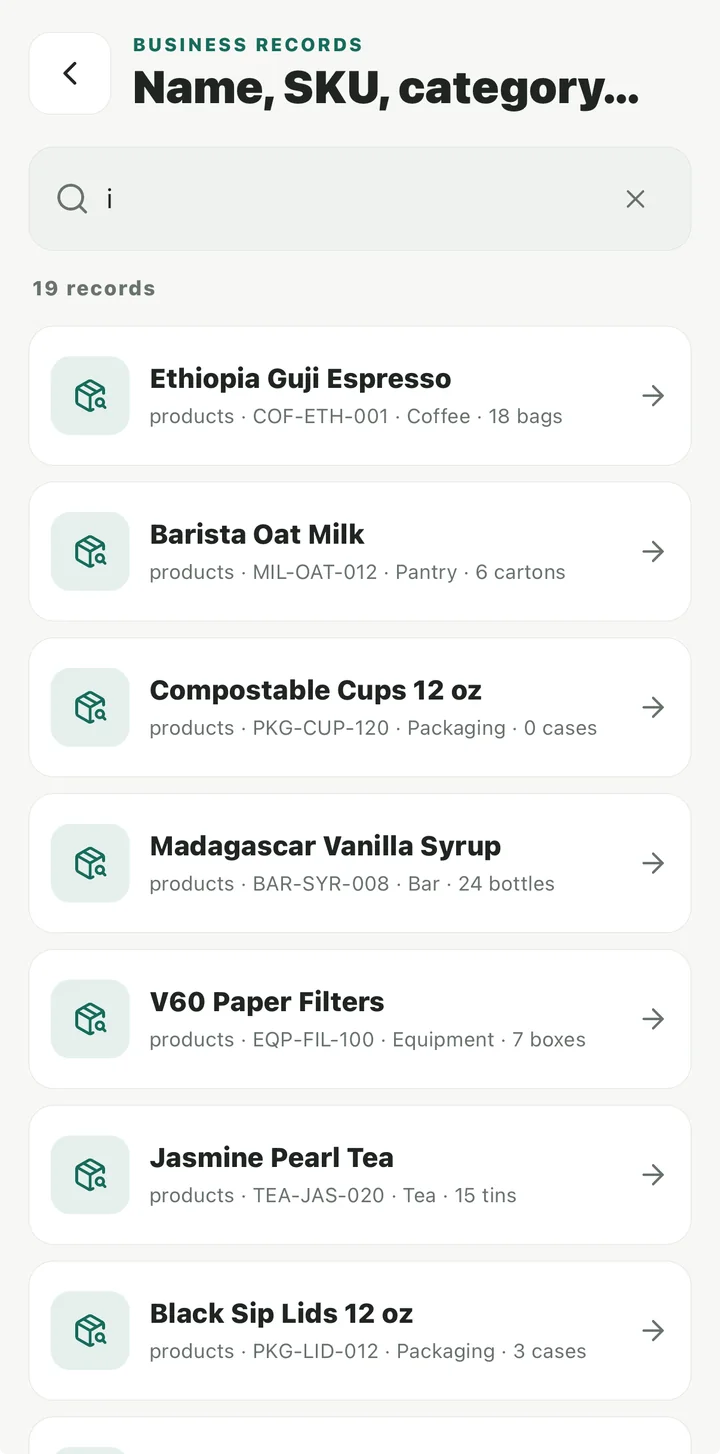
A fast lookup is useful only if it reaches the correct item. Inventory Pro supports several ways to search and identify products, including names, codes, categories, locations, and suppliers. This guide explains how to use the detail you know, confirm the match, and avoid creating a duplicate when a search takes longer than expected.
Begin with information you can confirm
Choose a recognizable product name, SKU, barcode, category, location, or supplier using the current search controls. Different clues can be useful in different situations: a package may show a code while a person remembers the supplier.
Keep the search grounded in a detail you can verify. A guess that happens to return a familiar-looking result is not enough to confirm identity. Look at the product description and other fields before relying on the record.
Distinguish similar results
Review the size, model, packaging unit, or other difference that separates similar items. A broad product name may cover several records with different quantities and prices.
Use photos and storage details where they help confirm the intended item. If the result remains ambiguous, inspect the physical stock or another reference before recording a movement. The photo and storage guide explains how useful context can shorten this check.
Use scanning as a lookup shortcut
Inventory Pro supports barcode and QR-code scanning. After a scan, inspect the product details and check that the stored code belongs to the intended item.
A code can be readable while the physical label is on the wrong container or an old package. The scanner identifies the value; the surrounding record and your check establish what that means for the task. The barcode guide covers that connection in more detail.
Example: a package is known by its supplier
Suppose you remember the supplier but not the exact product name. Use the available supplier-based search, then inspect likely results for the model, packaging, or code shown on the physical item. Try another confirmed reference if several records look similar.
Before adding a new product, check whether an existing record already describes it under a clearer or older name. Once the match is confirmed, review the unit and location before recording a movement. This example shows how alternate search fields can prevent an unnecessary duplicate and a later split in stock history.
Search alternatives before adding a new record
If the item is not immediately found, try another known field and look for familiar variations in names or supplier details. Review likely existing records before deciding that the product needs a new entry.
An accidental duplicate can leave stock history split between two almost identical names. When a genuinely different product arrives, create a record that makes the difference clear. The catalog guide explains a maintainable naming approach.
Confirm units and locations before the movement
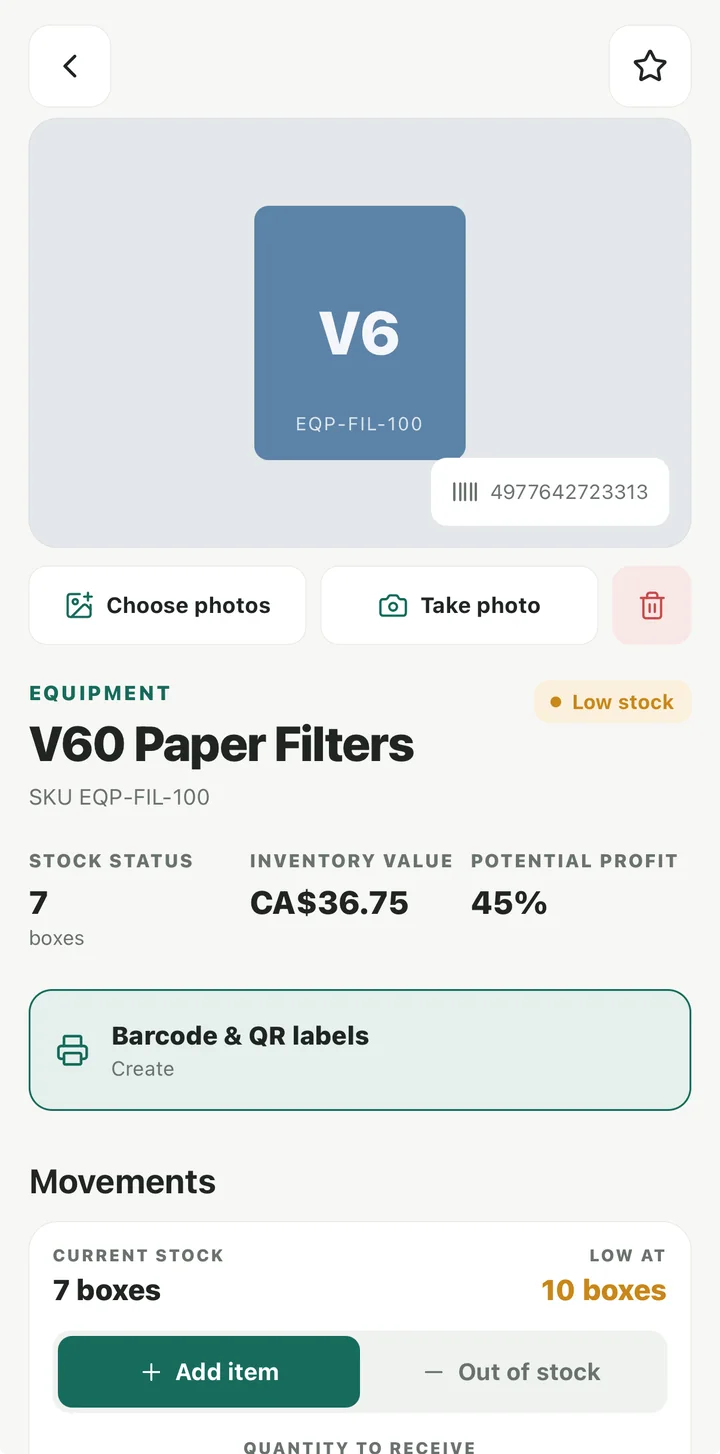
Once you find the product, check the quantity unit and relevant location before receiving, removing, or transferring stock. Identification is the beginning of the movement workflow rather than proof that the amount being entered is correct.
For example, a record counted in boxes should not silently receive a quantity expressed in individual pieces. Review the physical packaging and the current record together. Check the resulting quantity and movement history after completing the entry.
Use difficult searches to improve future records
If a lookup was slow because a description, category, or storage note was unclear, review that context while you still understand the issue. Make a deliberate catalog improvement that helps the next search.
- Start with a confirmed name or code.
- Compare similar results.
- Check photos and storage details.
- Look for an existing record before adding another.
- Confirm unit and location before a movement.
Keep complete backups after important catalog updates. Good searchability is part of the working inventory record you may need to restore after a device change.
Common questions
Which search fields are described for Inventory Pro?
The published features include search by product name, SKU, barcode, category, location, and supplier.
Should I record a movement immediately after a scan?
First confirm the product, unit, quantity, and relevant location.
What should I do when a product seems missing?
Try another known search reference and check likely existing records before creating a new item.

A practical next step · Available now
NabixSoft Inventory Pro
Organize the references discussed here in NabixSoft Inventory Pro and find products by name, SKU, barcode, category, location, or supplier.
Available on the App Store for iPhone and iPad. A Google Play download link has not been confirmed.