
NabixSoft Inventory Pro · Practical guide
Keep stock locations connected to where the items actually move.
A product can be familiar while its location remains unclear. Stockrooms, work areas, and storage shelves become easier to manage when location names and stock movements describe the physical arrangement. Inventory Pro supports locations and transfers so you can keep those changes in your inventory record.
Use location names people can recognize
Choose names that make sense in the place where you work. A small shop may need only a main stockroom and a front work area. A larger arrangement may also need storage notes that help distinguish shelves or containers within a location. Start with the level of detail you can keep current.
Labels used in the room should help someone find the same place described in the app. If a location is known by one name physically and another name in your records, every count becomes a translation task. Clear, consistent naming is especially useful when you revisit an item after a long gap.
Keep product identity clear as the item moves
Use a stable product identity for the item itself, including a name, SKU or code, and relevant description. The item’s physical destination is a separate part of the inventory context. Moving a box to another storage area should not make it unrecognizable in your catalog.
Before creating another product record, check whether you are describing a genuinely different item or simply another place where the same item is stored. Review the current app workflow for locations and transfers, and keep descriptions consistent. The SKU and category guide helps distinguish product references from organizational labels.
Record transfers close to the physical move
Inventory Pro supports moving stock between locations. Identify the intended product, confirm the unit and quantity, and review the source and destination before recording the transfer. Try to enter the change while the move is still easy to remember.
For example, if three boxes are moved from a stockroom to a workshop, record the movement in boxes with the intended destination. Avoid entering an unrelated purchase or usage event just to make one location look correct. A meaningful movement history should describe what happened to the physical stock.
- Confirm the product and unit.
- Check the quantity being moved.
- Review the source and destination.
- Record the change and inspect the resulting entries.
Check the record after a busy period
Several small moves can be harder to reconstruct than one delivery. Review recent movements after a busy period, especially when items have been moved again before you finished entering the first transfer. Look for an event that may have been omitted or entered against the wrong product.
If a quantity seems unexpected, check the physical location and the unit being counted. A product stored in unopened boxes and individual pieces needs a consistent entry convention. Keep useful storage notes available rather than relying on memory about which cupboard or container currently holds the item.
Make physical counts fit the location structure
Choose a defined area to count and compare it with the relevant records. Account for items moving into or out of that area during the check. A count is easier to interpret when you know which space and moment it describes.
Use the same product names and units as your app records, and investigate a discrepancy through the movement history. Checking one location carefully can make a repeatable routine more manageable. The small-business stock guide offers a broader sequence for combining catalog review, movements, alerts, and counts.
Plan deliberately for devices and recovery
Locations within an inventory are different from synchronized copies on several devices. Inventory Pro stores working data locally and supports everyday offline workflows. Do not assume that using a second device automatically creates a shared, live inventory database.
Keep a clear plan for where the current working record is maintained, and use complete backups to preserve it. Before replacing a device, export and retain an accessible recovery file. For the distinction between a readable location-related snapshot and a restore file, see the reports and backups guide. A consistent location structure is most useful when you can recover the records describing it.
Common questions
Does Inventory Pro support locations and transfers?
Yes. Its published features include locations and receiving, removing, and transferring stock.
Does multi-location tracking mean devices automatically synchronize?
No automatic cross-device synchronization is claimed here. The described app uses local storage and an export/restore workflow.
Should a storage move create a new product name?
Check whether the existing product and location workflow fits the move. Keep a stable identity for the same physical item.

A practical next step · Available now
NabixSoft Inventory Pro
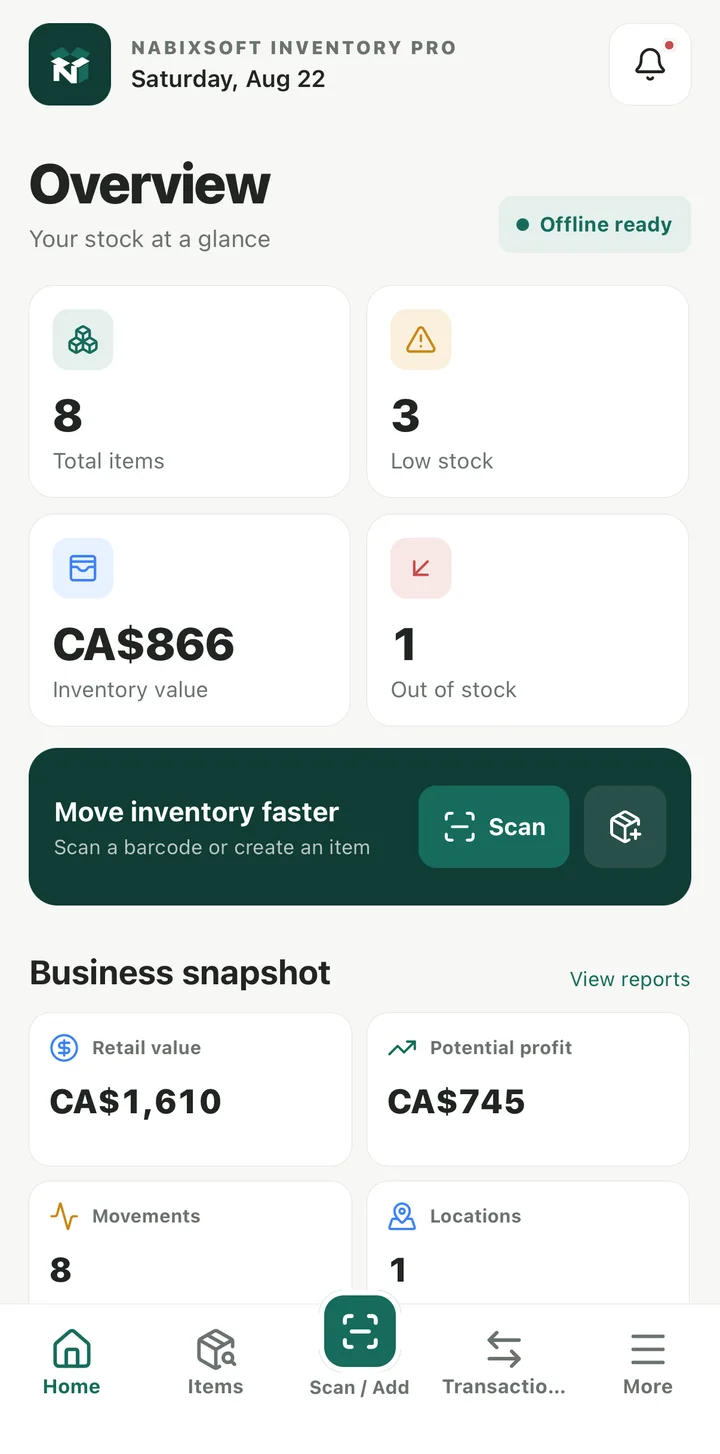
Keep the product and storage context discussed here in NabixSoft Inventory Pro, with photos, notes, location details, and stock transfers.
Available on the App Store for iPhone and iPad. A Google Play download link has not been confirmed.