
NabixSoft Inventory Pro · Practical guide
Understand the inputs behind your inventory value.
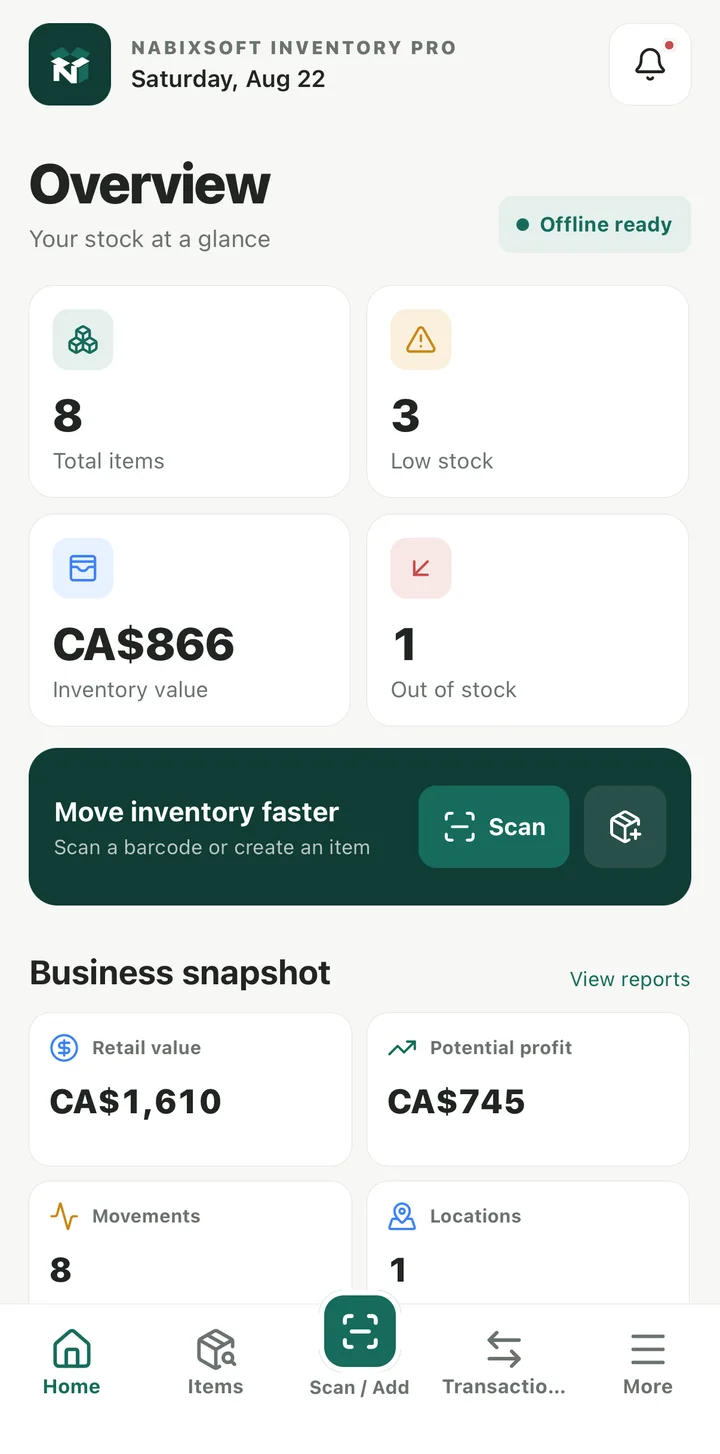
An inventory total can look precise even when one underlying entry uses the wrong unit or an outdated price. Inventory Pro tracks cost value, retail value, and potential profit from the information you maintain. This guide explains how to read those views and check the records behind a useful valuation snapshot.
Start with quantity and a matching price unit
The meaning of a value depends on what the product quantity represents. If the record counts boxes, the cost and retail figures you enter need to be understood in that same context. A price intended for one piece combined with a quantity counted in boxes can distort the result.
Review the product description, quantity convention, and pricing fields together. Use notes where they help someone understand packaging. Consistent units make later checks easier because you can compare the entry with the physical stock and with the information you used when creating the record.
Read cost value as a result of recorded inputs
Cost value summarizes stock using the quantity and cost information entered in the app. It can help you review the data you maintain, but it does not independently verify the supplier paperwork or count the items on a shelf. If the total looks unexpected, inspect the underlying records.
For a simple example, four units entered at a cost of 10 each represent a recorded cost value of 40. If your quantity actually describes four boxes and your cost describes a single piece, the same arithmetic no longer explains the physical stock you intended to record. The useful question is whether the inputs describe the same unit.
Read retail value with the same care
Retail value reflects the retail price information used with your recorded quantities. It gives a different view of those inventory inputs. Keep the price field current when you expect the summary to describe your intended current product records.
An entered retail value is not evidence that all units have sold or that customers will buy them at that amount. It helps you review the stock information in the app. When preparing a report for someone else, make clear which snapshot and recorded values you are sharing so that an inventory view is not confused with a completed-sales record.
Understand the comparison described by potential profit
The published product includes potential-profit tracking alongside cost and retail value. Treat that as a comparison of entered inventory values. Actual business results depend on what happens beyond those fields, including whether stock is sold and what other costs belong to the work.
Suppose a record contains three units with a cost of 8 and a retail price of 12 per unit. The entered figures describe a cost total of 24 and a retail total of 36, with a difference of 12. That example explains the inputs and their comparison; it does not record an actual sale or establish the overall result of running the business.
Review a few high-impact records before exporting
Before sharing an inventory valuation PDF, check the products that could most affect the snapshot. Look at unusually large quantities, obvious pricing mistakes, and entries whose packaging unit is unclear. Review recent receiving or removal activity that may not yet be reflected in the records.
- Confirm product quantities and units.
- Review the cost and retail information you entered.
- Check recent movements and physical stock where necessary.
- Note the purpose and date of the snapshot.
- Preview the report before sharing it.
The stock-management routine connects those checks with a manageable day-to-day process.
Keep the report and the working data in context
Inventory Pro can create and share valuation reports as PDFs. Give the saved file a name or folder context that helps you recognize the relevant snapshot later. An earlier export may be useful for comparison, while a new delivery or updated price can explain why a later view differs.
Keep a complete backup too. A readable report preserves a particular view for reference, while the backup supports restoration of working inventory records. The reports and backups guide explains both file roles. For questions about the records themselves, return to the product details and movement history rather than relying on a single summary figure.
Common questions
Which inventory values does Inventory Pro describe?
The published features include cost value, retail value, potential profit, and PDF inventory valuation reports.
Does a retail-value total mean that stock has been sold?
No. It describes recorded inventory inputs rather than completed sales.
What should I check if a value seems wrong?
Review the underlying quantities, units, entered prices, and recent movements, then compare with the physical stock as needed.

A practical next step · Available now
NabixSoft Inventory Pro
Review the inventory inputs discussed here with NabixSoft Inventory Pro’s cost value, retail value, potential-profit views, and PDF valuation reports.
Available on the App Store for iPhone and iPad. A Google Play download link has not been confirmed.