
NabixSoft Inventory Pro · Practical guide
A manageable stock routine for a small business.
Good stock management starts with knowing what an item is, where it belongs, and how its quantity changes. You do not need a complicated process for every shelf, but you do need a consistent one. Here is a practical routine for shops, stockrooms, supplies, and tools using NabixSoft Inventory Pro.
Begin with a catalog you can maintain
Start with the products or supplies that matter to your day-to-day work. For each record, use a clear name, a sensible category, and any SKU or barcode that helps identify it. Add supplier and storage details where they reduce guesswork. Inventory Pro supports those fields along with photos, notes, and pricing information.
Choose a unit for each item and keep using it. If you count cleaning supplies by bottle, do not later enter a delivery in cases without accounting for the difference. A simple catalog with consistent quantities is more useful than a detailed catalog that no one can update reliably.
Before expanding the catalog, look for duplicate names and records that cannot be distinguished. Fixing the structure early avoids a later count where two different entries appear to describe the same physical stock.
Make the location meaningful in the real room
A location should help someone find and count the item. “Main stockroom” may be enough for a small operation; a busier space might need additional storage notes. Use names that match the labels people actually see, rather than an internal abbreviation that only one person remembers.
Inventory Pro supports locations and transfers between them. When stock moves, record the movement so the app’s information remains connected to the physical arrangement. Avoid creating a new product merely to indicate that an existing item now lives somewhere else. Review the location and storage details instead.
Record ordinary stock events while they are easy to remember
Inventory becomes difficult to trust when deliveries and usage are saved for a large catch-up session. Record receiving, removal, and transfers close to the event. You are more likely to know the quantity and reason then than at the end of a busy week.
For example, receive a delivery against the correct product and location. If part of it is moved to a workshop, record the transfer. If some stock is used during work, record the removal. The app’s movement history gives you a way to review activity, but it only contains the events you enter.
- Check the item and unit before adding a quantity.
- Confirm the destination for stock received.
- Record transfers when the physical location changes.
- Review an unexpected total while the event is still familiar.
Use low-stock information to decide what to check
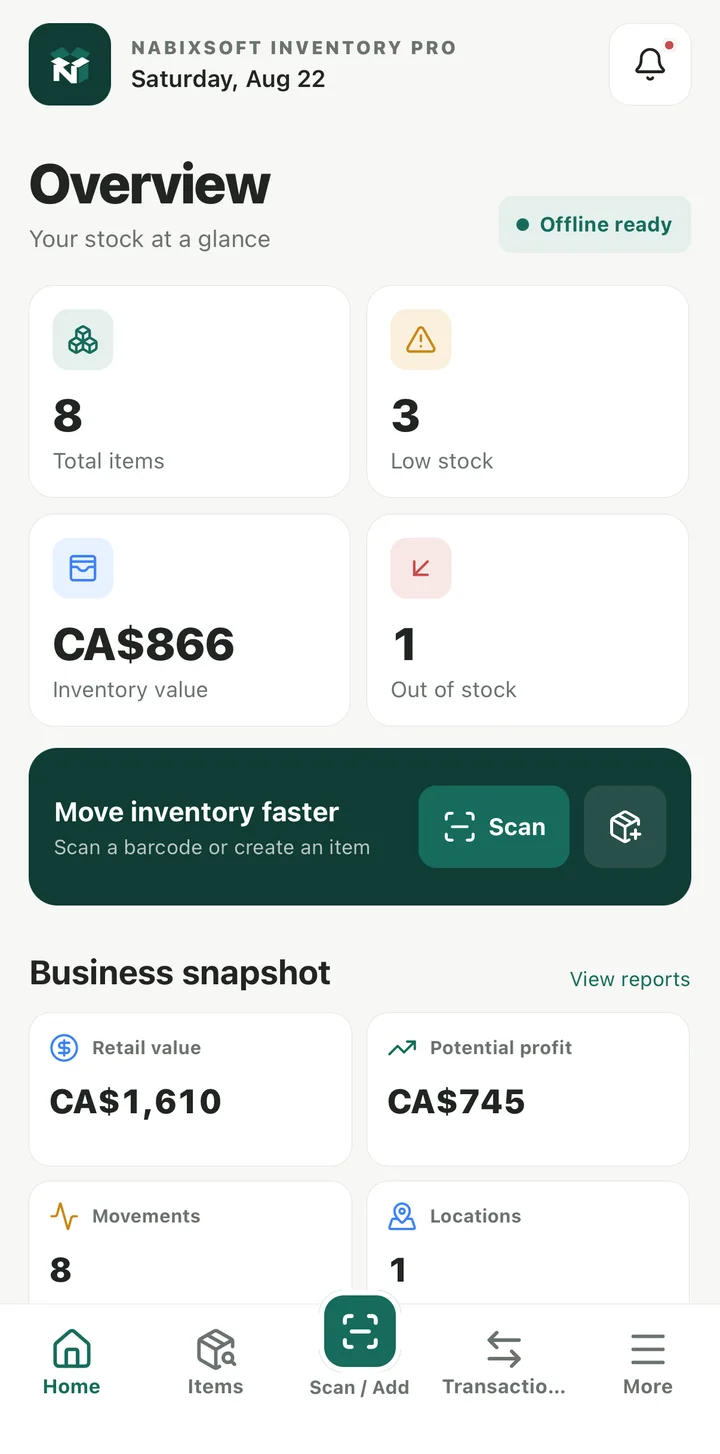
Inventory Pro shows low-stock and out-of-stock items and supports daily stock reminders. Treat those views as prompts to review what needs attention. The quantity you choose as a low-stock threshold should reflect your own usage pattern and how you replenish the item.
A slow-moving spare part and a frequently used packaging supply may need very different thresholds. Review the relevant shelf and recent movements before deciding what to reorder. An alert is useful context; it is not a purchase order, a supplier commitment, or evidence that the physical count is already correct.
Count a manageable area and compare like with like
Set aside time to check a category or location against the app. Use the same units as the product records, and make a note of any movement happening during the count so that the comparison is meaningful. Counting one well-defined area carefully is often easier to repeat than an occasional rushed count of everything.
When the recorded and physical quantities differ, investigate familiar causes first: a missed removal, an unrecorded delivery, a transfer entered at the wrong location, or mixed units. Use the history and product details to understand the difference. Do not assume that a correct-looking dashboard means every shelf has been checked.
If product identification is slowing this down, see the barcode inventory workflow.
Close the routine with a report and a recovery copy
The app tracks cost value, retail value, and potential profit, and can share inventory valuation reports as PDFs. Those views help summarize the records you have entered. Keep cost and price fields current if you expect the totals to be useful. Potential profit is a comparison of recorded values, not a record of completed sales.
Keep a complete inventory backup outside the app too. A PDF provides a readable snapshot, while the backup serves a different purpose: restoring working data. The reports and backup guide explains how to use both without confusing one for the other.
Inventory Pro is published for iPhone and iPad and supports everyday inventory management offline without a required account. Its local storage makes a deliberate backup routine especially important.
Common questions
Can I track inventory in multiple locations?
Yes. Inventory Pro supports locations and stock transfers between them.
Will an alert order stock for me?
The described feature highlights stock that needs attention. Review the item and make your own replenishment decision.
Does the app replace physical stock checks?
No. Physical checks help you confirm that recorded movements and quantities match what is actually present.

A practical next step · Available now
NabixSoft Inventory Pro
Support this inventory workflow with NabixSoft Inventory Pro’s product records, stock movements, low-stock views, and reports. Everyday inventory management works offline on iPhone and iPad.
Available on the App Store for iPhone and iPad. A Google Play download link has not been confirmed.