
NabixSoft Invoice · Practical guide
Prepare your invoice records before moving to a new device.
Changing a phone is much easier when your business records have a recovery plan. NabixSoft Invoice stores mobile app data locally and supports complete backup and restore workflows. Use this guide to prepare a current export, keep it accessible, and review the restored information before you rely on the new device.
Identify the information you want to preserve
Your working invoice data includes more than the PDF you send a customer. Customer records, invoices, estimates, catalog items, expense information, and business settings help you continue the same routine after a move. Think about the information you need to search, edit, and use again.
The app’s complete backup workflow is designed for restoring working records. A saved PDF gives you a readable copy of a document, which is useful for sharing and reference. Keep both when they serve your needs, and use the backup file for the supported restoration process.
Export while the original records are still available
Before changing devices, open the app on the original phone and make a fresh complete backup. Do this while you can still review the current records, rather than waiting until the old device has been erased or handed away. Follow the app’s current backup and sharing controls.
Choose a destination you can access from outside the app. Confirm that the export completed and locate the saved file. A successful-looking screen is less useful than knowing where the recovery file actually is. Use a recognizable file name or dated storage folder so that an older export is easy to distinguish from the one you just created.
Keep a recovery copy beyond one device
Consider what would happen if the original phone were unavailable. Store the exported backup somewhere you can access through your chosen file-storage workflow, with access and privacy settings that suit your business records. A backup held only in a place you cannot reach after losing the phone may not help at the moment you need it.
Retain a known useful copy while you prepare the move. Replacing the only recovery file repeatedly without checking its location can make a later problem harder to understand. Keep your normal account and storage access arrangements available so that retrieving the file does not depend on an already erased device.
Follow the restore workflow on the destination device
Install the appropriate published mobile app and follow its supported restore process using the backup you prepared. Read the information shown during the restore, especially any description of the records that will be replaced or imported. If you are uncertain about a step, ask support while the original copy is still available.
Keep the old records intact until you have reviewed the result on the new device. Check a few recent customers, invoices, and estimates that you recognize, and confirm the business details you expect to use for your next document. Avoid assuming that an installation alone transfers local records automatically.
Check access to the recovery file
Before removing the old installation, locate the exported file through the storage method you selected. Check that the intended backup is accessible from the destination device, with a name or folder context that makes the recent export recognizable. Keep any account or file-storage access you need available during the move.
If you have several backups, choose the one that matches the records you intend to restore. Preserve the original device and a known useful recovery copy until you have checked the result. A deliberate transfer is easier to review when you know which file was used and which recent invoices and customers should be present afterward.
Review the first document and restart regular backups
Before issuing the first invoice from the new device, review the PDF preview, business details, customer, amounts, and payment instructions. Check the template and any logo or signature you intend to show. This makes the first real document a controlled review rather than a surprise for a customer.
- Confirm important recent working records are present.
- Preview a document with the intended business details.
- Check payment information before sharing.
- Keep the original backup until the move is complete.
- Resume a regular backup routine on the new device.
For work that takes you away from reliable connectivity, the offline invoicing guide explains how local records and delivery fit together.
Common questions
Will installing the app automatically bring my records across?
Use the supported backup and restore workflow. Local records do not automatically become available just because you install the app elsewhere.
Is a saved invoice PDF a complete backup?
A PDF is a readable document copy. Use the complete app backup for restoration of working records.
Can support recover local records I erased without a backup?
Keep a backup before erasing data. Support cannot recover deleted local business records without an available recovery copy.

A practical next step · Available now
NabixSoft Invoice
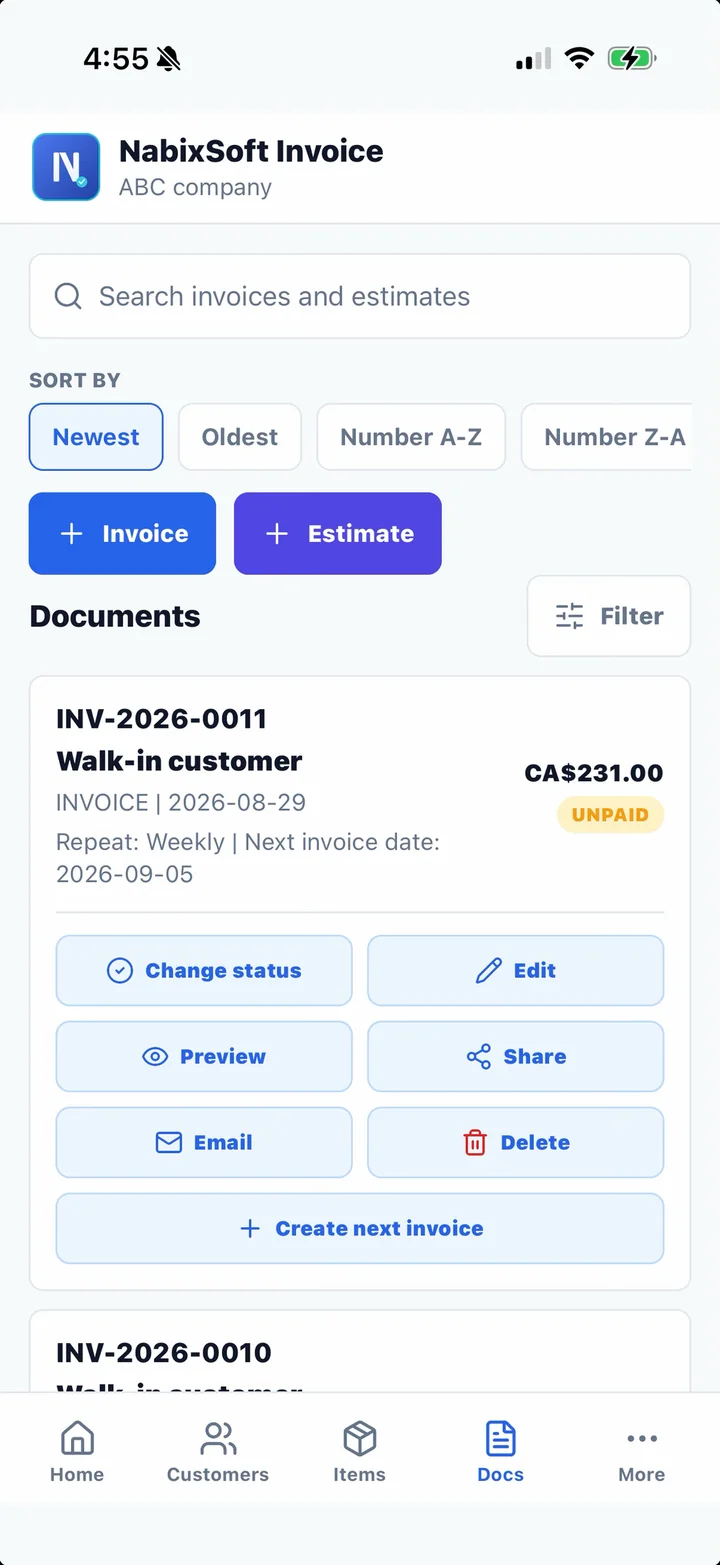
Protect the working records described in this article with NabixSoft Invoice’s complete backup and restore workflow, alongside your customers, documents, catalog, and business details.
Available on Android, iPhone, and iPad. Check your regional store for current compatibility and pricing.