
NabixSoft Invoice · Practical guide
Turn a completed site visit into a clear contractor invoice.
Contractor paperwork is easier to explain when the invoice follows the work: the customer, the visit, the materials supplied, and the labour completed. NabixSoft Invoice can keep those document details available on your phone, including when the site has an unreliable connection. This guide focuses on a practical document workflow.
Identify the customer and the work being billed
Start with the saved customer and confirm who should receive the invoice. A person opening the door may be different from the business responsible for payment. Check the billing name and contact details while the job is still familiar rather than trying to reconstruct them later.
Use a description that connects the document with the relevant work. A short explanation of the visit or agreed stage is easier for a customer to recognize than an internal job nickname. NabixSoft Invoice organizes customers and documents; keep any separate scheduling or site-management process clear in your own routine.
Make materials and labour understandable
Use separate lines when they help explain the charge. A call-out or inspection, replacement materials, and additional labour may each deserve a recognizable description. Check the unit for each line so an hourly rate is paired with hours and a supplied item is paired with the intended quantity.
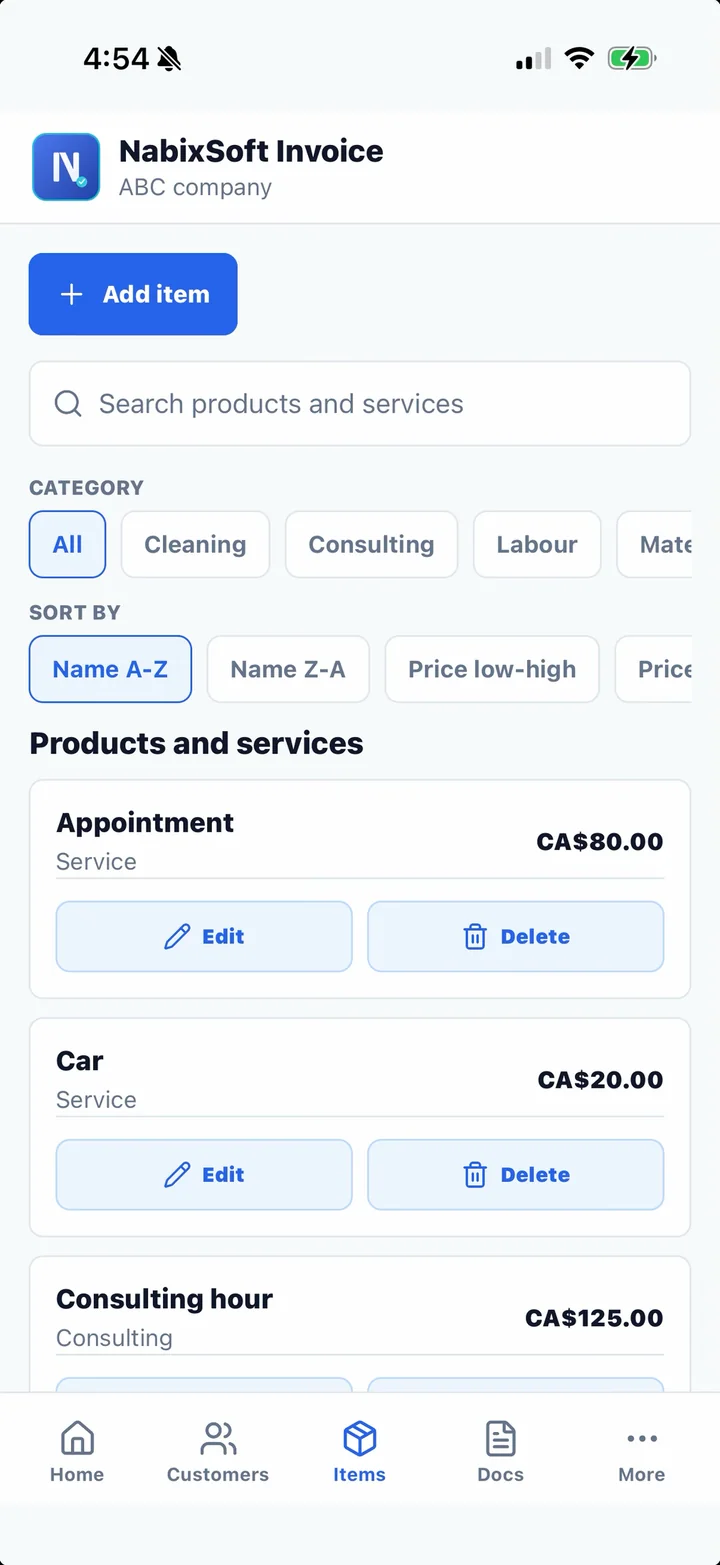
The app’s catalog can provide reusable service descriptions. Adjust the selected item to reflect the actual work instead of assuming a standard description covers every visit. A familiar catalog entry saves typing while the final invoice still needs a review of quantities, rates, and the tax settings you enter.
Compare the completed work with the estimate
If the visit started with an estimate, review what was proposed and what changed. An additional task should be understandable in the final document. Keep the distinction between an estimate and an invoice clear, especially when a customer has several documents from the same project.
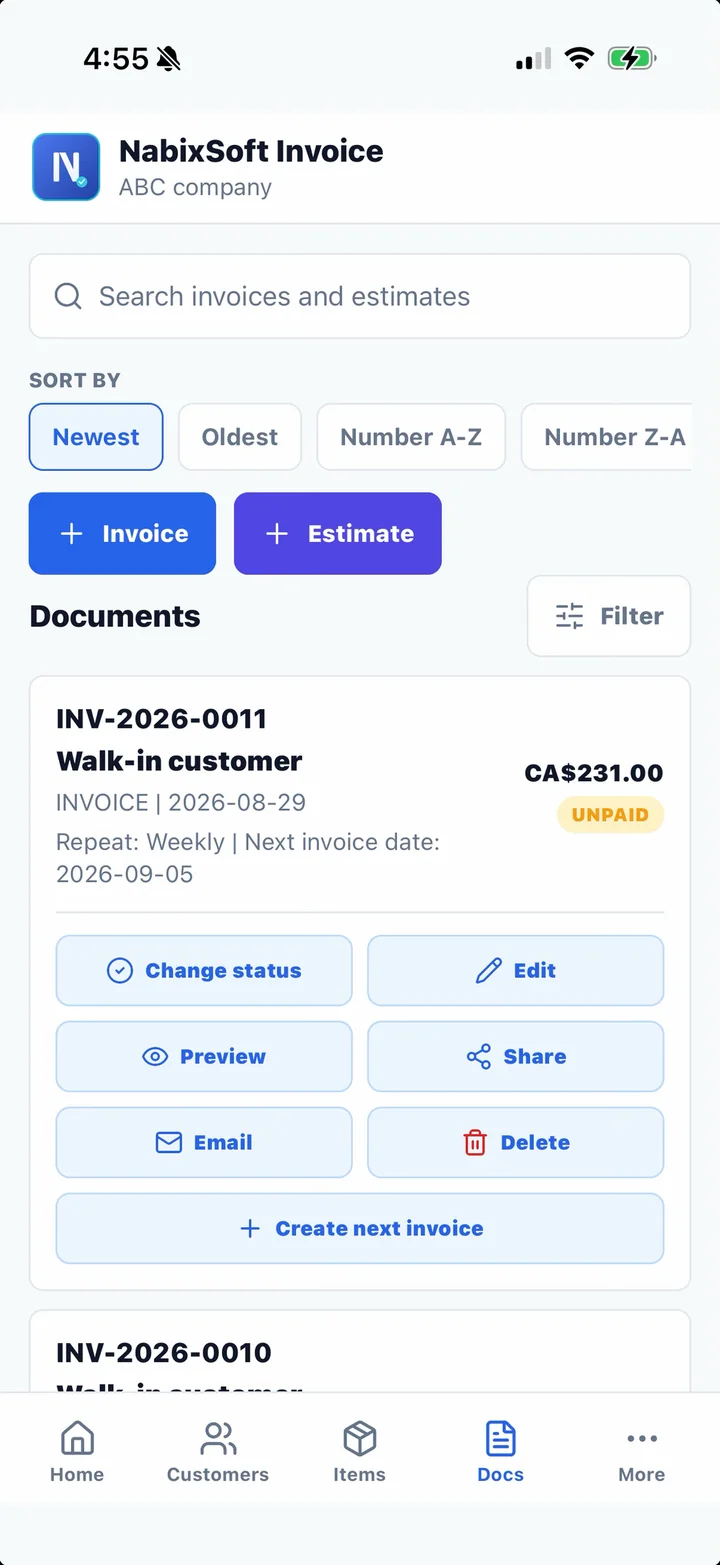
NabixSoft Invoice supports estimate-to-invoice conversion. Use the result as a starting point and check the customer, descriptions, quantities, and amounts before issuing it. The estimate-to-invoice guide explains a review sequence for this handoff.
Example: one visit with an agreed addition
Suppose a visit includes an inspection, one supplied component, and extra labour requested during the work. Review those as separate descriptions where that helps explain the charge. Confirm which customer record belongs to the visit and compare any original estimate with the completed work.
Before issuing the PDF, check that the extra labour is recognizable and that the component quantity uses the intended unit. A clear record lets a later question focus on a specific part of the invoice. The example describes a document review; it does not assume the app approved the additional work or managed the site visit.
Review the PDF before the details fade
Preview the document after entering the work. Read the descriptions as a customer would, then check the business details, document reference, amounts, and payment instructions. A professional template supports readability, while clear entries explain why the total is what it is.
If the connection is poor, prepare the invoice locally and complete any network-dependent delivery later. Email and external payment services have their own requirements. Check the sending tool when you need confirmation that the document left the device rather than assuming a share action completed delivery.
Give the customer a recognizable payment route
Include the payment information your business actually uses. The app supports supplied payment details such as a link, its generated QR code, and a payment note. Review the destination and wording before sharing them.
Payment processing happens through your chosen method. Check incoming funds through that method and keep the document record current. If a follow-up becomes necessary, identify the specific invoice and amount so the customer can connect the question to the work instead of searching through an unexplained balance.
Finish with a record you can find again
After delivery, review the document status and retain the records you need for future questions. Use recognizable customer and service descriptions so that a later search can locate the visit. The document search guide explains how consistent references help.
- Confirm the customer and completed work.
- Review materials, labour, and any scope change.
- Preview the PDF and payment instructions.
- Check delivery through the sending tool.
- Export a complete backup after important updates.
A short close-out routine keeps the final paperwork connected to the real visit without depending entirely on memory.
Common questions
Can I prepare the invoice without a connection at the site?
The mobile app supports core invoicing offline. Sending through a network-dependent service may still require a connection.
Can I reuse standard labour or service entries?
Yes. Use the products and services catalog, then review the selected description, quantity, and rate for the actual work.
Does this page describe contractor job scheduling?
It covers customer and invoice records. Use the product’s published features rather than assuming it includes a separate job-scheduling system.

A practical next step · Available now
NabixSoft Invoice
Bring this invoicing workflow into one mobile app with NabixSoft Invoice. Prepare invoices and estimates offline, save customer details, and share professional PDFs.
Available on Android, iPhone, and iPad. Check your regional store for current compatibility and pricing.