
NabixSoft Invoice · Practical guide
How to keep invoicing when your internet connection cannot keep up.
A client visit should not end with a pile of notes to type up later. An offline invoice app lets you prepare the paperwork where the work happens, even when the connection is unreliable. This guide explains what to prepare, what works locally, and what still depends on the tools you use to share documents.
What offline invoicing actually means
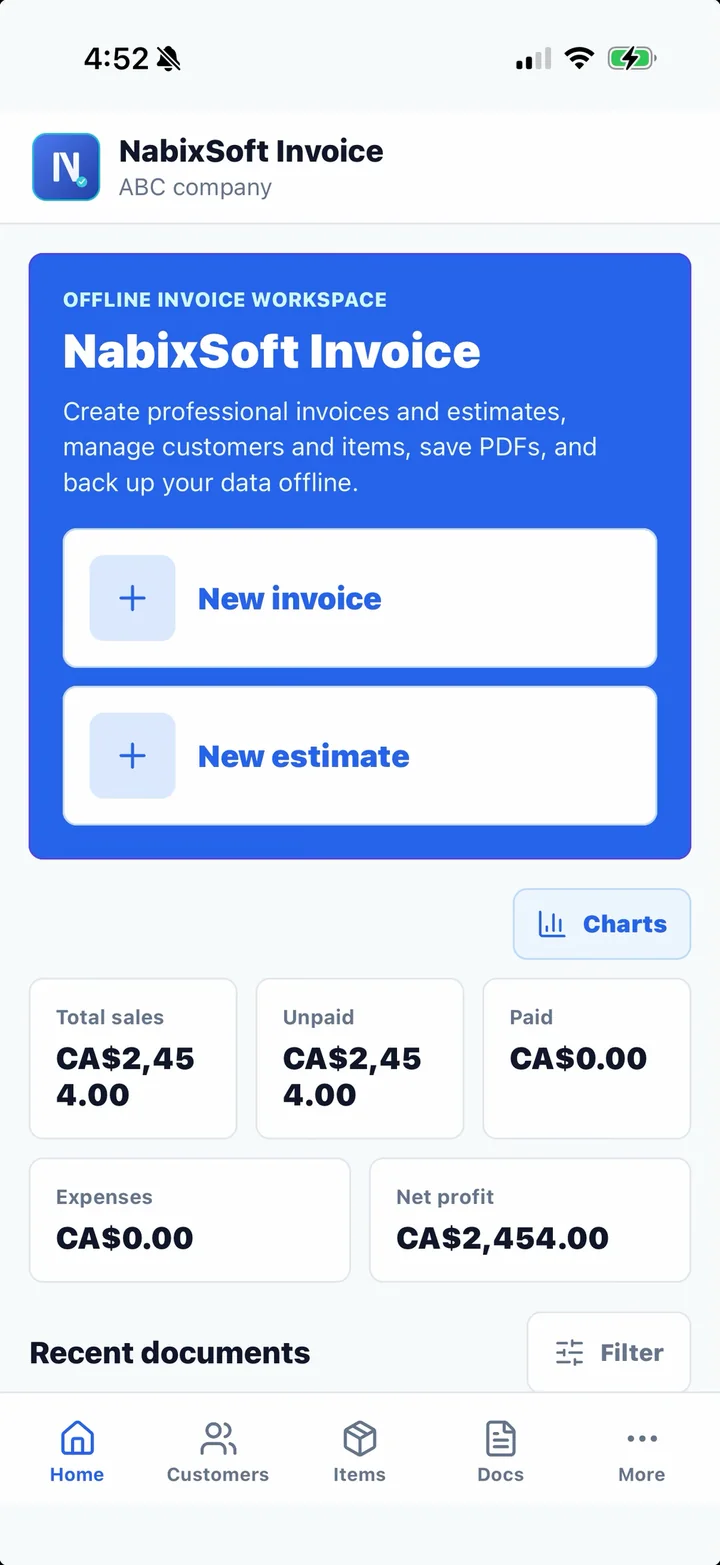
Offline invoicing means the core document workflow is available on your device without a live connection to a server. In NabixSoft Invoice, you can work with customer records, products or services, invoices, estimates, and locally generated PDFs. There is no required account for the mobile app’s core use.
That does not make every action on your phone independent of the internet. Sending an email, opening an external payment link, downloading an app update, or using a network-dependent sharing service can require a connection. Prepare the document locally, then use a suitable sharing method when it is available.
Prepare your business details before you head out
Start with the information you would otherwise repeat on each invoice. Add your business details, logo, and any signature you want to include. Review your currency and tax settings so that new documents begin with the settings you intend to use. Save frequently used customer details and build a small catalog of common products or services.
- Check the customer’s name, billing details, and contact information.
- Use clear service descriptions that a customer can recognize later.
- Review quantities, rates, and whether tax applies to each line.
- Enter payment instructions that match the way your business accepts payment.
A little preparation reduces typing at the end of a visit. It also makes it easier to notice an unusual charge rather than copying an old document without reviewing it.
A practical workflow after a customer visit
Imagine a repair visit that includes a call-out charge, a replacement part, and additional labour. Use separate lines for those items so the customer can understand the total. Review the saved customer, enter the work completed, and check the amounts before producing the PDF.
Preview the document on your device. Confirm that the business name, customer, document number, descriptions, and payment information belong to this job. If the visit began with an estimate, compare the final work with the original scope before turning it into an invoice. Changes should be understandable to the customer rather than hidden in a single unexplained total.
See the estimate-to-invoice workflow for a closer look at that handoff.
Local storage makes backups part of the workflow
Keeping records locally gives you access without a required backend account. It also means you need a recovery plan for a lost, replaced, or erased device. Export a complete backup regularly and keep a copy somewhere outside the app. Choose a location you can access again if that particular phone is unavailable.
A PDF is a useful customer-facing document, but it is not the same as a complete app backup. Keep the backup needed to restore your working records as well as any documents you choose to archive separately. Before changing phones, confirm that you have a recent export and understand the restore process.
Keep one reliable mobile workflow
The published mobile app is available for iOS and Android. Keep the device you use for everyday invoicing organized with current customer records, a useful service catalog, and the business details you want on each document. Review those saved details before issuing the next PDF.
At the end of a working period, check that completed work has the appropriate invoice and that documents you intended to send have reached the sending tool you use. Export a complete backup after important updates and keep the file somewhere you can access outside the app. A reliable local workflow combines available records, deliberate delivery, and a recovery copy you can find again.
Common questions
Can I prepare invoices without signing in?
Yes. The mobile app’s core invoicing workflow does not require an account.
Does offline storage automatically back up my records?
No. Export a backup and keep it outside the app. Local storage and a recoverable backup serve different purposes.
Can I email an invoice without internet?
You can prepare the invoice locally. Sending email depends on your email service and connection.

A practical next step · Available now
NabixSoft Invoice
Bring this invoicing workflow into one mobile app with NabixSoft Invoice. Prepare invoices and estimates offline, save customer details, and share professional PDFs.
Available on Android, iPhone, and iPad. Check your regional store for current compatibility and pricing.