
NabixSoft Invoice · Practical guide
From an agreed estimate to a clear, professional invoice.
An estimate and an invoice often contain similar line items, but they answer different questions. One explains proposed work and cost; the other requests payment for the work or stage being billed. A careful handoff helps you keep the paperwork connected without treating an early proposal as an unquestioned final total.
Start with the purpose of each document
Use an estimate to outline what you propose to do and the amount you expect to charge. It gives a customer information to review before the work proceeds. Use an invoice to communicate the amount you are asking the customer to pay for the relevant work or milestone. The similarity of their layout should not obscure the difference in purpose.
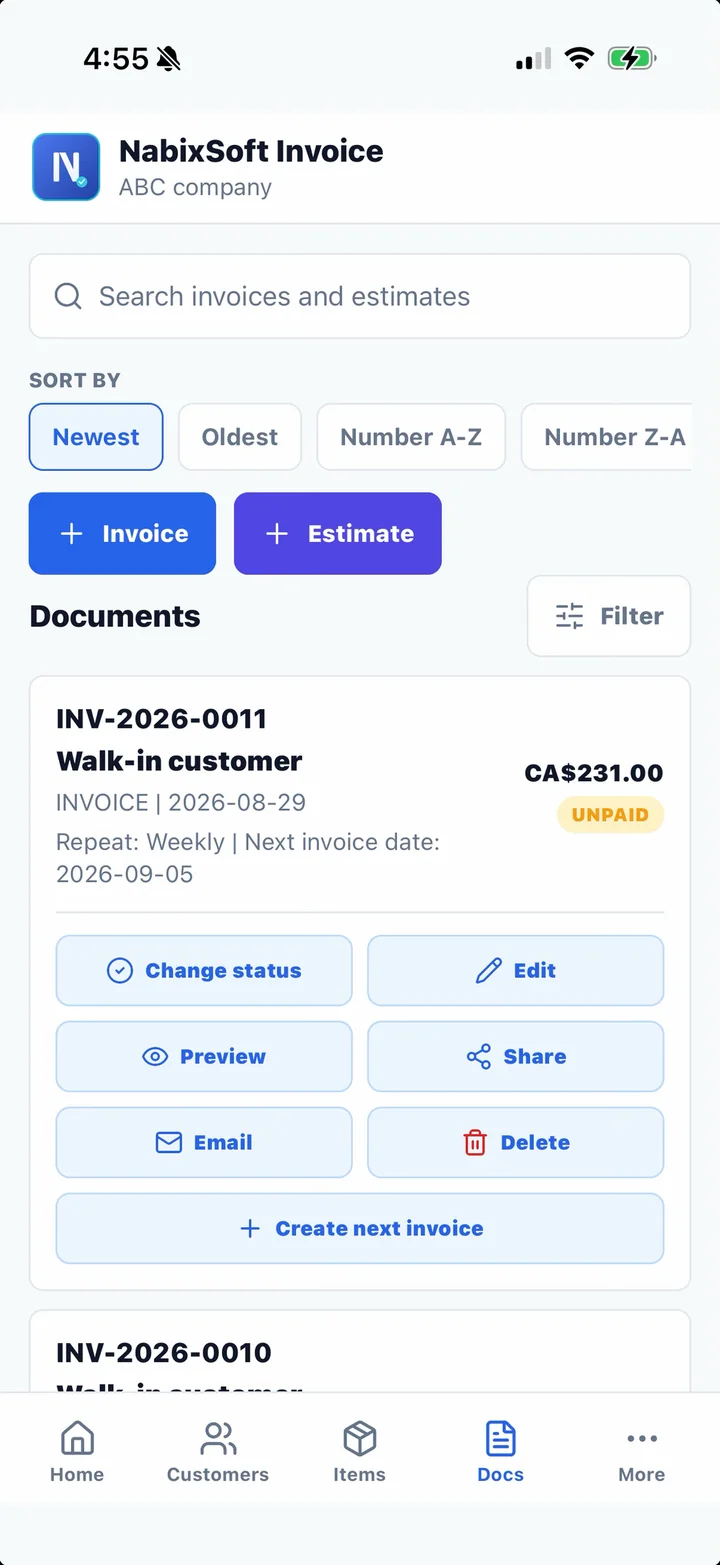
NabixSoft Invoice supports both document types and conversion from an estimate to an invoice. That connection reduces repeated entry, but it does not remove the need to review the information. The app cannot decide whether a customer agreed to a changed scope or whether the amount matches work actually completed.
Step 1: Describe the work in useful detail
Begin with the correct customer and a description that will still make sense several weeks later. Break the proposed work into recognizable parts. A service visit might separate inspection time, materials, and installation labour. A freelance project might separate preparation, delivery, and additional sessions.
Use quantities and units that fit the work. Two hours, one visit, and one fixed deliverable communicate different things. Review the rates and tax settings you entered before generating a PDF. Save or share the estimate through a method that makes it easy for the customer to review the details.
- Confirm the customer and billing information.
- Describe the scope using clear line items.
- Review quantities, rates, and any applicable tax settings.
- Check the PDF before you share it.
Step 2: Check what changed during the job
Suppose an initial repair estimate includes two hours of labour and one replacement part. During the work, the customer asks for a second repair. A useful final invoice should explain the additional work rather than silently replacing the first estimate’s total. Keep the original context and review the change with the customer.
Compare the work you are billing with the estimate line by line. Remove an item that was not supplied, adjust a quantity that changed, and make additional work understandable. These are practical recordkeeping steps; the document software itself does not verify an agreement or authorize extra work.
Step 3: Convert, then review the new invoice
Use the app’s estimate-to-invoice conversion to carry the relevant information into an invoice. Treat the result as a starting point for the final check. Confirm the customer, descriptions, quantities, amounts, and document details on the invoice you are about to issue.
Pay particular attention when an estimate has been waiting for some time. A saved product rate or business detail may have changed since it was prepared. Decide which information belongs to this job instead of assuming that the newest setting or the oldest document is automatically correct.
Once the entries are correct, preview the invoice PDF. NabixSoft Invoice includes PDF templates and business branding so the final document can be clear and consistent with your other records.
Step 4: Deliver the document with clear payment information
Share, email, print, or save the PDF using your device’s available options. If you work without a reliable connection, prepare the invoice locally and complete any network-dependent sending action when a connection is available. See the offline invoice guide for the distinction between preparing and delivering a document.
Review the payment instructions too. A payment note, a link you provide, or its generated QR code should direct the customer to the method you intend to use. NabixSoft Invoice does not process the payment. Check incoming funds through your payment method before treating an invoice as paid.
Step 5: Keep the working records and a recovery copy
After delivery, keep the document status accurate and retain the records you need to explain the transaction. An outstanding invoice should be easy to identify without reconstructing the job from memory. Customer statements can help you review more than one document for a customer.
Export a complete app backup as part of your routine, especially before changing devices or deleting data. A PDF is useful for reading and sharing the invoice; it is not a substitute for the backup used to restore working records. If you handle repeat client projects, the freelance invoicing guide explains how to organize customers and reusable service descriptions.
Common questions
Do I have to retype the estimate to create an invoice?
NabixSoft Invoice supports estimate-to-invoice conversion. Review the resulting invoice before issuing it.
Does conversion confirm that the customer approved the work?
No. Confirm the agreed work and any changes with your customer separately.
Can I make the documents while offline?
The mobile app supports core invoice and estimate work offline. Email delivery or external payment links can still need a connection.

A practical next step · Available now
NabixSoft Invoice
Bring this invoicing workflow into one mobile app with NabixSoft Invoice. Prepare invoices and estimates offline, save customer details, and share professional PDFs.
Available on Android, iPhone, and iPad. Check your regional store for current compatibility and pricing.