
NabixSoft Invoice · Practical guide
A clearer invoicing routine for freelancers and independent professionals.
Freelance work often combines client conversations, hands-on delivery, and administration in the same day. A useful invoice workflow connects those pieces: what the client agreed to, what you delivered, what you charged, and what remains outstanding. Here is a practical way to organize that work with NabixSoft Invoice.
Give each client a reliable starting point
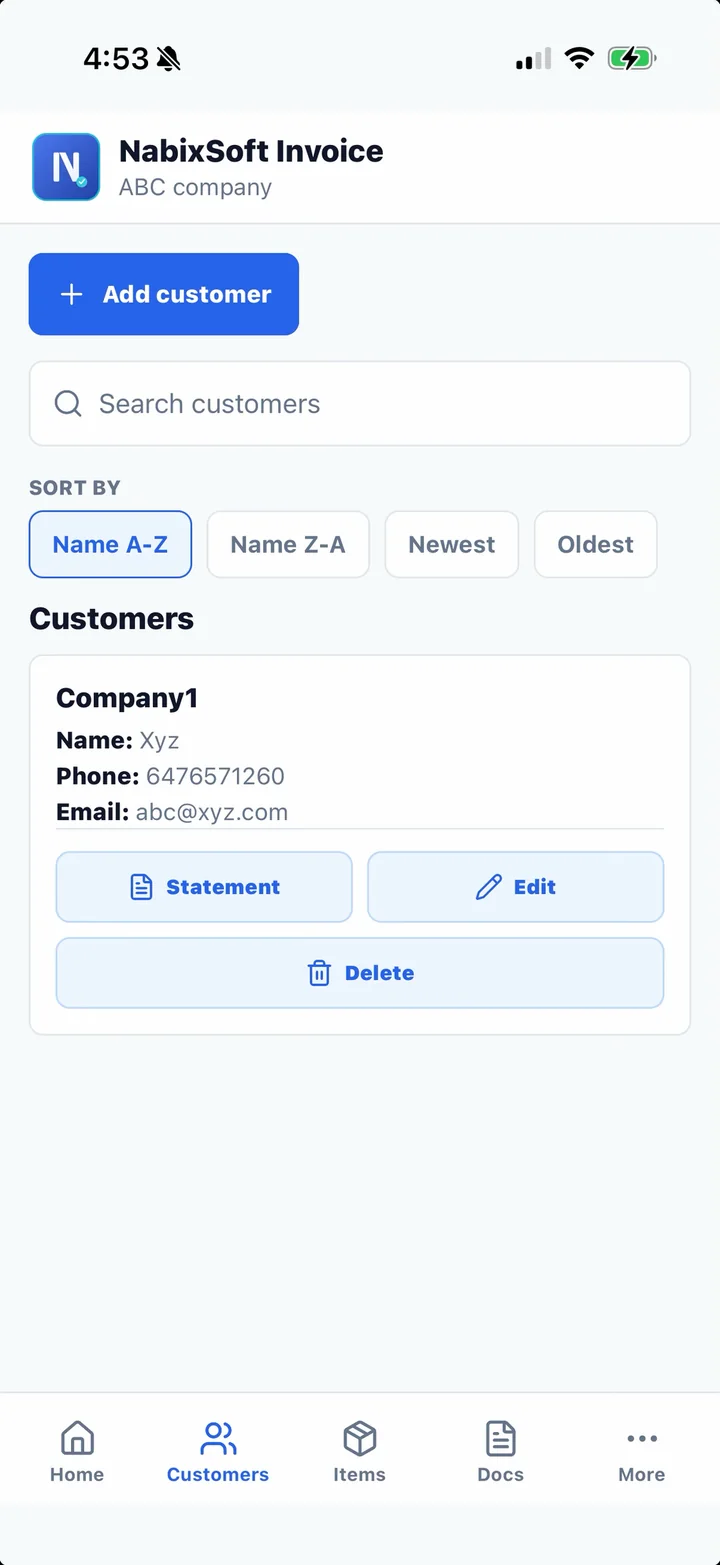
Save the customer information you expect to use again rather than retyping it for every document. A consistent record helps you connect estimates and invoices to the right person or business. Before issuing an invoice, confirm the billing name and the contact details your client actually uses.
This is especially useful when a person commissioning the work is different from the business receiving the invoice. A familiar contact name is not always the intended billing name. Resolve that detail during the project rather than after the PDF has already been sent.
The customer records in NabixSoft Invoice let you keep those details available for future work. Choose a naming convention you can search easily and avoid creating a second record simply because a client starts another project.
Create service items that explain the work
A small service catalog can save time while keeping descriptions consistent. For a designer, that might include a consultation, a fixed project milestone, and additional revision time. For a consultant, it could include discovery, analysis, and an agreed reporting session. These are examples of how to organize your descriptions, not preset services promised by the app.
Keep each line understandable on its own. “Additional editing, two hours” gives a reader more context than an unexplained extra charge. Use the catalog as a starting point, then adjust the description, quantity, and rate to match the work you actually completed.
- Use separate lines for different services or materials.
- Make units clear, such as hours, sessions, or a fixed deliverable.
- Review stored rates when the terms of a new project differ.
- Check tax settings against the information you intend to enter.
Connect the invoice to the agreed scope
An estimate helps describe proposed work before you begin. An invoice records the amount you are requesting after the relevant work or milestone. Keeping those purposes clear makes client communication easier. NabixSoft Invoice supports estimates and estimate-to-invoice conversion, so you do not have to start the final document from a blank screen.
For a fixed project, describe the deliverable or milestone rather than relying only on a project nickname. If the scope changes, discuss the change with the client and make the eventual document reflect it. The app organizes records; it does not establish agreement on your behalf.
Read the guide to moving from an estimate to an invoice for a complete review checklist.
Review the PDF as your client will read it
NabixSoft Invoice offers professional PDF templates and can include your business logo, signature, and payment information. Choose a style that keeps the details legible. A polished document should make the work and amount easier to understand, with the business identity supporting that explanation.
Before sharing, check the recipient, line items, totals, and payment instructions. Open the preview instead of assuming that a saved customer or reused item is still correct. For a repeat client, verify that the new document has its own relevant details and is not carrying over language from a previous project.
Keep payment instructions and payment status distinct
You can include payment details that your clients already use, including a payment link you provide and a QR code generated from that link. NabixSoft Invoice does not process payments. A customer opening a link is not the same as a confirmed payment reaching your business.
Review incoming payments through the method you actually use and keep the document status accurate. Customer statements and paid/unpaid views can help you review outstanding records without opening every invoice individually. Use those records to prepare a clear follow-up that identifies the document and amount rather than sending a vague reminder.
Make the routine easy to repeat
A short review at the end of a work week can be more useful than an occasional cleanup of months of records. Review outstanding invoices, make sure completed work has the appropriate document, and export a backup. If you use recurring invoices, check that the amount and frequency still match the service being provided.
Expense tracking can keep business spending visible alongside your invoicing activity, but an app record still depends on accurate entries. Keep the supporting documents you need for your own records. For work away from a reliable connection, see how offline invoicing works.
The mobile app is published for iOS and Android. Check the relevant store listing for supported devices and keep your working records protected with complete backups.
Common questions
Can I save customers and reuse service items?
Yes. NabixSoft Invoice includes customer records and a catalog of products or services. Review reused information before sending each document.
Can I customize the appearance of an invoice?
The app includes PDF templates and supports business details, a logo, and a signature.
Does a payment link mean the app collects money for me?
No. You provide the payment information; payment processing happens through the method you choose.

A practical next step · Available now
NabixSoft Invoice
Bring this invoicing workflow into one mobile app with NabixSoft Invoice. Prepare invoices and estimates offline, save customer details, and share professional PDFs.
Available on Android, iPhone, and iPad. Check your regional store for current compatibility and pricing.