
NabixSoft Invoice · Practical guide
How to create a professional invoice from your work records.
A professional invoice helps a customer recognize the work, understand the amount, and find the payment instructions. Start with accurate source information, then turn it into a readable document. This walkthrough explains a first-invoice routine you can use with NabixSoft Invoice on your phone.
Gather the details before opening a blank document
Collect the customer’s billing name, contact information, description of the work, and the quantities and rates you intend to charge. Check these against the arrangement and your work records. Guessing a date or a quantity to finish quickly creates a question you will have to answer later.
Keep the source information close enough to compare with the draft. For a service, that might mean a record of the completed visit. For supplied products, it might mean the agreed items and quantities. An invoice organizes this information; it does not independently establish what took place.
Identify your business and the intended customer
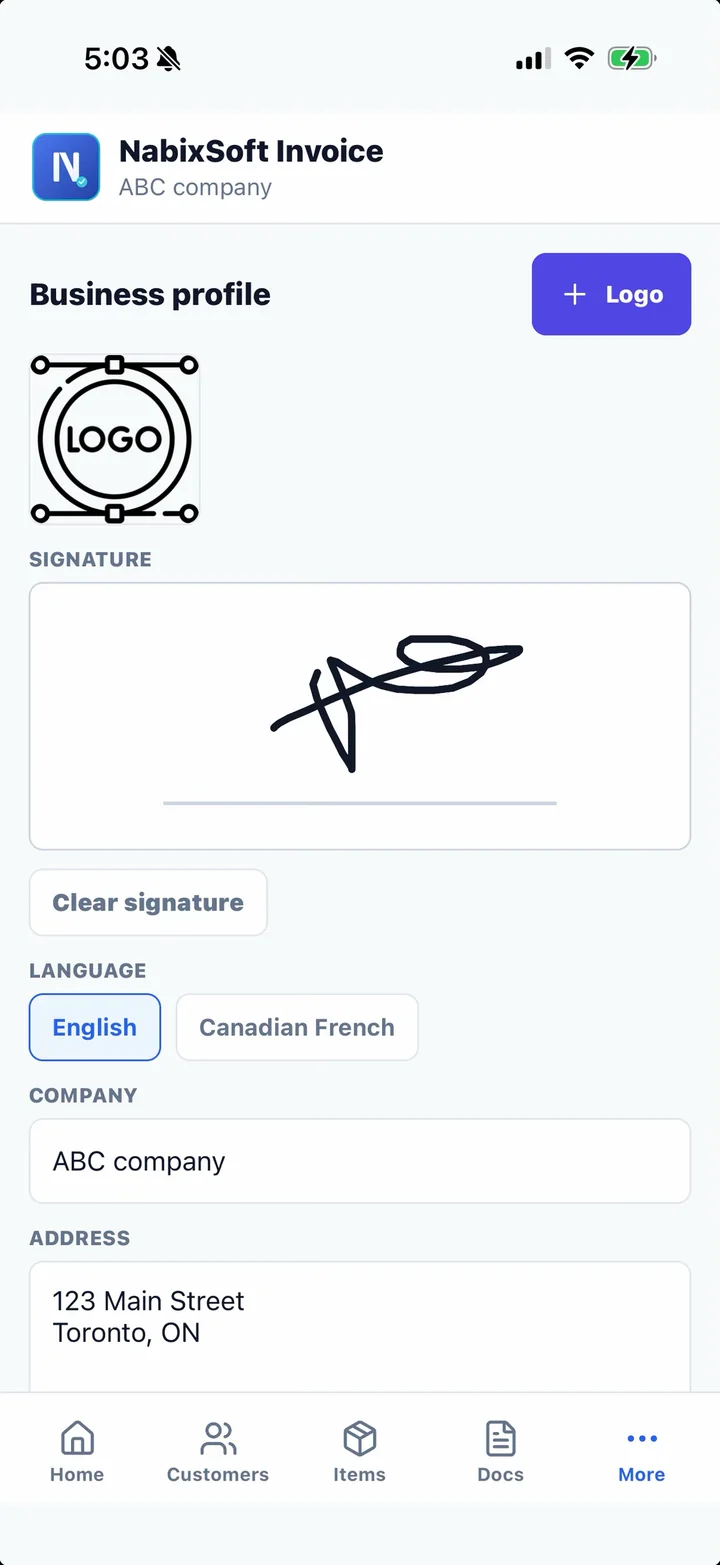
Review the business profile before creating the document. Use a recognizable business name and contact details. A logo can help a returning customer recognize the sender, but the text still needs to be readable and current. Preview the profile details in the chosen PDF template.
Select the correct saved customer or create a customer record. A trading name, a person’s name, and a billing organization can be different. Ask for clarification through your normal customer contact when the recipient is unclear, rather than creating several almost identical customer records.
Describe what each line represents
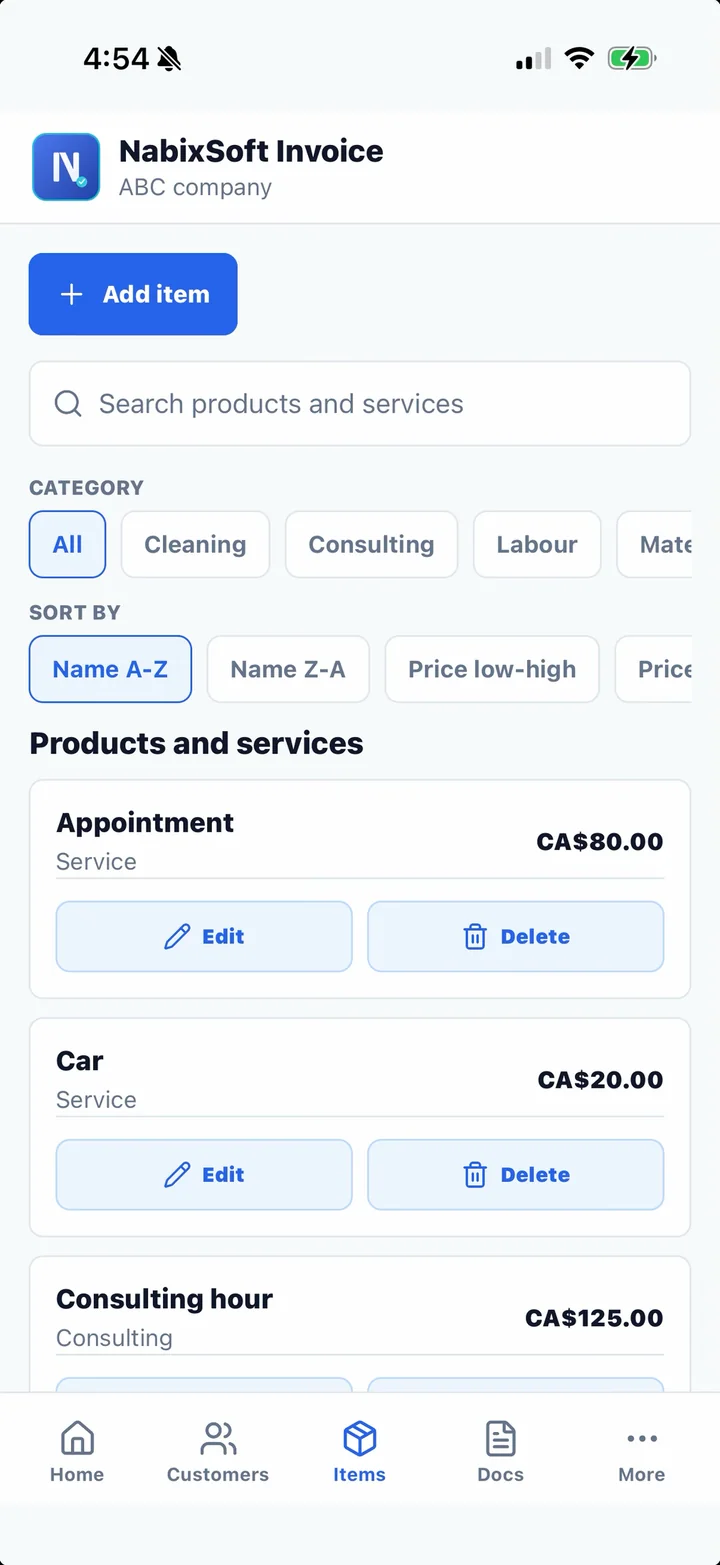
Use descriptions that explain the work without requiring the customer to remember a conversation. Pair each description with the intended unit, quantity, and rate. Separate different services when that makes the charge clearer, and avoid adding detail that belongs in a separate project report.
The products and services catalog can reduce repeated typing. Review a selected entry for this invoice: a reusable description does not verify the quantity performed or the price agreed with this particular customer.
Example: a two-part service visit
Imagine a small business billing for a setup visit and a later training session. The owner checks the completed work, selects the saved customer, and creates two clearly named service lines. Each line uses the quantity and rate from the agreement rather than an estimated recollection of the visit.
Before sharing, the owner notices that the PDF still contains an old contact number. Updating the business profile and reviewing the preview resolves that problem before the customer receives the invoice. The example shows why source records and a final document review serve different purposes.
Read the amounts as a connected calculation
Compare each line with your source records, then review the resulting totals and the settings you entered. A rate for one hour should not be combined with a quantity measured in days. Correct the underlying entry if the result is unexpected rather than changing another line merely to obtain a desired total.
Review any tax treatment against the requirements that apply to your situation. A polished template is a presentation tool, and this guide is a document workflow rather than advice about which tax or legal rules apply to your business.
Preview the complete PDF before sharing
Read the PDF from top to bottom: business, customer, reference, descriptions, amounts, and payment details. Check that the instructions point to the payment method you actually use. A QR code or link should be reviewed as carefully as the written amount.
Share the PDF using a suitable option on your device. Core preparation works offline, while email or another sending service may require a connection. Check that service for a sent record when you need to confirm dispatch; opening a share menu alone does not establish delivery.
Keep the working record available for questions
After sending, keep the invoice record current and retain the supporting information you need. A customer may ask about one line weeks later. Consistent descriptions and the document reference make that discussion easier to connect with the original work.
Export a complete backup after important updates and keep it somewhere accessible outside the app. A customer-facing PDF is useful for reading, while the complete backup supports recovery of working records. Continue with the pre-send checklist when the basic routine becomes familiar.
Common questions
What makes an invoice look professional?
Accurate information, recognizable descriptions, readable layout, and clear payment instructions matter more than decorative complexity.
Can I prepare it on my phone while offline?
NabixSoft Invoice supports core invoice preparation offline. Network-dependent sending options may need a connection.
Should I keep only the PDF?
Keep the readable PDF where useful and export complete app backups for recovery of your working records.

A practical next step · Available now
NabixSoft Invoice
Bring this invoicing workflow into one mobile app with NabixSoft Invoice. Prepare invoices and estimates offline, save customer details, and share professional PDFs.
Available on Android, iPhone, and iPad. Check your regional store for current compatibility and pricing.