
NabixSoft Invoice · Practical guide
How to create an invoice on iPhone without losing the details.
An iPhone can help you prepare an invoice while the customer visit is still fresh. The small screen makes a deliberate sequence useful: identify the customer, enter the work, check the complete PDF, and finish with delivery and record protection. NabixSoft Invoice supports that preparation offline.
Prepare your business details before the first visit
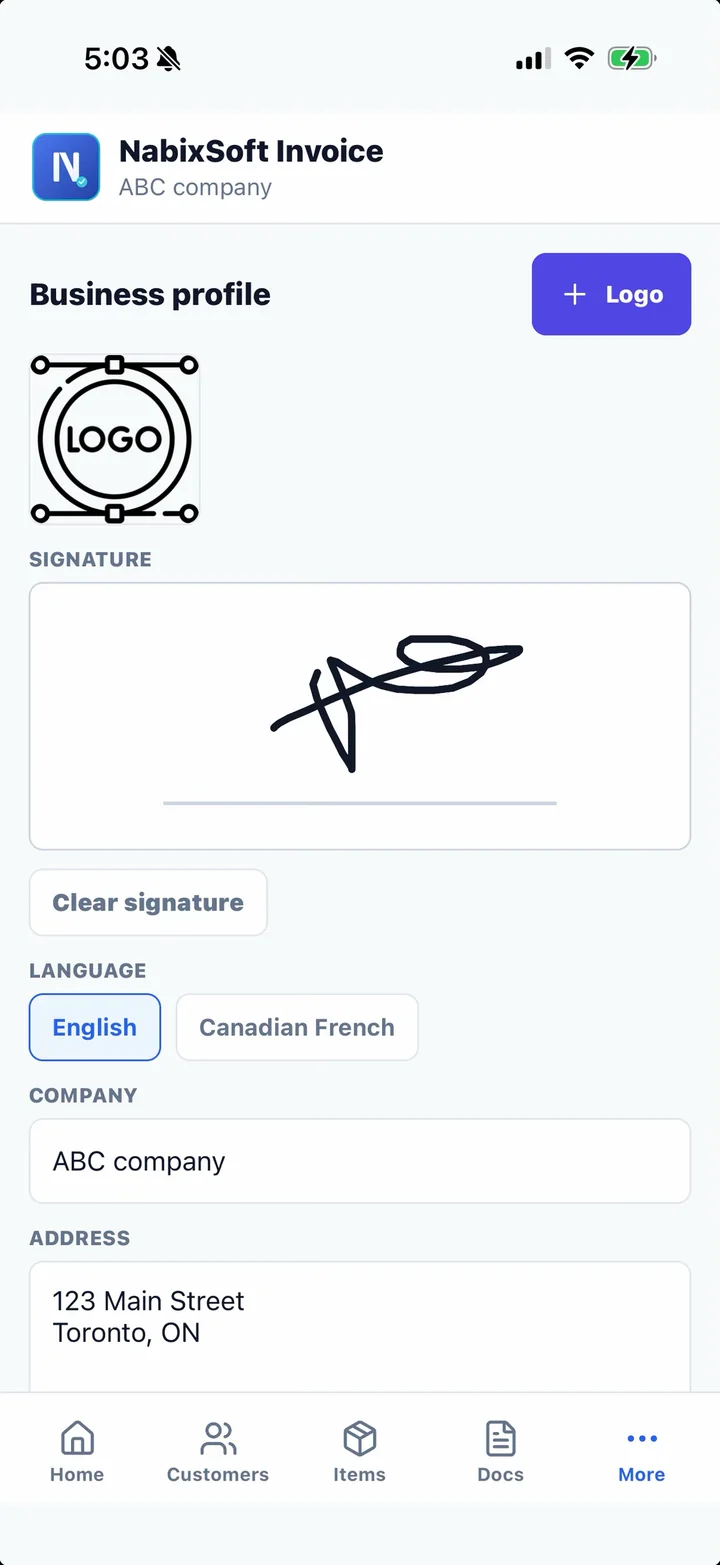
Review your business profile and the information that appears on documents. Enter a recognizable name and current contact details, then check the chosen template. Set this up when you have time to inspect the result instead of rushing through it at a customer’s door.
Keep your phone ready for the workflow: available storage, a suitable PDF-sharing option, and access to a backup destination. Those device resources are separate from the invoice data. A saved document is useful only if you can later open, share, and recover the records you need.
Choose the customer before entering the charge
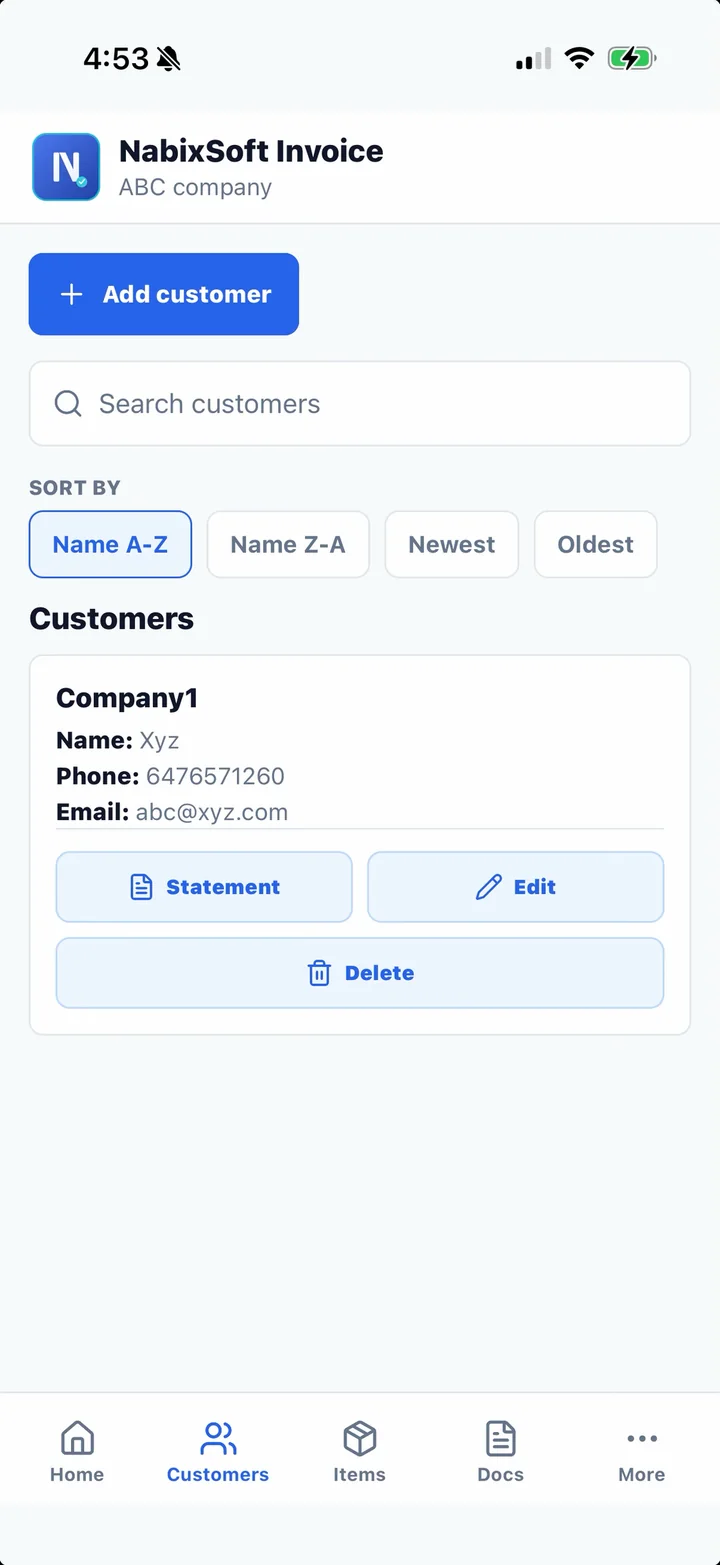
Search the saved customer list first. Selecting an existing record avoids creating near duplicates with slightly different names. Read the contact details and confirm which billing organization belongs on this invoice rather than choosing the first familiar-looking result.
If this is a new customer, enter the details carefully and review them before proceeding. A short pause here can prevent a complete invoice from being shared with the wrong person. See the customer setup guide for a fuller preparation routine.
Enter one line at a time and check the unit
Use saved products and services when appropriate, then review the selected description, quantity, and rate. On a phone, it is easy to focus on the number keypad and overlook whether a line describes hours, pieces, or a fixed service. Read the full line before moving on.
Add enough context for the customer to recognize the work. Avoid placing long unrelated notes in a line simply because the phone is nearby. Keep detailed work records separately when needed and let the invoice explain the charge clearly.
Example: paperwork after a home visit
A fictional repairer finishes a visit where reception is unreliable. On the iPhone, the repairer selects the saved customer and records the service and supplied part while the details are fresh. The PDF preview reveals that the part quantity was entered twice, so it is corrected before sharing.
Once connected, the repairer attaches the PDF to an email and checks the sent record. A later complete backup protects the working records; the emailed attachment remains the customer-facing copy.
Use the PDF preview to review the whole document
Open the PDF preview and inspect the customer, business details, reference, descriptions, and totals. Read long descriptions for clarity rather than judging the document only from the first screenful. The exported layout can reveal a problem that was less obvious in separate entry fields.
Review payment instructions as part of the same pass. A link or QR code points to the method you supply; the app does not become the payment processor. Confirm the destination and retain the payment records from the service you actually use.
Protect the local records before changing devices
Export a complete backup after important updates and before replacing or resetting the iPhone. Save it somewhere you can access independently of the app. Do not assume that installing the app on another device automatically transfers the existing records.
Keep the original device and records intact until you have followed the supported restore process and checked the result. A shared PDF is a readable document, while a complete backup serves the recovery workflow. The backup and device transfer guide explains the distinction.
Common questions
Does Invoice work offline on iPhone?
Core invoice preparation works offline. Email, external payment destinations, and other network-dependent services may require a connection.
Is a PDF attachment a complete backup?
No. Use the app’s complete backup export for its restore workflow.
Where can I find the official iPhone listing?
Use the App Store button below for current availability, compatibility, and pricing in your region.

A practical next step · Available now
NabixSoft Invoice
Bring this invoicing workflow into one mobile app with NabixSoft Invoice. Prepare invoices and estimates offline, save customer details, and share professional PDFs.
Available on Android, iPhone, and iPad. Check your regional store for current compatibility and pricing.