
NabixSoft Invoice · Practical guide
Create an invoice on Android with a repeatable mobile routine.
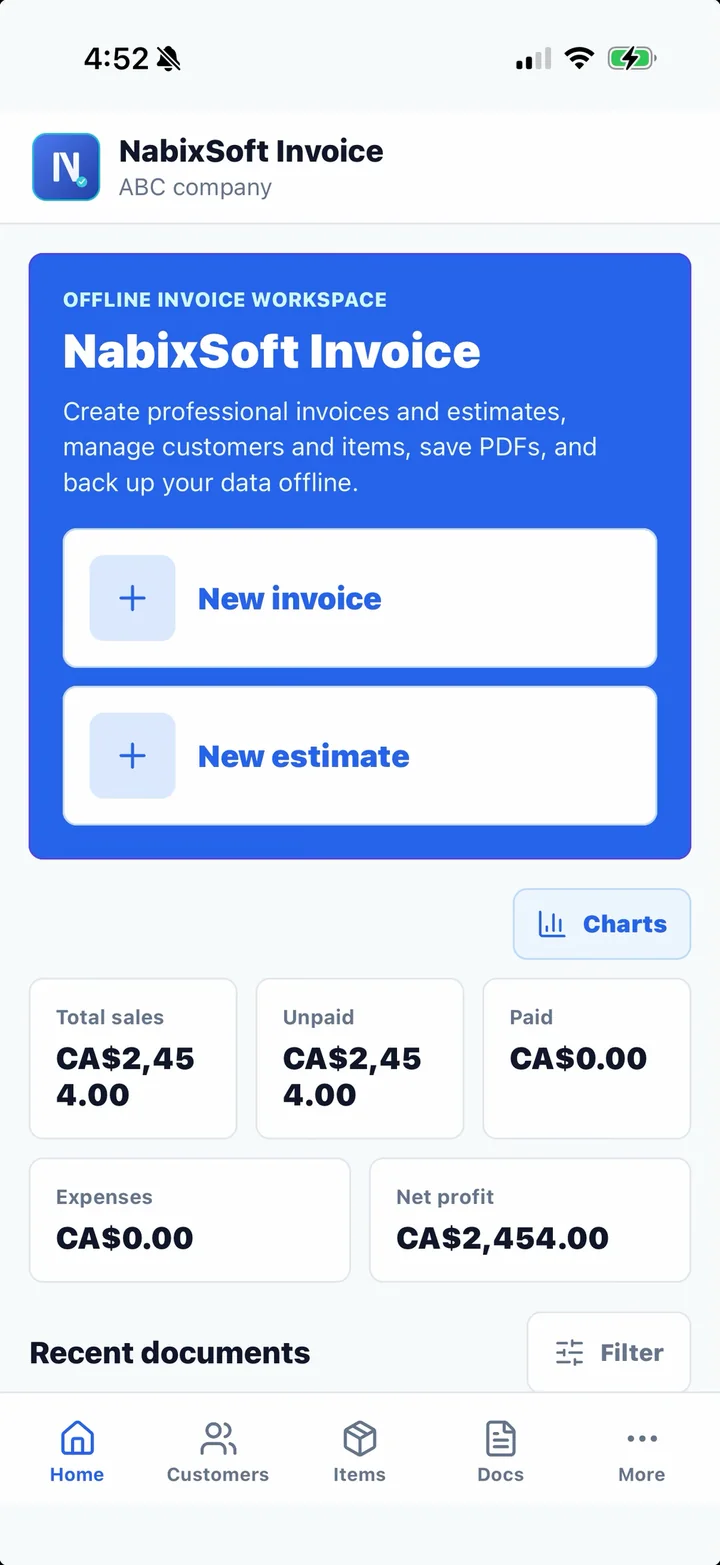
A useful Android invoice workflow starts before you tap Share. Set up accurate business and customer records, describe the charge, and review the finished PDF. NabixSoft Invoice supports invoices and estimates offline, with a published Google Play listing for its Android app.
Start from the official listing and current business details
Use the Google Play link below to check current compatibility and the information shown for your device. After opening the app, review the business details used on documents. A recognizable business name and current contact information help a customer understand who issued the invoice.
Choose a PDF template and preview the presentation before relying on it for a live document. A template can organize information attractively, but it cannot verify that an address or payment instruction is still correct. Keep those entries current as your business changes.
Reuse customers and services with a quick review
Search for an existing customer before adding a new one. Check the selected billing name and contact details, especially when you work for several people at the same organization. Consistent customer records make a later document search more useful.
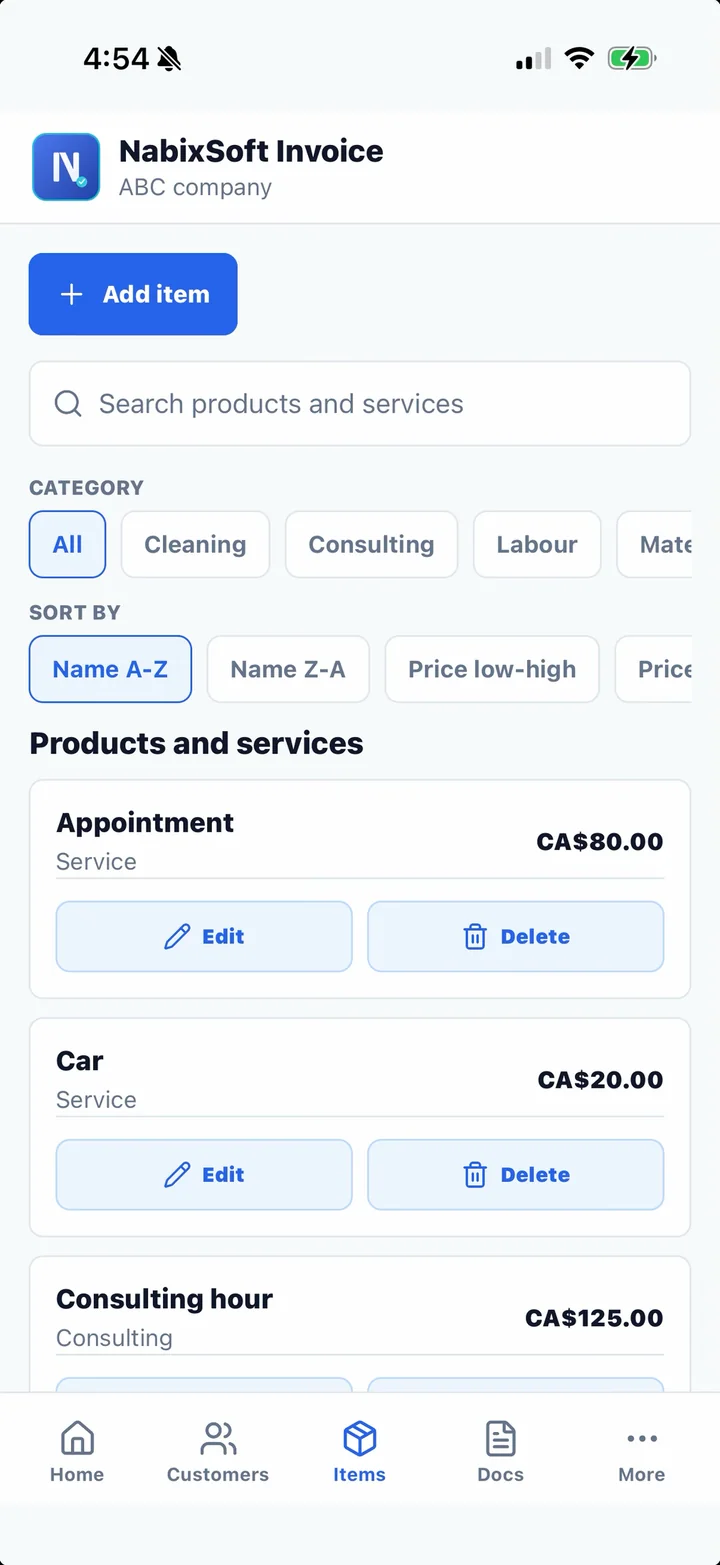
Use catalog items for recurring services or products, then check their descriptions and rates for the current work. Selecting a saved entry should save typing, while the invoice still reflects the actual quantity and arrangement. The catalog guide explains this balance.
Enter the work in a sequence you can check
Work through the document deliberately: customer, line descriptions, quantities, rates, totals, and payment instructions. Read the unit with the quantity. A small touchscreen can make a mistyped number difficult to notice if you review only the total.
Compare the entries with your work notes or other source records before leaving the draft. If the invoice started from an estimate, review the conversion for changed scope. An older price or removed task should not survive merely because it was convenient to copy.
Example: an Android invoice prepared between visits
A fictional cleaner finishes two separate appointments. Between visits, the owner selects the first customer on an Android phone and enters that visit’s services. Reviewing the PDF shows a description copied from a different job, which is corrected before the file is shared.
The owner completes email delivery after reconnecting and checks the attachment in the sending service. The second visit is entered as its own document, keeping each customer’s work and paperwork connected.
Check the PDF rather than only the entry fields
Preview the finished document and read it as the recipient would. Confirm the billing name, reference, descriptions, amounts, and business contact information. Choose readability when deciding between templates, particularly when your service descriptions run longer than a few words.
Check your supplied payment link, QR code, and notes where used. Those details direct the customer to your selected payment method. Verify incoming payments through that method and keep the invoice record current rather than treating document creation as evidence of payment.
Complete the Android sharing destination’s steps
Sharing options depend on the apps and services available on your Android device. Select a suitable destination, confirm that the PDF is attached, and complete the destination’s sending process. Opening the device’s share chooser is an intermediate step rather than a delivery confirmation.
Core document preparation can happen offline, while sending an email generally needs a connection. If you encounter a failed or queued message, inspect it in the sending service before sending duplicates. The PDF sharing guide covers a practical dispatch check.
Make recovery part of the mobile workflow
Export a complete backup after important entries and before resetting, replacing, or removing the app from the device. Keep a copy in a location you can access again. Local storage makes offline work possible; it does not by itself create a shared database across phones.
Retain the original records until you have followed the supported restore workflow and checked the information you need. Use support if a step is unclear. Protecting the working records is a separate task from saving a PDF for a customer.
Common questions
Is there a Google Play listing for NabixSoft Invoice?
Yes. The Google Play button below links to the published Invoice app listing.
Will every Android device show identical sharing options?
Sharing destinations depend on the device and its installed apps. Complete the steps in your selected destination.
Does installing the app on another phone transfer my data?
Do not assume automatic transfer. Use the supported complete backup and restore workflow for local records.

A practical next step · Available now
NabixSoft Invoice
Bring this invoicing workflow into one mobile app with NabixSoft Invoice. Prepare invoices and estimates offline, save customer details, and share professional PDFs.
Available on Android, iPhone, and iPad. Check your regional store for current compatibility and pricing.