
NabixSoft Invoice · Practical guide
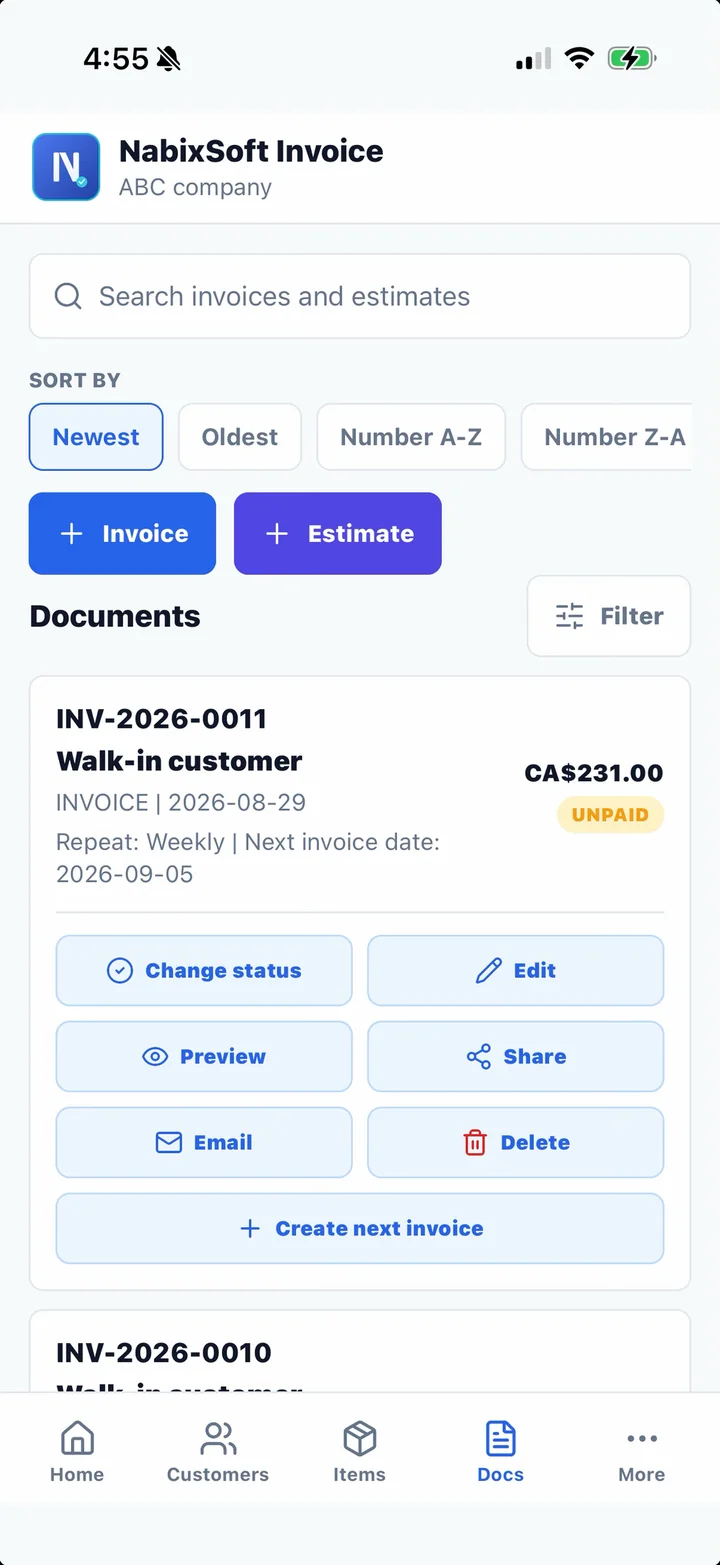
Share an invoice PDF and check that the sending step is complete.
Creating a PDF, opening a sharing option, and sending a message are different steps. A clear dispatch routine helps the customer receive the intended invoice and helps you understand what happened if delivery is questioned. NabixSoft Invoice prepares professional PDFs for sharing through suitable options on your device.
Start with the invoice you intend to send
Find the correct working record and review its customer, descriptions, quantities, amounts, and payment instructions. Preview the PDF after the final edits. Sharing an older exported file can undo the benefit of checking the current invoice in the app.
Use the document reference and customer details to distinguish similar invoices. When a customer asks for another copy, locate the existing record rather than creating a fresh billing event. The document reference guide explains how references support this check.
Check who should receive the attachment
Confirm the recipient through your current customer information. A person who arranged the work may forward billing to someone else, and an older email thread may contain an outdated address. Check the actual address selected by the sending tool before dispatch.
Write a concise message identifying the business, invoice reference, and relevant work. Avoid adding unnecessary customer information. The attachment should be understandable on its own, while the message explains why the recipient is receiving it.
Inspect the selected PDF in the sending destination
After choosing a sharing destination, confirm that the correct PDF is attached. If the sending tool lets you inspect the attachment, compare its customer and reference with the intended document. A familiar file name alone may not distinguish an old local export from a current one.
Review the message and attachment together. If several invoices need to be sent, handle them deliberately so one customer’s PDF is not attached to another customer’s message. The app prepares the document, while the sending destination controls its own addressing and dispatch steps.
Example: a message waits for a connection
A fictional contractor prepares an invoice at a site with no reliable internet and opens it in an email draft. Later, the customer says no invoice arrived. The contractor checks the sending app and finds the message still queued rather than creating a second invoice.
Once connected, the contractor confirms the intended recipient and PDF, completes sending, and checks the sent record. The document reference stays the same because the task was to deliver the existing invoice.
Separate offline preparation from network delivery
NabixSoft Invoice supports core preparation offline. Email and other internet-dependent sharing services may need a connection. A prepared attachment or open draft does not establish that a message has left the device.
If a message is queued, inspect its status in the sending service when connected again. Avoid repeatedly creating new messages without checking the existing attempt. Device permissions, storage, and the chosen destination can also affect the workflow, so read the tool’s actual feedback.
Use the sending service’s records for dispatch checks
When you need to confirm sending, inspect the relevant sent or queued record in that service. Check the recipient, attachment, and time. A sent record can help explain what you dispatched, but it does not guarantee that a person opened or understood the invoice.
If the customer reports a problem, verify the details and use your normal communication channel to resolve it. Do not assume the invoice app provides automatic email delivery tracking or customer read receipts; use only capabilities confirmed by the tools involved.
Keep copies and working records for their separate purposes
A retained PDF lets you read what was shared, and the app record supports ongoing document review. Keep their relationship understandable when saving files locally. If you revise a document, review the current version and make the communication clear for the customer.
Export a complete backup to protect the local working records. A sent attachment does not replace that recovery file. Continue with customer statements and unpaid invoices when reviewing payment status after dispatch.
Common questions
Does tapping Share prove that an invoice was sent?
No. Complete the chosen destination’s steps and inspect that service’s sent or queued record when needed.
Can I email an invoice without internet?
You can prepare the document offline, but completing an internet-dependent email delivery requires a suitable connection.
Does the invoice app guarantee that a customer opened the PDF?
Do not assume automatic read receipts or delivery tracking. Use capabilities confirmed by your selected sending service.

A practical next step · Available now
NabixSoft Invoice
Bring this invoicing workflow into one mobile app with NabixSoft Invoice. Prepare invoices and estimates offline, save customer details, and share professional PDFs.
Available on Android, iPhone, and iPad. Check your regional store for current compatibility and pricing.