
NabixSoft Invoice · Practical guide
Help clients recognize the creative work behind your invoice.
A creative project may involve discovery, production, revisions, and delivery. The invoice should connect the charge with the stage the client recognizes. NabixSoft Invoice provides customer records, a service catalog, estimates, and branded PDFs that can support that document workflow without a required mobile account.
Give the document a recognizable project context
Choose the correct customer and confirm the intended billing name. A client’s trading name, the individual commissioning the project, and the organization handling payment may differ. Clear customer information helps the document make sense when it is forwarded.
Use a concise project or deliverable description that the recipient can identify. Avoid relying entirely on an internal file code or design nickname. Keep any sensitive project detail in the separate communication or project files you use, while the invoice explains the service being charged.
Describe deliverables in the unit you actually bill
A fixed design package, an agreed milestone, and an additional revision session may use different pricing arrangements. Pair each quantity and rate with the unit you intend. The invoice should explain the arrangement rather than creating a breakdown that was never part of the work.
A catalog of common service items can help you start with consistent wording. Review each item for the project and adjust descriptions that need context. The catalog guide shows how reusable entries can save preparation time while preserving a deliberate review.
Make revisions and scope changes visible
Compare the work being billed with the estimate or agreed project stage. If additional work is included, explain it clearly instead of hiding a change inside a total that appears familiar. Keep the distinction between the proposed estimate and issued invoice understandable.
NabixSoft Invoice supports estimate-to-invoice conversion. Review the customer, descriptions, quantities, and amounts after conversion. The app does not establish agreement on extra revisions or deliverables for you, so maintain that communication through the process you use with the client.
Example: a design stage and an additional revision
Suppose a project includes an agreed design stage followed by an additional revision session. Review how the invoice describes each part and whether the quantity and rate match the arrangement you intend to bill. Keep the project context concise enough for the billing contact to recognize.
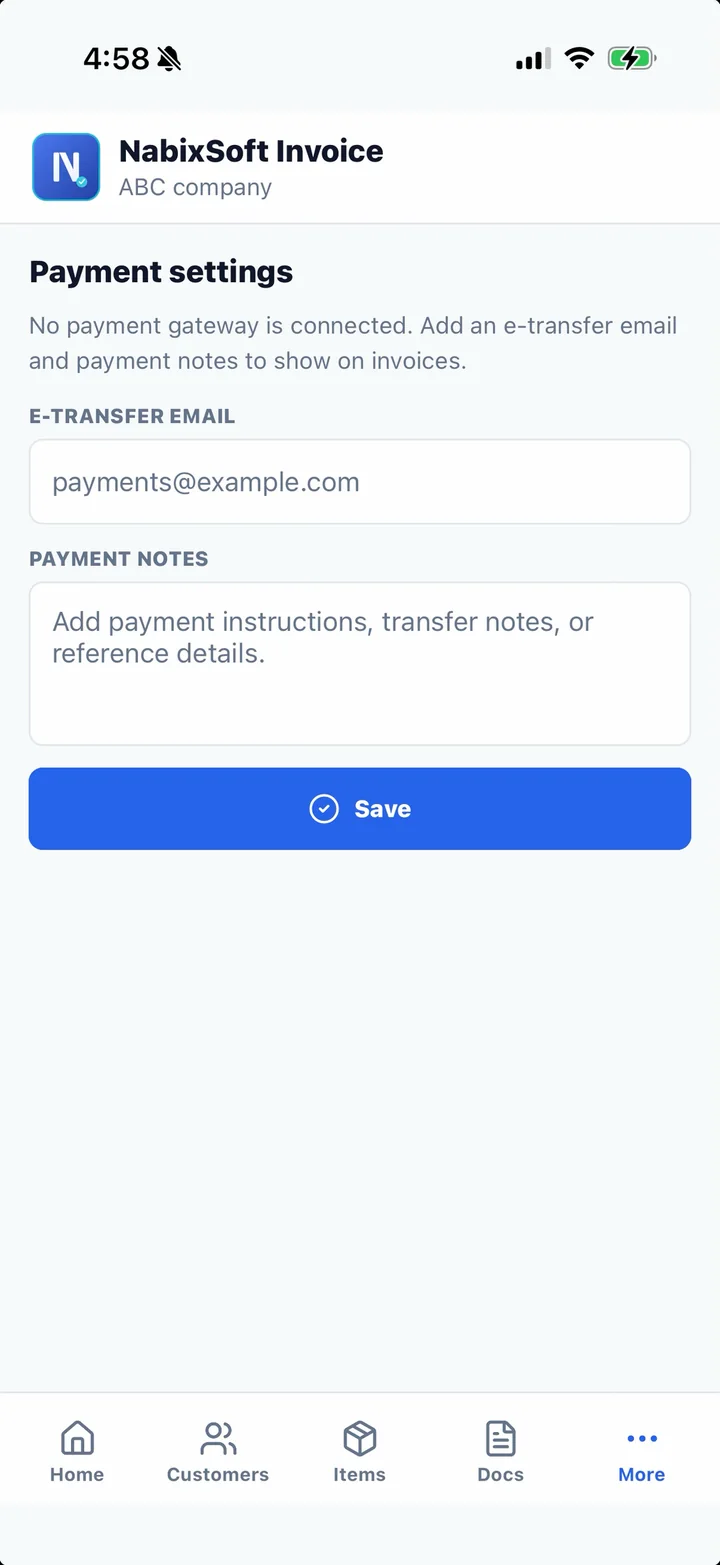
Preview the branded PDF with the actual descriptions, since a longer line can change how the document reads. Confirm the payment destination before sharing it. The example illustrates record preparation and review; the agreement about revisions remains part of the communication you maintain with the client.
Use branding without obscuring the document
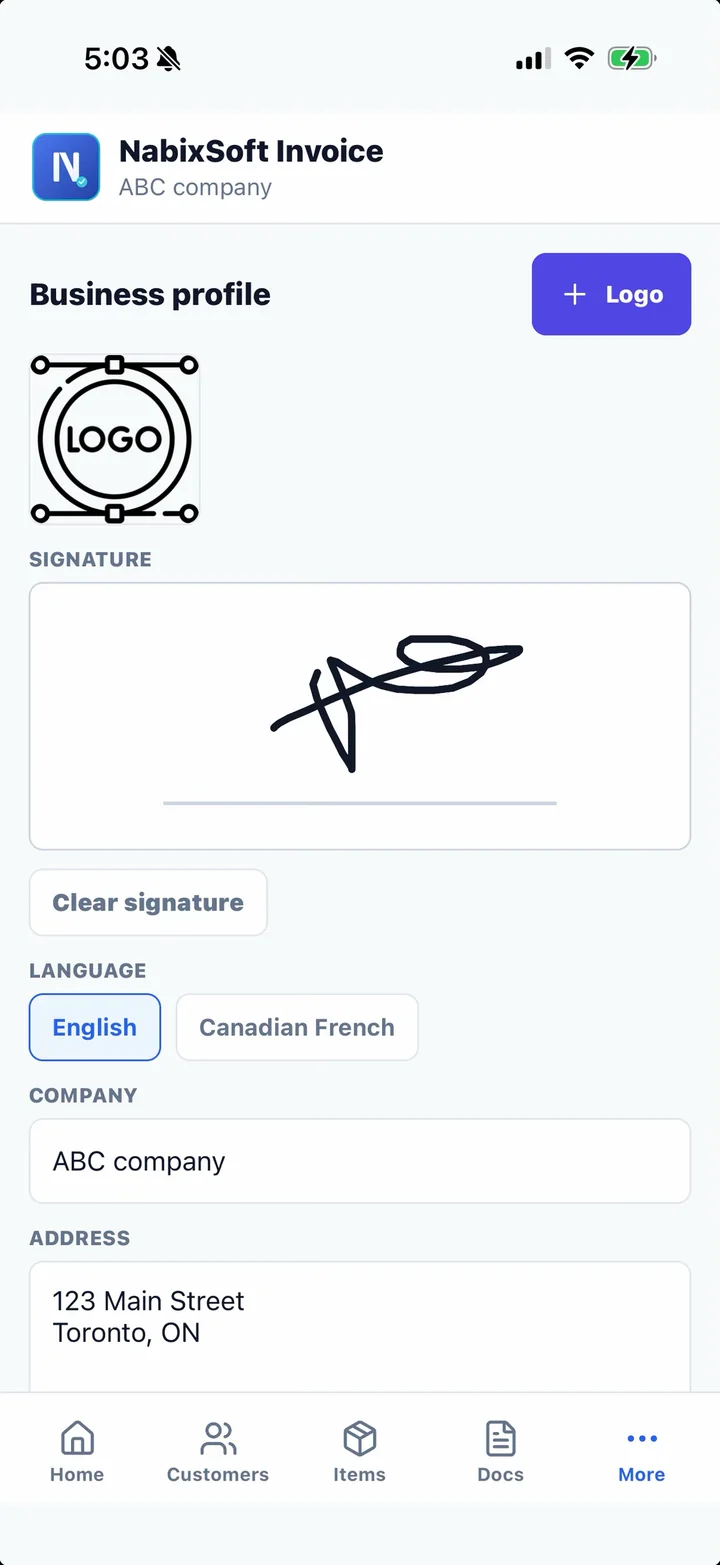
The app supports a logo, signature, and business details on PDF documents. Choose a template that suits your presentation and leaves the line items readable. A visual identity should make the invoice recognizable while supporting the practical information a client needs.
Inspect the preview at a realistic reading size. Confirm that the logo is clear and that the business and customer details are current. The business-profile guide covers the saved details that can carry into your documents.
Keep repeat-client work easy to revisit
Use a consistent customer record for future projects and descriptions that make earlier documents distinguishable. A short regular review of issued and outstanding invoices can reveal a missing entry or a question needing follow-up.
- Identify the project stage.
- Check deliverables and additional work.
- Review the estimate-to-invoice handoff.
- Preview branding and payment information.
- Keep a complete backup outside the app.
The freelance invoicing guide connects this project-focused routine with customer records, expenses, and regular document review. A recoverable history is useful long after the final creative files have been delivered.
Common questions
Can I invoice a milestone instead of hours?
Use descriptions, quantities, and rates that match the stage or deliverable you intend to bill.
Can the PDF show my business logo?
Yes. Business details, a logo, and a signature are supported document-branding features.
Does converting an estimate approve extra revisions?
No. Review the work and maintain agreement with the client separately from the document conversion.

A practical next step · Available now
NabixSoft Invoice
Bring this invoicing workflow into one mobile app with NabixSoft Invoice. Prepare invoices and estimates offline, save customer details, and share professional PDFs.
Available on Android, iPhone, and iPad. Check your regional store for current compatibility and pricing.