
NabixSoft Invoice · Practical guide
Make invoice records easier to find when a customer asks.
A useful record is one you can locate again. A customer may remember a date, part of a business name, or an amount while you remember the work itself. NabixSoft Invoice includes global search and document-list tools that become more useful when your entries use consistent, recognizable references.
Write records with a later search in mind
Use customer and item names that you can recognize without remembering the exact circumstances of the visit. A consistent business name is easier to search than several versions created for different projects. Clear service descriptions also help you distinguish documents for a repeat client.
Before creating another customer or catalog item, check whether an appropriate record already exists. Accidental duplicates can make later reviews confusing because related information appears under different names. The search workflow begins with the quality of the entries you maintain.
Start with the detail you know
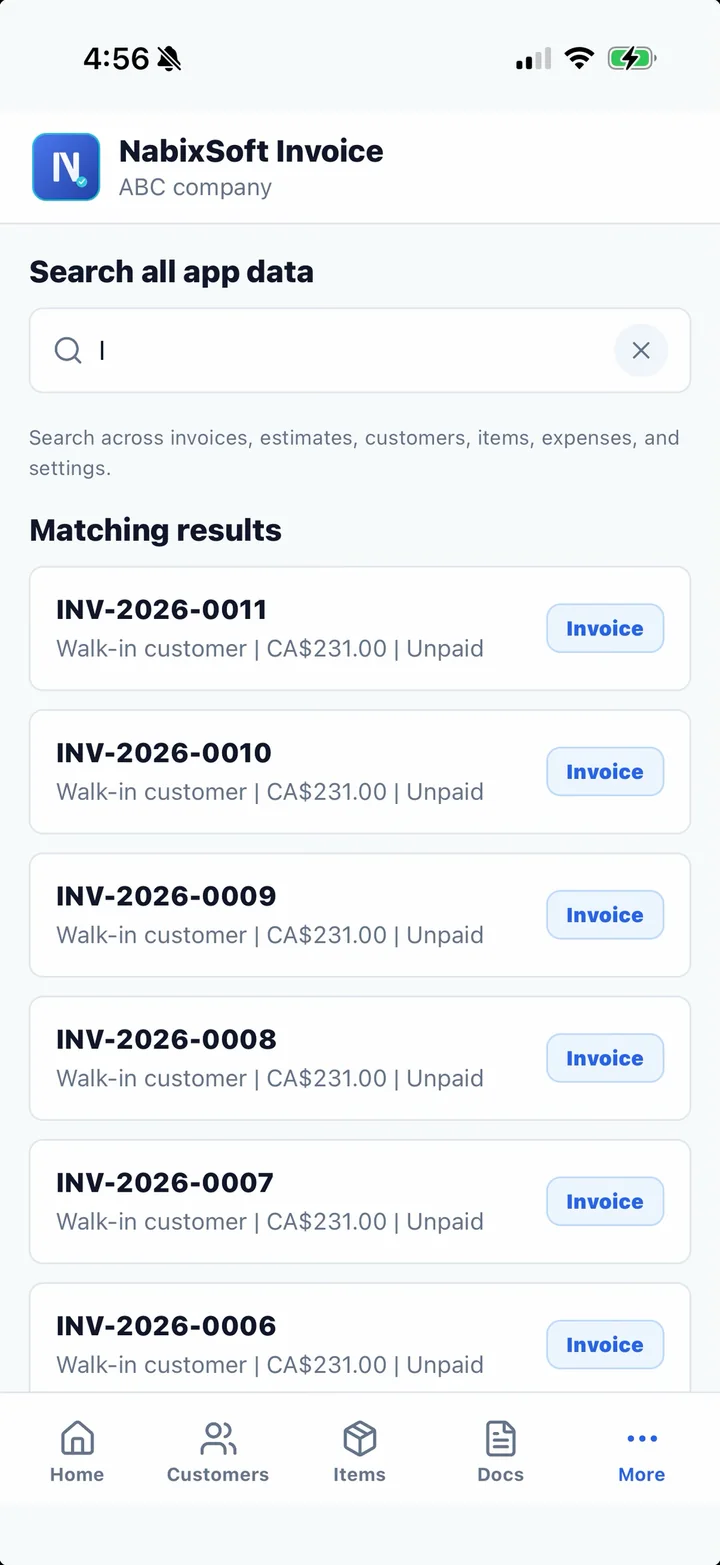
NabixSoft Invoice describes global search across invoices, estimates, customers, items, and expenses. Begin with a recognizable name, number, or amount using the current app controls. Review the results rather than assuming the first familiar-looking record is the intended one.
If a search does not locate the document, try another detail you can confirm. A customer may use a different billing name from the contact name in conversation. Check known references and review the customer record before deciding the information was never entered.
Use the document list to narrow the review
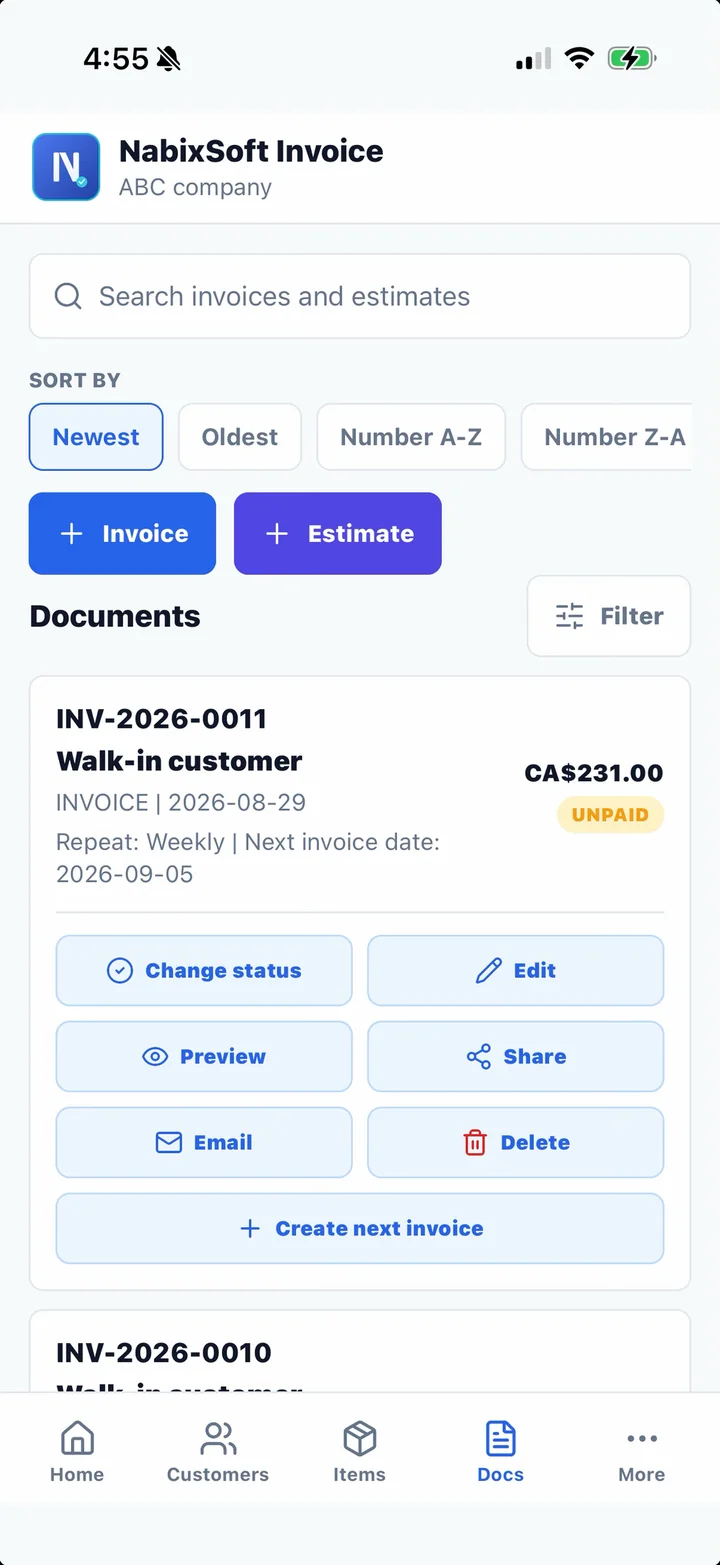
The document list provides sorting and filtering tools for invoices and estimates. Use the available type, status, date, or sorting options to reduce the set you are inspecting. An invoice number and a total can be useful confirmation after you locate a likely candidate.
Keep document types clear. A saved estimate may describe the right project while still being different from the invoice that was issued. The estimate-to-invoice guide explains how to preserve that distinction during the handoff.
Example: a client remembers an amount but not a number
Imagine a repeat client asking about a document using only a familiar amount and part of the business name. Start with the information you can confirm, then inspect likely results for the customer, document type, date, and service description.
If several invoices have the same amount, use the additional references to distinguish them before changing a status or sending another copy. When the search reveals unclear naming, improve the conventions used for future records. This keeps a single customer question from turning into a guess about which of several similar documents was intended.
Verify the match before making a change
Open the relevant record and check its customer, descriptions, date, and amount. Similar repeat work can produce documents that look almost identical, so confirm the reference before editing status or sending another copy.
For a payment question, compare the invoice with the payment information you can confirm through your chosen method. A familiar amount alone may not identify the correct document. Use the customer statement workflow when several invoices for one customer need a combined review.
Improve unclear descriptions while the context is fresh
If a search was difficult because an entry used vague wording, consider what context would help future reviews. Keep the relevant record accurate without casually rewriting the history of an issued document. Review how you describe new work and how catalog items are named.
A useful naming routine can be simple: recognizable customer details, consistent service names, and a clear project or visit description where it belongs. Avoid a complicated coding scheme that you cannot apply reliably. The catalog guide covers reusable descriptions in more detail.
Keep the searchable history recoverable
Local search depends on the records present in the app. Export complete backups regularly so that the working history can be restored after a device change. Saving a few PDF copies can support reading and sharing, while the complete backup serves the restore workflow.
- Start with a confirmed name or reference.
- Narrow the document list using available controls.
- Check the customer, type, and amount.
- Review before changing status or resending.
- Improve your future naming routine and back up records.
This turns a one-off search into a more repeatable response to ordinary customer questions.
Common questions
What does the product describe global search covering?
Invoices, estimates, customers, items, and expenses are included in the published global-search description.
Why check the result before changing it?
Repeat work can produce similar documents. Confirm the customer and document reference before editing or sending a copy.
Will search recover erased local records?
Search uses available app records. Keep complete backups for recovery before data is erased or a device is replaced.

A practical next step · Available now
NabixSoft Invoice
Review the records discussed here with NabixSoft Invoice’s document lists, global search, customer records, expense entries, and business dashboard.
Available on Android, iPhone, and iPad. Check your regional store for current compatibility and pricing.