
NabixSoft Invoice · Practical guide
Keep your business details and document branding consistent.
A logo helps a customer recognize your business, while accurate names and contact information make the invoice usable. NabixSoft Invoice supports a business profile, logo, and signature on PDF documents. Prepare those details once, then review the actual document whenever the underlying information changes.
Start with the business identity the customer knows
Review the business name and contact information you intend to show. Use details that make sense to the person receiving the document, especially if your day-to-day name differs from the billing identity you use.
Keep this information consistent with the payment instructions and other material you provide to customers. A familiar logo cannot resolve a confusing business name or an outdated contact route. Work through the saved profile and check the current controls in the app before preparing the next invoice.
Choose a logo that remains readable at invoice size
A logo may appear much smaller on a PDF than it does in an original design file. Use an image that remains recognizable at that scale, and inspect the result in the actual template. Fine detail and small lettering can be difficult to read when reduced.
Check for unexpected background space or a crop that makes the mark appear off-center. The goal is a clear business identifier that supports the document. Preview it alongside the line items and totals instead of judging it only from the image-selection step.
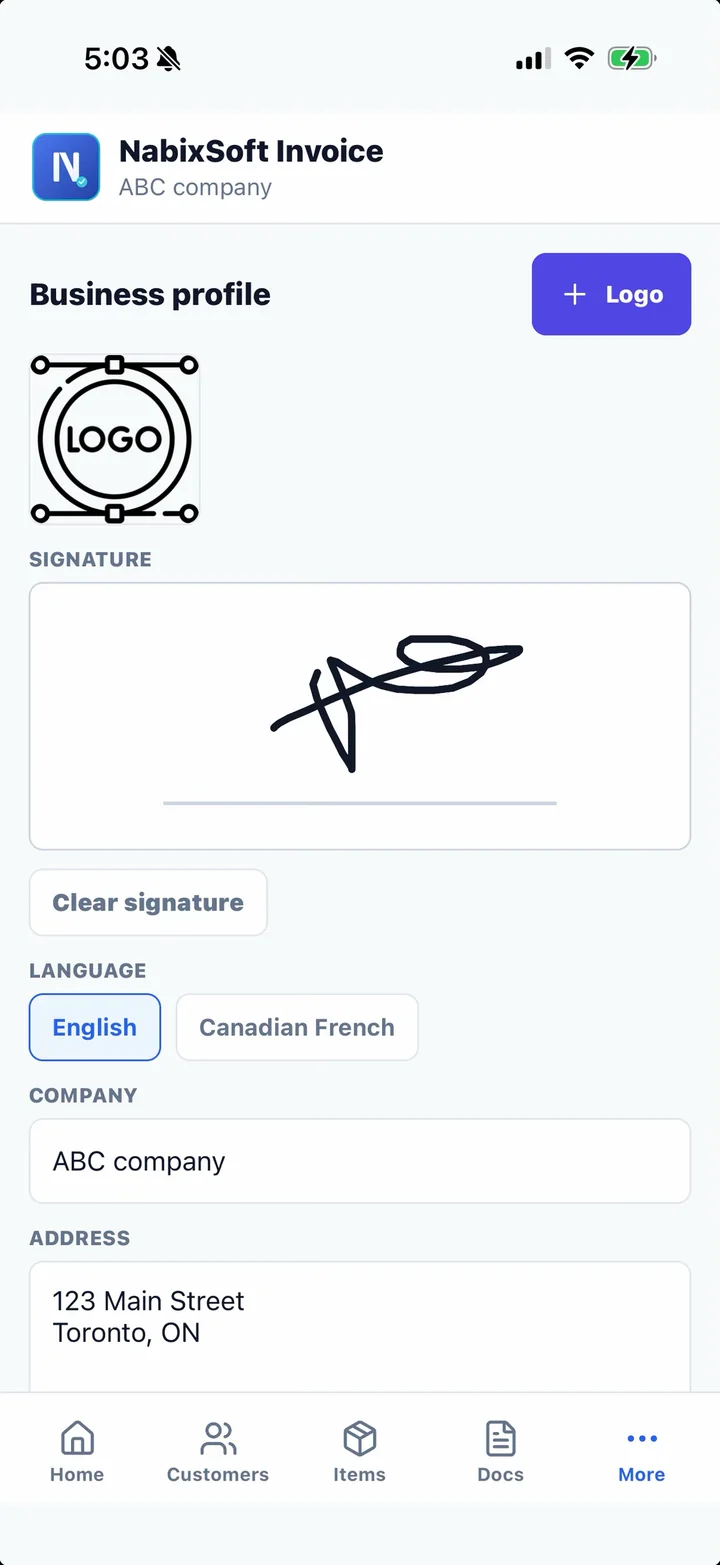
Review the signature as a document element
The app supports a signature on documents. Use the signature information you intend to include and inspect how it appears with the business details in your selected PDF template.
A visual signature element is part of the document presentation described here. This guide does not claim that placing an image on an invoice independently verifies identity, approves a customer agreement, or completes a separate signing process. Keep the business communication around the work clear and review the finished PDF before sharing.
Example: a business contact detail changes
Imagine that your business updates a contact detail while the logo remains the same. Review the saved profile, then prepare and preview the document you plan to issue. Look at the contact information alongside payment notes so the whole PDF tells a consistent story.
A familiar graphic may make an outdated document seem current at first glance. Check the actual text and retain issued PDFs as their own historical copies. Keep a complete backup after important profile updates so the working details you intend to use remain part of your recovery plan.
Review the profile alongside the document settings
Check the details that can carry into your invoices, including the business identity and the currency or tax settings you intend to use. A saved profile reduces repeated preparation, while the individual document still needs to match the particular customer and work.
If a business detail changes, preview a newly prepared document and check the records you plan to issue. Avoid assuming that a changed profile explains every older PDF already sent. Keep issued documents available as their own readable history.
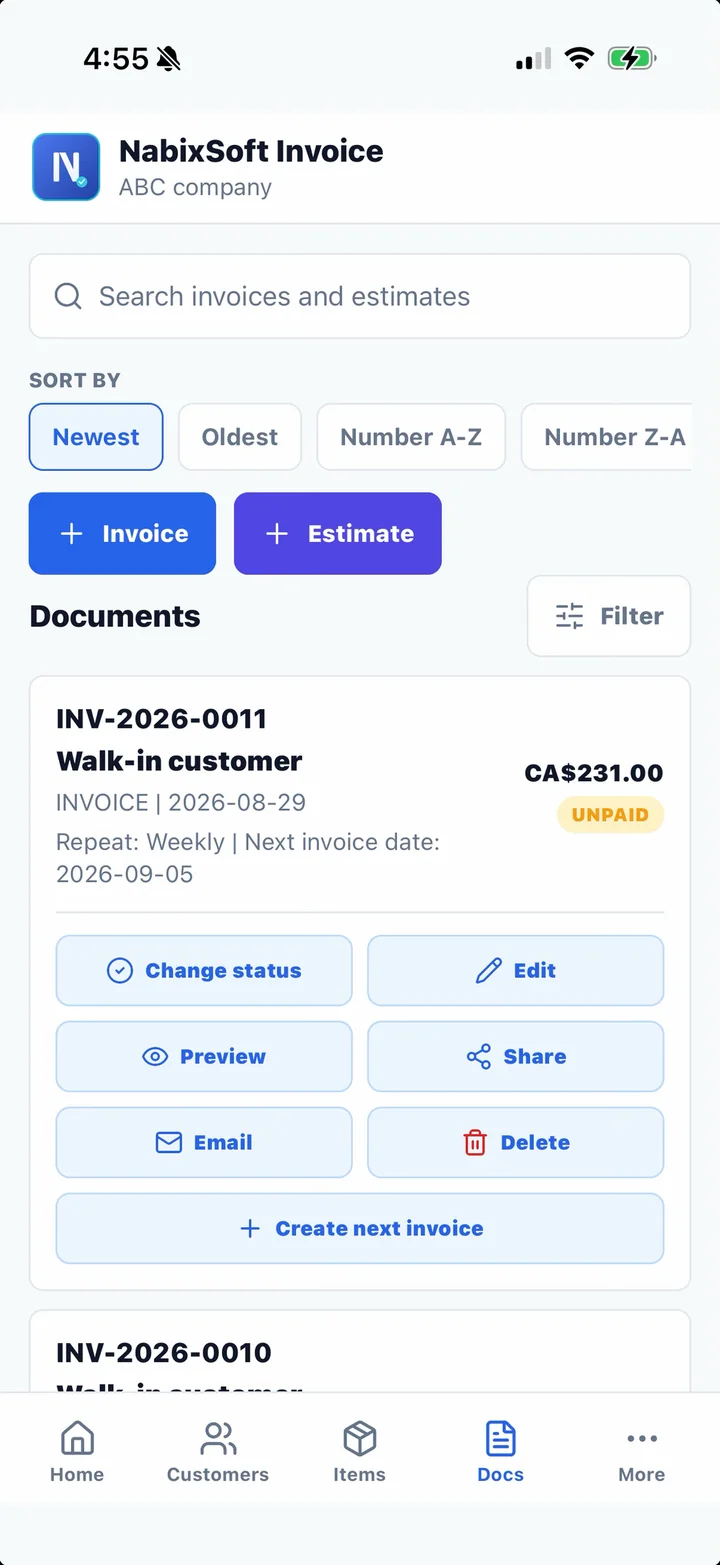
Preview branding with realistic document content
Use a document with the kind of descriptions you normally write when evaluating the result. A logo that looks balanced beside a single line may feel different on a longer invoice. Confirm that branding leaves enough room for the information the customer needs.
NabixSoft Invoice includes 16 professional PDF templates. Select from the options in your current app and review the complete file. The PDF template guide explains how to keep presentation focused on readability rather than appearance alone.
Keep the profile current and recoverable
Include the business profile in your regular review when contact information or payment details change. Preview the next document so that the updated identity and instructions work together. Keep customer records separate from the business details you use to issue invoices.
- Check the intended business name.
- Review current contact details.
- Inspect logo and signature readability.
- Preview a complete PDF.
- Export a complete backup after important updates.
Before moving devices, use the backup preparation guide and review the restored profile before sending a real customer document.
Common questions
Can my logo and signature appear on invoices?
Yes. NabixSoft Invoice supports business details, a logo, and a signature in its document workflow.
Should I check branding after changing a profile detail?
Yes. Preview the actual document you intend to issue, including contact and payment information.
Does a saved signature image complete an agreement?
No such signing or agreement-verification workflow is claimed by this guide.

A practical next step · Available now
NabixSoft Invoice
Create the document presentation discussed here with NabixSoft Invoice’s 16 PDF templates and support for business details, a logo, and a signature. Preview the PDF before sharing it.
Available on Android, iPhone, and iPad. Check your regional store for current compatibility and pricing.