
NabixSoft Invoice · Practical guide
Use the dashboard to decide which records need a closer look.
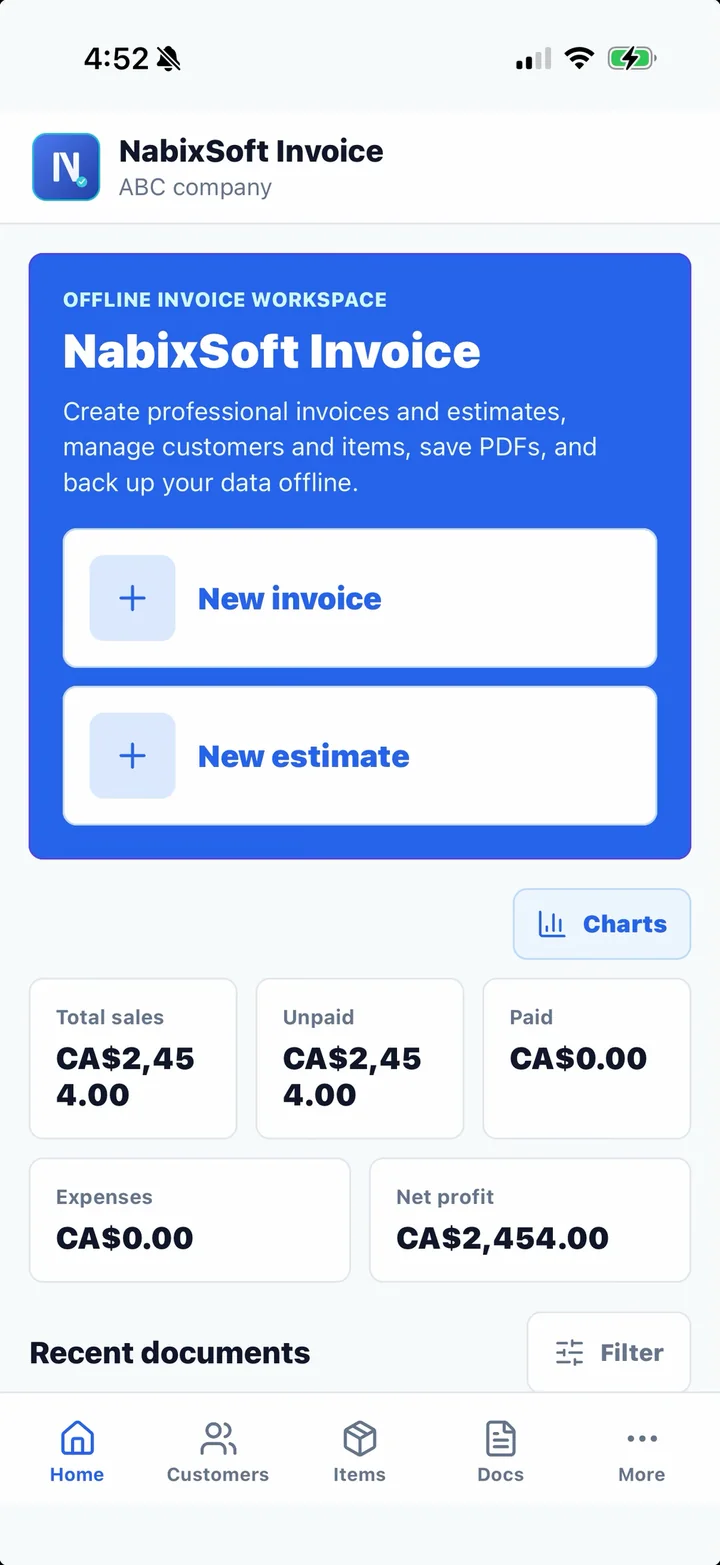
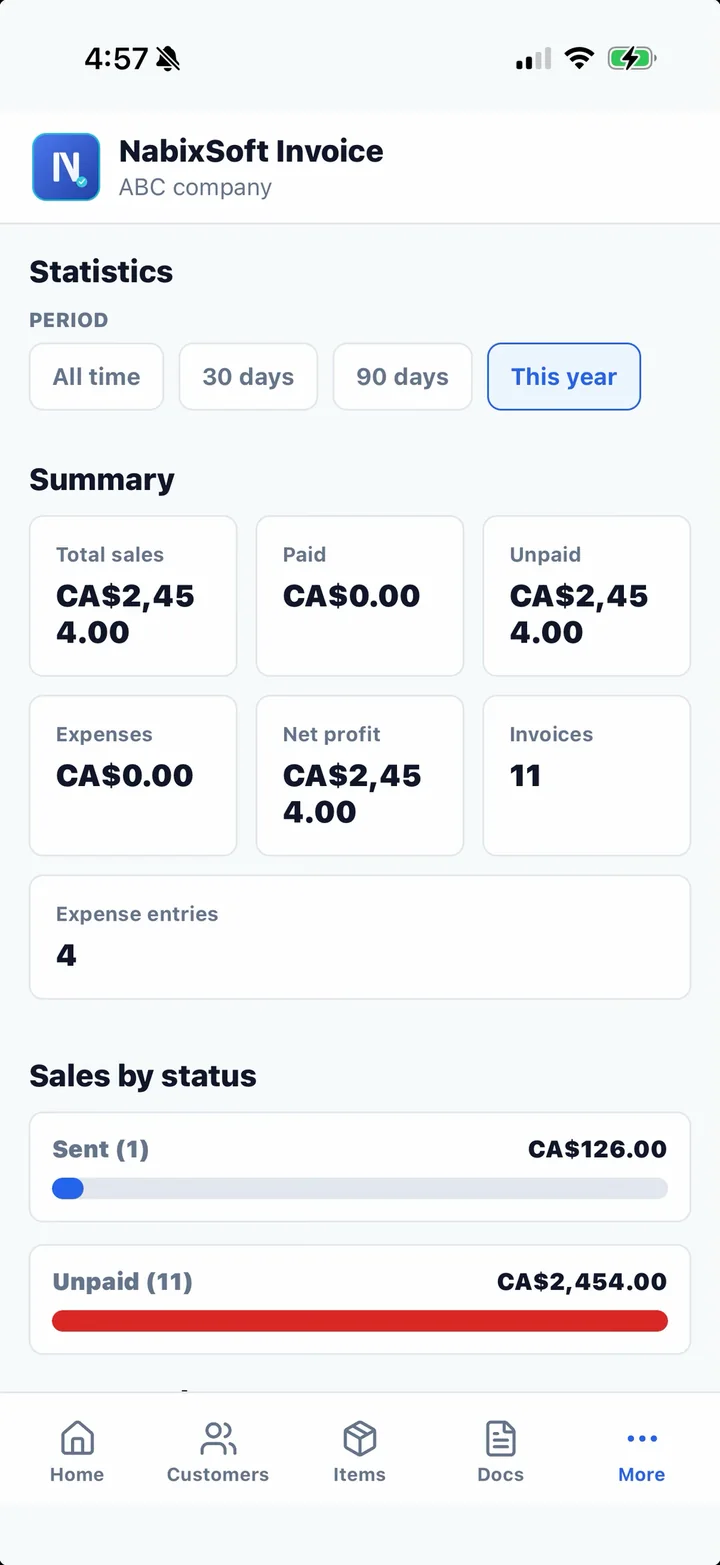
A dashboard is useful when it points you toward the documents and entries behind a total. NabixSoft Invoice includes sales, paid/unpaid, expense, and other business summaries. This guide explains a practical review routine that starts with a question and follows it back to the records you maintain.
Start with the question you are trying to answer
Decide whether you are reviewing outstanding invoices, recent document activity, or expense information. A specific question makes a summary easier to interpret than opening the dashboard and treating every displayed number as the same kind of evidence.
The dashboard reflects information entered in the app. Its usefulness depends on current documents, statuses, and expense entries. When a figure looks unexpected, identify the underlying records that could explain it rather than changing an entry only to make the summary match your memory.
Review the invoices behind unpaid amounts
Use document and customer views to inspect the invoices that need attention. Confirm the customer, reference, amount, and status, then compare with the payment information you can verify through your chosen method.
A customer statement can help when several documents belong to the same client. Keep the individual invoices available so the summary can be traced to recognizable work. The statement and unpaid-invoice guide explains a focused sequence for that review.
Check that completed work has the intended document
Look at recent invoices and estimates in the context of the work you have completed. A proposal may still need a final invoice, or a prepared document may need a delivery check through the sending tool you use.
Use the available document sorting and filtering controls to narrow the period or type being reviewed. Confirm the actual record before changing it, especially for repeat work with similar descriptions and amounts. Global search can help locate a known name or reference.
Example: an unpaid total looks unfamiliar
Imagine the dashboard shows an unpaid amount that differs from what you remember. Use it as a prompt to inspect the relevant invoices, customer records, and statuses. Compare them with the payment information you can confirm through the method your business uses.
Look for a specific incomplete or incorrect record before making a change. After a justified update, review the result and keep a complete backup. The example shows how a summary can direct attention toward supporting records without claiming that a dashboard independently verifies every payment or business event.
Review expense entries that affect the picture
NabixSoft Invoice includes expense tracking by vendor and category, with receipt photos. Review recent entries for a mistaken amount, an unclear description, or a missing supporting image when that context matters.
Keep the interpretation tied to what you have entered. A summary does not independently verify every purchase or establish how a transaction should be treated professionally. The expense-record guide explains how to keep descriptions, categories, and receipt information useful.
Make deliberate corrections to the underlying record
If the review reveals an incorrect status or entry, confirm the relevant details before updating it. Keep a clear relationship between the document and the event you are recording. A payment question, a changed invoice amount, and an expense entry are different matters.
After making a justified correction, review the resulting document or summary so you understand what changed. Avoid assuming that a familiar-looking total means all records have been checked. A dashboard review is a starting point for targeted inspection rather than a replacement for it.
End with a manageable next step and recovery copy
Finish the review by identifying any document to send, customer question to resolve, or entry to clarify. A short recurring session is often easier to maintain than an occasional attempt to reconstruct a long period of activity.
- Choose a specific review question.
- Inspect the relevant invoices or expense entries.
- Compare status with confirmed payment information.
- Make deliberate record corrections.
- Export a complete backup after important updates.
The backup guide explains how to keep those working records recoverable. Retain readable PDFs where useful, alongside the restore file that preserves the app data.
Common questions
Does the dashboard verify my bank or payment service?
No such integration is claimed here. Compare records with received payments through the method you actually use.
What if a displayed amount looks unexpected?
Review the underlying documents, statuses, quantities, and expense entries before making a change.
Can I use the dashboard as a starting point for regular reviews?
Yes. Choose a specific question and follow it back to the relevant records, then back up important updates.

A practical next step · Available now
NabixSoft Invoice
Review the records discussed here with NabixSoft Invoice’s document lists, global search, customer records, expense entries, and business dashboard.
Available on Android, iPhone, and iPad. Check your regional store for current compatibility and pricing.