
NabixSoft Inventory Pro · Practical guide
Keep damaged stock from confusing the quantity you can actually use.
A product can be physically present but no longer suitable for its intended use. Damaged or unusable stock needs a clear handling decision and an understandable record. This guide explains a practical review and removal routine without assuming Inventory Pro has a dedicated damage status or quarantine system.
Identify the affected product and condition first
Confirm the exact product, variant, and number of affected units. Check the physical stock rather than assuming every item in a nearby box has the same problem. Keep your own condition notes or supporting information where they can explain the review.
Distinguish an observed condition from a final handling decision. An item awaiting inspection is not necessarily the same as an item permanently removed from use. Follow the handling process appropriate to your products rather than changing a quantity before the situation is understood.
Make the physical storage decision clear
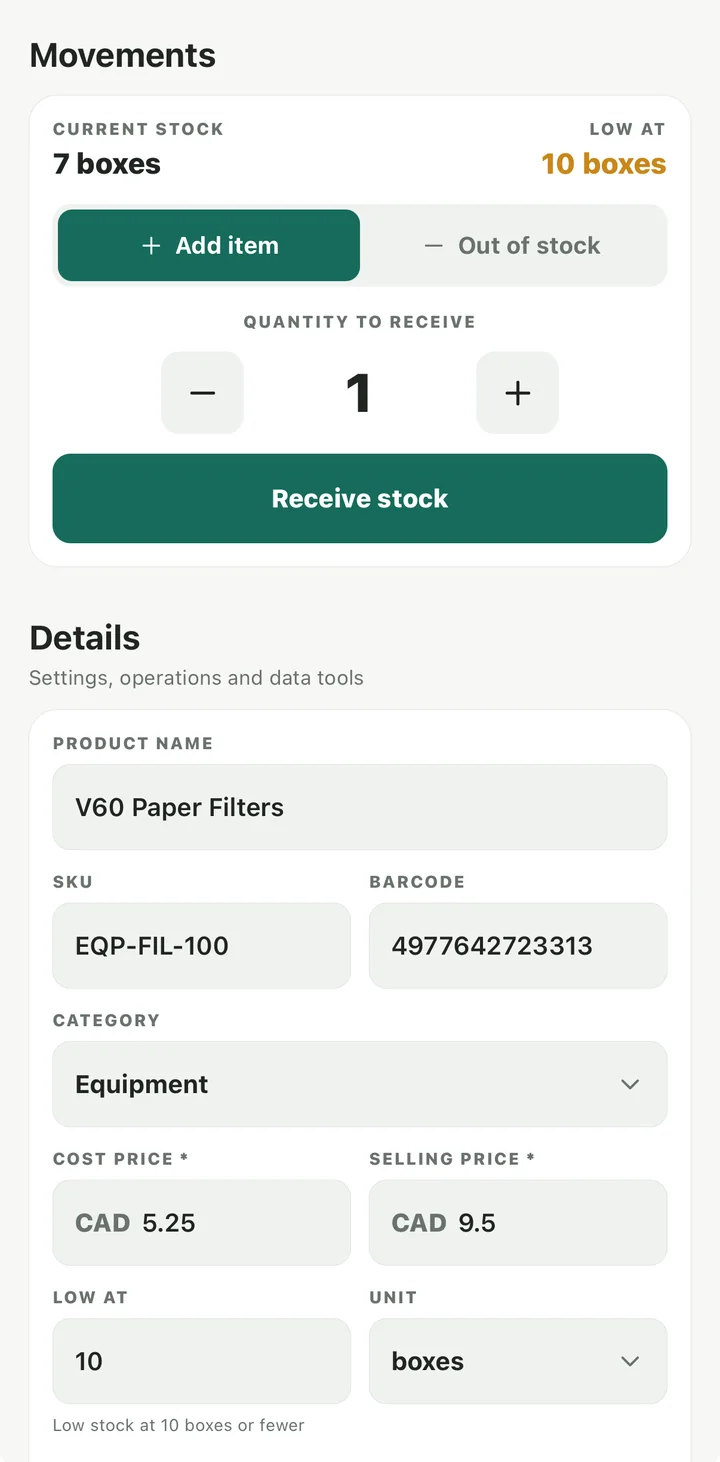
Keep affected items from being confused with usable stock while you review them. A recognizable physical location and clear notes can help your own process, but do not assume that a note automatically changes availability or blocks use in the app.
Inventory Pro supports storage details and product notes. Those provide context; this article does not claim a dedicated quarantine status, reservation workflow, or automatic restriction. Keep the actual storage and your record interpretation consistent.
Check whether the quantity was already removed
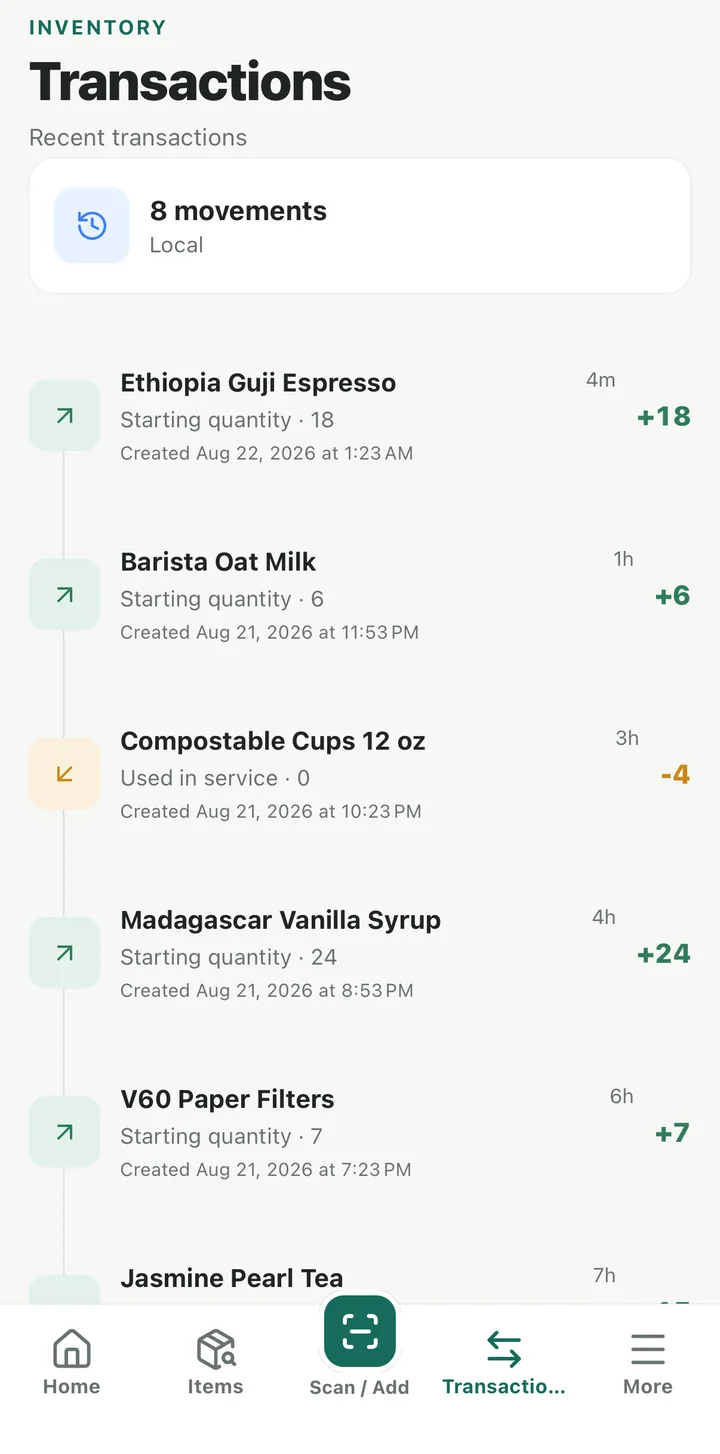
Review recent stock movements before making another entry. A product removed during an earlier inspection should not be removed again simply because its physical packaging is still present. Compare the affected quantity with the record and your own handling notes.
Also check the product unit. Two damaged packs can represent more than two pieces if the working record tracks individual units. The units and packs guide helps you keep the quantity basis clear.
Example: a replacement has not arrived yet
A fictional shop finds two unusable pieces among twelve recorded units. After confirming the condition and checking that no prior removal exists, the owner records the actual removal of two. The remaining tracked quantity is ten.
A supplier promises two replacements, but the owner does not add them yet. They become a receipt only after arrival and verification. Keeping those events separate avoids showing expected goods as stock already available.
Use the removal workflow for an actual removal
When stock genuinely leaves the quantity you track, use the supported removal workflow and verify the product and quantity. Keep an explanation in the available records or your own supporting review notes so the event remains understandable later.
Do not invent a receipt or transfer to offset the problem. A transfer changes location, while a removal changes the tracked quantity. If you are unsure how to represent your specific handling decision, consult support before relying on an assumed special feature.
Review the remaining stock and any replacement separately
After recording the real event, check the remaining quantity against the usable stock within your defined scope. A supplier replacement is a separate event: record its actual receipt when it arrives, rather than counting an expected replacement as already on hand.
Review low-stock information after the update when deciding what needs attention. A report reflects the entered position, so create any needed snapshot after the relevant movements are current. The movement history guide helps connect the events.
Look for a recurring cause and protect the record
If the same product is repeatedly affected, review storage and handling information in your own process. A stock app can keep records organized, but it does not determine whether a product is safe, suitable, or acceptable for sale or use.
Export a complete backup after important reconciliations. Keep readable reports and supporting condition notes for their own purposes. The inventory mistakes guide explains related checks for quantities, product identity, and movement timing.
Common questions
Does Inventory Pro have a dedicated damage or quarantine status?
This guide does not claim one. It describes clear physical handling, supporting notes, and supported stock movements.
Should an expected replacement increase stock immediately?
Record the actual receipt when the replacement arrives and has been checked.
Is moving damaged stock to another shelf a removal?
A location change and a quantity removal mean different things. Record the actual event and keep its meaning clear.

A practical next step · Available now
NabixSoft Inventory Pro
Support this inventory workflow with NabixSoft Inventory Pro’s product records, stock movements, low-stock views, and reports. Everyday inventory management works offline on iPhone and iPad.
Available on the App Store for iPhone and iPad. A Google Play download link has not been confirmed.