
NabixSoft Inventory Pro · Practical guide
Keep a retail shop’s product records connected to the stock.
A small shop may hold stock on a selling floor, in a stockroom, and in storage awaiting placement. Clear product identities and movement entries make those quantities easier to review. This guide uses Inventory Pro’s published inventory features to organize that routine without assuming a connected checkout system.
Make similar products distinguishable
Use product names and details that separate sizes, models, or packaging differences relevant to the shop. A broad name can be familiar while still describing several distinct items.
Inventory Pro supports names, SKUs, barcodes, photos, categories, suppliers, and storage information. Use enough of that context to identify the item reliably without making every entry complicated. Before adding a delivery as a new product, search for an existing record and check whether the packaging matches it.
Name the storage arrangement clearly
Use location names that match the physical areas people recognize. A selling area and a stockroom may need separate context, while additional storage notes can explain a specific shelf or container.
Keep the product’s identity stable as it moves. The destination belongs to the location and movement workflow rather than needing to be embedded in every product name. The location guide explains a practical transfer review.
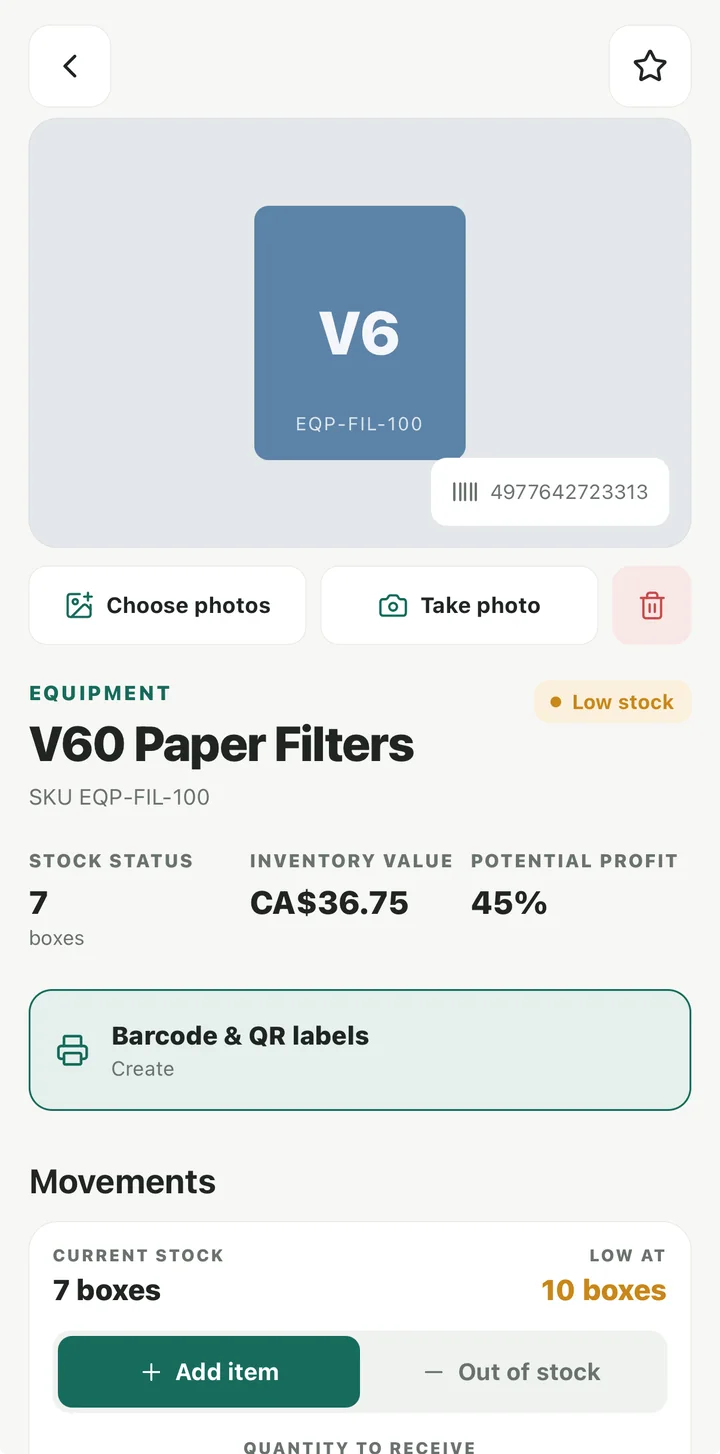
Check incoming stock before putting it away
Confirm the item, quantity unit, amount received, and intended destination. A carton on a delivery may contain several units of the quantity you maintain, so review the packaging before entering a number.
Record the receiving event close to the physical check, then inspect the resulting record. Use the supplier information to add context to the product, while keeping your own purchasing process separate. The receiving guide includes a fuller checklist.
Example: moving stock from storage to the selling area
Imagine a shop moves several boxes from a stockroom to the front area. Identify the product and the quantity unit, then review the source and destination using the supported transfer workflow. Inspect the resulting record before relying on a location-specific review.
A later low-stock check should be considered alongside those movements and the physical shelf. Keep the separate checkout process clear rather than assuming the inventory app recorded a sale automatically. This example connects the published movement features with an ordinary retail task without adding an unverified point-of-sale integration.
Keep quantity changes connected to real events
Record the relevant removals and transfers as stock is used or moved. Choose the event that explains what physically happened and review the product and location before completing the entry.
This guide does not claim an automatic checkout or point-of-sale integration. Maintain the inventory events through the supported app workflow and whatever separate retail process you use. A clear routine is more useful than assuming every change has already been captured elsewhere.
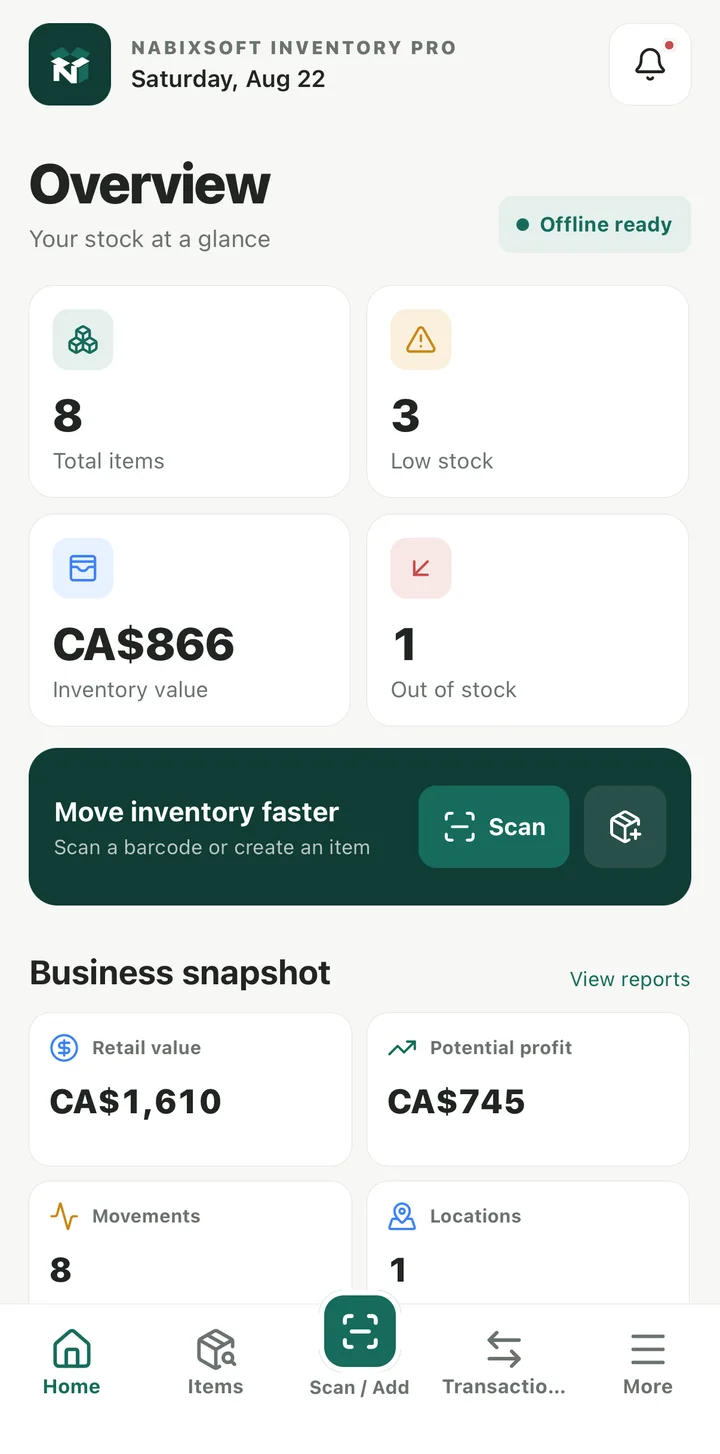
Use alerts to choose what needs a closer check
Review low-stock and out-of-stock items as prompts for inspection. Confirm the physical quantity and recent movements before making a replenishment decision through your own supplier process.
Set thresholds that make sense for the unit and working pattern of the item. A fast-moving packaging supply and a slow-moving product may need different review points. The low-stock guide connects those views with a deliberate check.
Keep review snapshots and recovery files in context
Use valuation reports to review the recorded quantities and price inputs. A retail-value total describes inventory information; it is not proof that those items have already been sold.
- Keep product and packaging details recognizable.
- Record receiving and stock movements.
- Check priority items physically.
- Review pricing inputs before sharing a report.
- Keep a complete backup outside the app.
Inventory Pro is published for iPhone and iPad and supports everyday offline workflows. Local records still need a recovery plan before a device is replaced or erased.
Common questions
Does this guide assume an automatic checkout connection?
No. It uses the published product, location, stock-movement, and reporting features.
Can I distinguish similar products with photos or codes?
Yes. The described product records support photos, SKUs, barcodes, and other identifying details.
Does retail value mean completed sales?
No. Review it as a value based on entered inventory quantities and prices.

A practical next step · Available now
NabixSoft Inventory Pro
Support this inventory workflow with NabixSoft Inventory Pro’s product records, stock movements, low-stock views, and reports. Everyday inventory management works offline on iPhone and iPad.
Available on the App Store for iPhone and iPad. A Google Play download link has not been confirmed.