
NabixSoft Invoice · Practical guide
Make repair invoices explain the parts and work behind the total.
A customer may remember the problem they brought in more readily than the part names on an invoice. Clear descriptions connect diagnosis, supplied items, and completed labour to that original request. NabixSoft Invoice can help keep the customer and document records organized while you prepare a readable PDF.
Connect the document with the repair request
Start with the correct customer and use enough document context to identify the repair being billed. A clear description can reference the relevant service or item without relying on a nickname only your team understands.
Confirm the billing details before preparing the final invoice. If the person requesting the repair is different from the billing customer, resolve that distinction while the work is familiar. Keep detailed workshop notes in the system you use and make the invoice readable for its intended recipient.
Separate charges where the distinction helps
Diagnosis, supplied parts, and labour can be different parts of the charge. Use separate line descriptions when they help explain the work. Review quantities and units carefully so that a part count and an hourly labour rate are not interpreted in the same way.
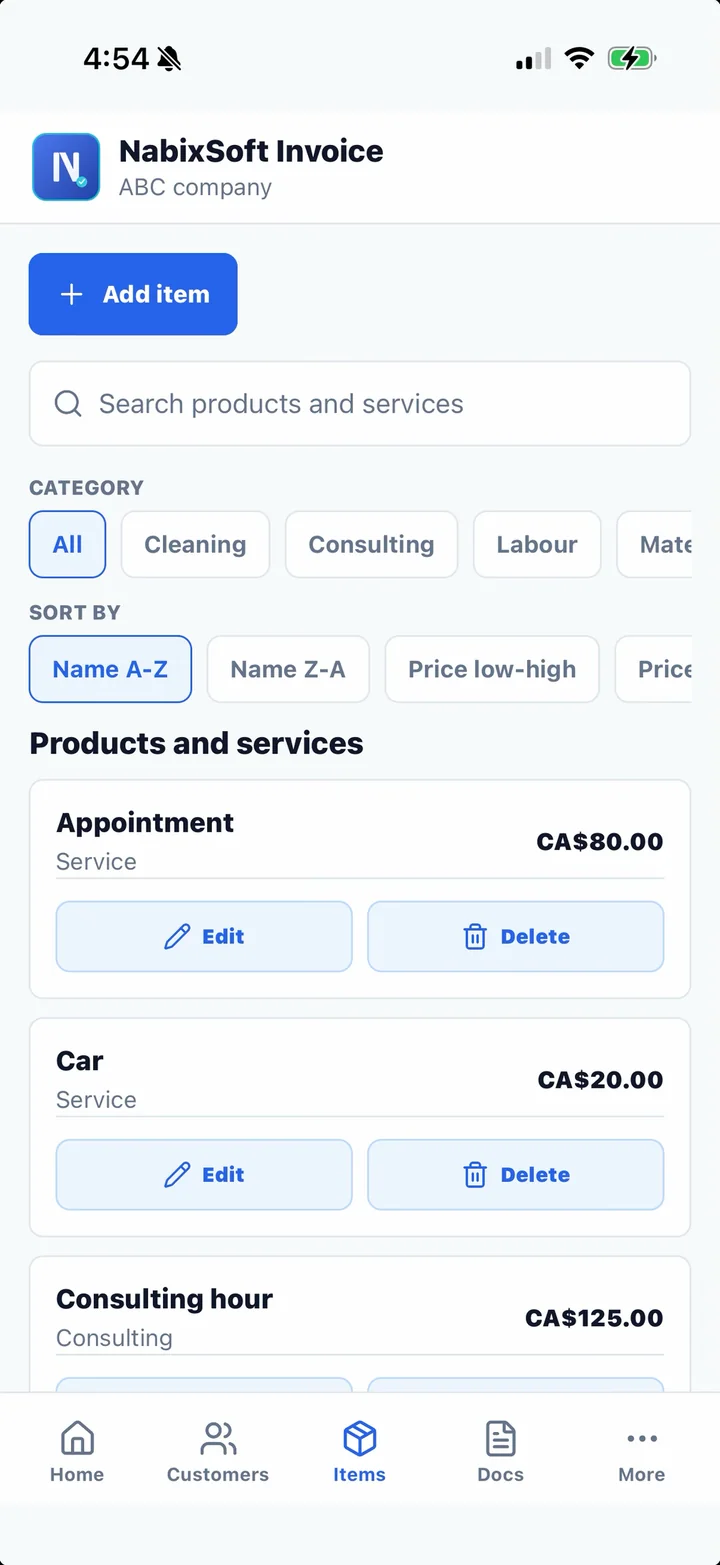
NabixSoft Invoice’s catalog can provide reusable starting descriptions. Update the selected description where the repair differs from the standard item. A repair invoice should make the actual parts or service recognizable rather than silently reusing wording from a previous customer’s document.
Review changes from the original estimate
A repair can reveal additional work after an initial inspection. Compare the proposed scope with what you are billing and keep changes understandable to the customer. The document software organizes the record; your communication establishes what work was agreed.
Use estimate-to-invoice conversion when relevant, then check the result. Confirm the customer, part quantities, labour, totals, and any description that refers to the earlier proposal. See the estimate-to-invoice workflow for a complete review sequence.
Example: diagnosis, replacement part, and labour
Consider a repair where the initial inspection leads to a replacement part and additional labour. Review whether the invoice should show those as distinct lines and confirm the quantities and rate units. Check the proposed estimate before converting it to a final invoice.
The customer-facing PDF should make the relationship between the original request and the work understandable. A recognizable part description helps a later question refer to something specific. This example concerns clear paperwork; it does not claim diagnostic, warranty, or repair-authorization features beyond the published invoice workflow.
Review individual lines and calculated totals
The app supports configurable tax settings and item-level tax application. Review the entries that belong to the particular document rather than assuming every part and service uses the same setting. Check quantities, rates, and tax information together in the final preview.
When a total appears unexpected, return to the underlying lines and inspect their units and amounts. A polished template cannot determine whether the supplied information matches the repair. Keep the record accurate enough that a later customer question can be traced to a specific line.
Choose a readable repair invoice presentation
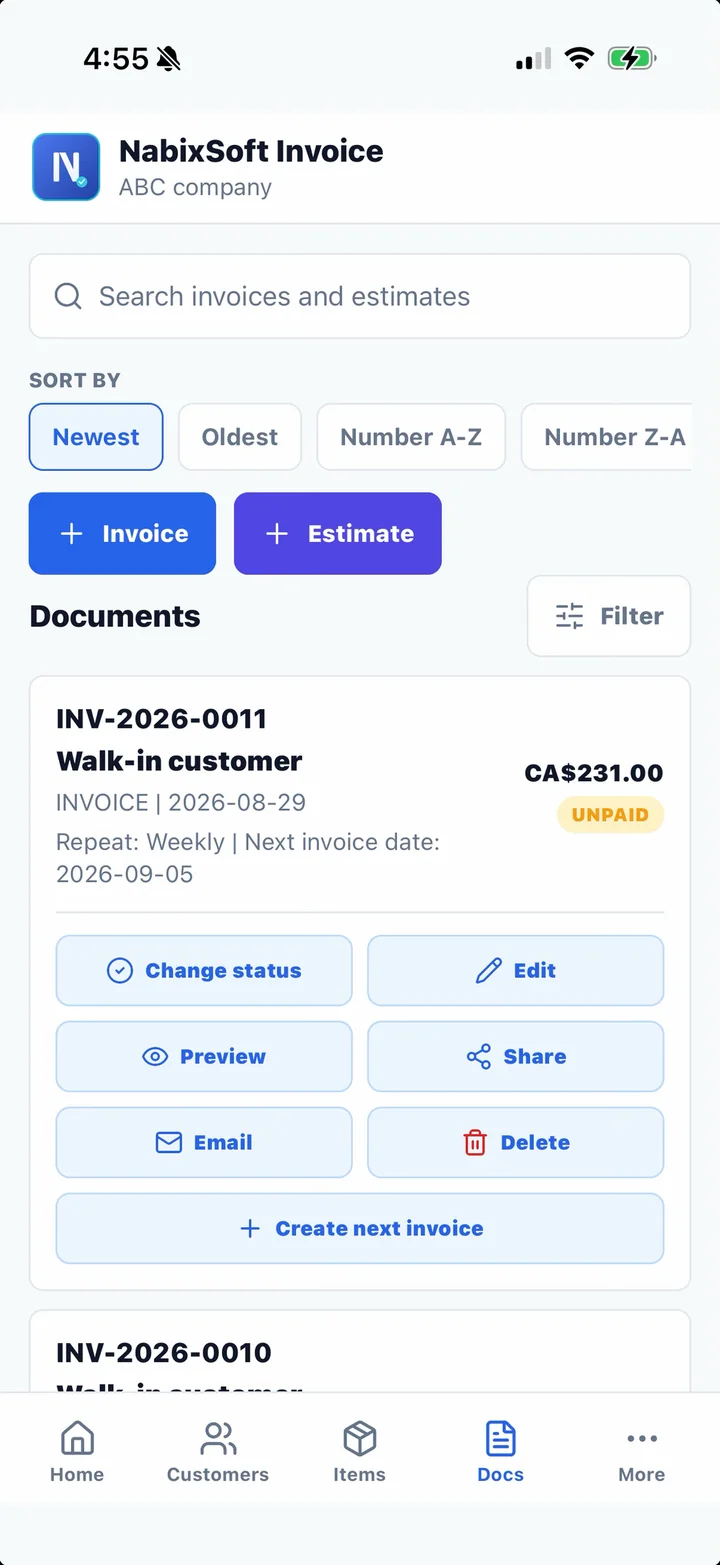
The published product describes 16 PDF templates, including a Repair Shop style among the available options. Preview your own document and choose a presentation that leaves detailed part and service descriptions easy to follow.
Review business branding and payment instructions in the exported PDF. Supplied payment links, notes, and QR codes should describe the route your business uses. The payment information guide explains why checking the destination matters before you deliver the document.
Retain a useful customer and document history
After issuing the invoice, keep its status current and use recognizable references so it can be found again. A later customer query may concern the work, a part description, or a payment, and clear records help you locate the relevant document.
Use global search and customer records as starting points for that review. Export a complete backup regularly and before replacing or erasing a device. The backup guide explains how to keep working records recoverable. This invoice routine does not claim inventory purchasing, equipment diagnostics, or warranty-management features beyond the app’s published document tools.
Common questions
Can I include parts and labour on one invoice?
Use appropriate line items and units for the work and supplied items, then review the final document.
Is a Repair Shop PDF style described?
Yes. The published template collection includes a Repair Shop style; check the options in your current app.
Does the invoice app diagnose repairs or manage warranties?
No such workflow is claimed here. The guide focuses on customers, estimates, invoices, and PDF records.

A practical next step · Available now
NabixSoft Invoice
Bring this invoicing workflow into one mobile app with NabixSoft Invoice. Prepare invoices and estimates offline, save customer details, and share professional PDFs.
Available on Android, iPhone, and iPad. Check your regional store for current compatibility and pricing.