
NabixSoft Invoice · Practical guide
Make invoice quantities and rates describe the same thing.
A line can calculate correctly and still describe the wrong charge. The quantity, unit, description, and rate must refer to the same work. A careful unit check is especially useful when a small business sells both products and services or reuses catalog entries across different jobs.
Decide what one unit represents
Before entering a quantity, identify what a single unit means for this line. It might be one hour, one visit, one piece, or one agreed package. Read that unit together with the description so the customer can understand the basis of the charge.
Avoid switching units silently between your source notes and invoice. A visit lasting several hours is not automatically several visits, and a box containing several pieces is not one piece. The right choice follows the actual work and arrangement you intend to bill.
Match the rate to the chosen unit
A rate only becomes meaningful when its unit is clear. Confirm whether the agreed amount is for each piece, each hour, or the whole described service. Do not use a familiar catalog rate without checking that it belongs to this unit and this customer arrangement.
For fractional quantities, review the number carefully and compare it with the source record. The objective is to record the actual billable quantity, not to change the quantity until the total happens to match an expected amount.
Separate mixed products and services when useful
Separate lines can make different units easier to understand. Labour measured in hours and a supplied part measured in pieces need different descriptions. Combining both under a broad label may hide an entry mistake and leave the customer unsure what was supplied.
A fixed package may be appropriate when that is how the work was agreed. Describe its scope clearly rather than adding an invented breakdown. The professional invoice walkthrough explains how source information becomes a readable document.
Example: a service and a supplied product
A fictional technician records two hours of work and three replacement pieces. If the agreed labour rate is 50 per hour and each piece is 8, those inputs describe labour of 100 and products of 24, before any other applicable entries. They are illustrative figures, not suggested prices.
Entering two visits instead of two hours could communicate a different service even if the same number appeared. Naming the unit correctly makes both the calculation and the explanation easier to check.
Build catalog entries that remain understandable
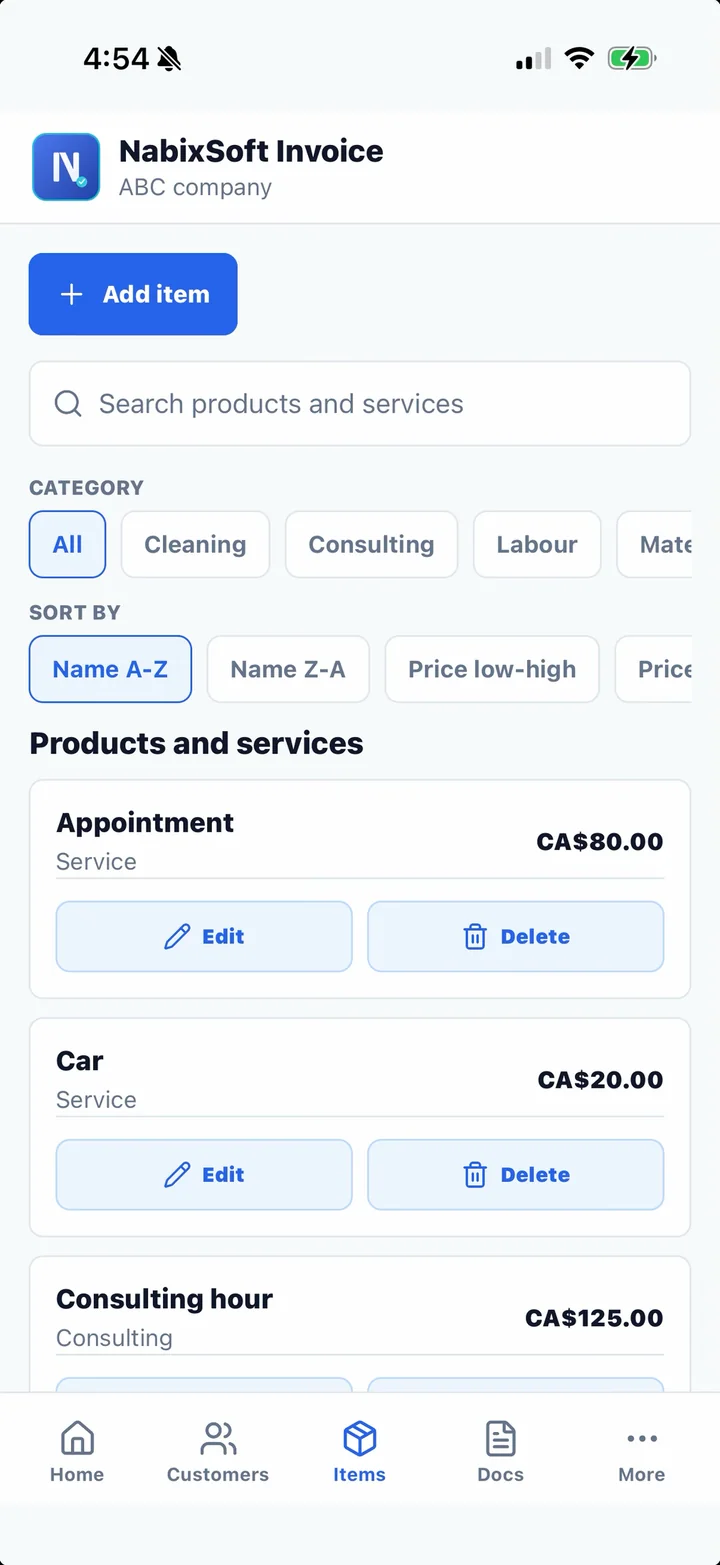
Use recognizable names for recurring products and services. A catalog entry should help you select the intended charge quickly, while its wording should remain clear in the PDF. Distinguish entries when they use different units or describe different services.
Review selected entries on every document. A saved rate is a starting point rather than evidence that the same price applies forever. When updating catalog information, inspect the current invoice directly instead of assuming a catalog change has checked every previously created record.
Recheck quantities after converting an estimate
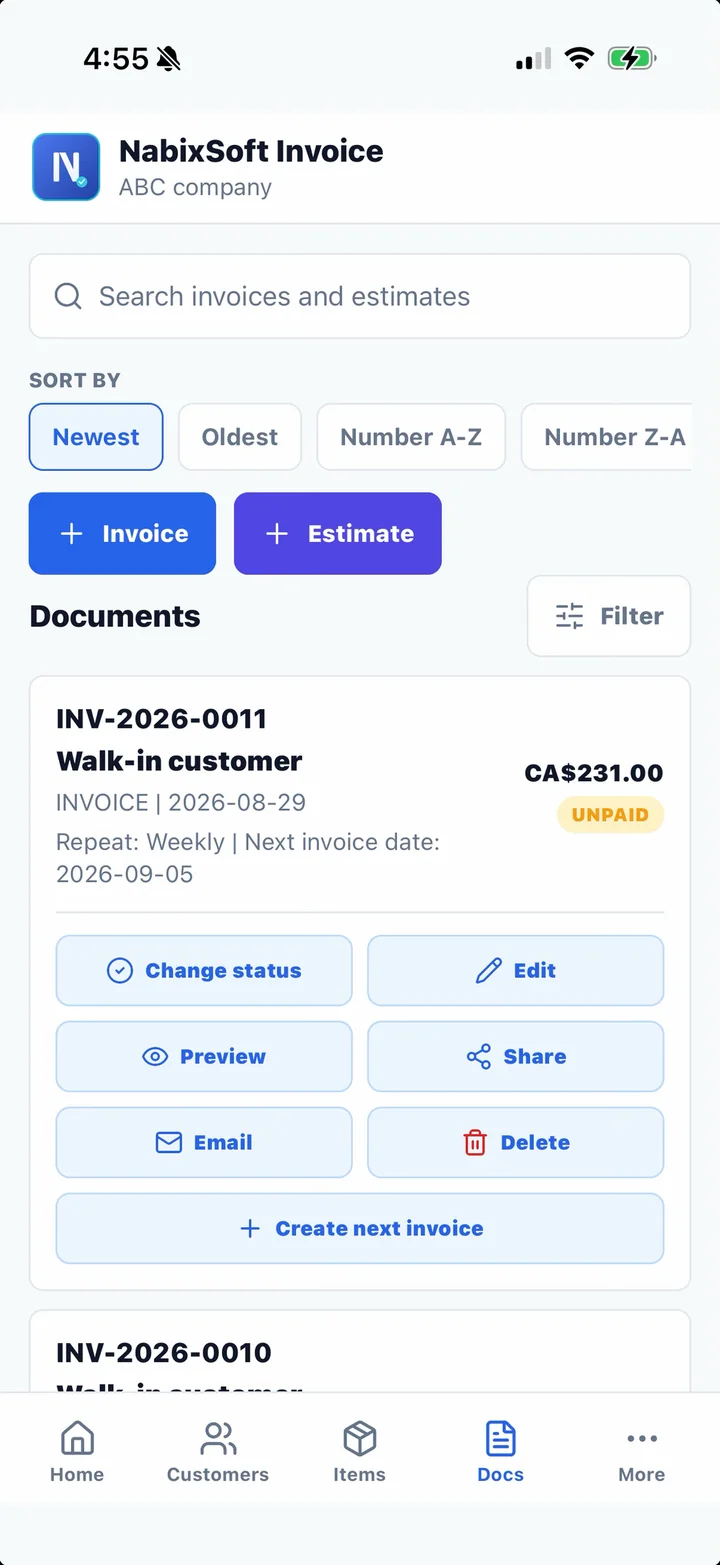
An estimate may contain expected quantities that differ from the work eventually performed. When using estimate-to-invoice conversion, compare each line with the final work record. Check for products removed from scope and services performed in a different quantity.
Review the total after correcting the underlying lines. If a result still seems unexpected, inspect the unit and rate together. Changing a discount, another quantity, or an unrelated line simply to offset an error makes the document harder to explain later.
Read the PDF as an explanation of the charge
Preview the complete PDF and ask whether a customer can understand what the quantity means. Check the business details, customer, descriptions, amounts, and supplied payment instructions in the same pass. A readable template supports the information you entered.
Keep source notes where they can answer a later question and export complete backups of the working records. For reusable entries, see the catalog guide; for a broader final review, use the pre-send checklist.
Common questions
Can a total be correct while a line is unclear?
Yes. The quantity and rate may produce the intended number while the description or unit communicates different work.
Should every service be split into hourly lines?
Use the unit and description that reflect your actual arrangement. A clearly described fixed service can also be appropriate.
Does a saved catalog item verify the job quantity?
No. Review the selected item, quantity, and rate against the work being billed.

A practical next step · Available now
NabixSoft Invoice
Bring this invoicing workflow into one mobile app with NabixSoft Invoice. Prepare invoices and estimates offline, save customer details, and share professional PDFs.
Available on Android, iPhone, and iPad. Check your regional store for current compatibility and pricing.