
NabixSoft Inventory Pro · Practical guide
Switch from Excel to an inventory app without losing the starting point.
A stock transition needs more than copying a quantity. You need to know what each product represents, where it is stored, and which movements belong before or after the new starting point. This guide describes a deliberate setup routine for Inventory Pro, without assuming an automatic Excel import.
Save the current workbook and identify its meaning
Keep an unchanged copy of the current spreadsheet and any supporting movement records. Confirm which file is the working version and what date or event its quantities describe. A file saved yesterday may contain counts from much earlier.
Note columns that require interpretation, such as pack size, location codes, or prices. Preserve those explanations alongside the archive. A number copied into a new tool is only useful if you still know whether it meant pieces, boxes, or another unit.
Resolve product identity before entering opening stock
Review names, SKUs, barcodes, and variants. Identify duplicate rows that refer to the same physical product, and distinguish rows that look similar but represent different sizes or versions. Do not merge records merely because their names share a few words.
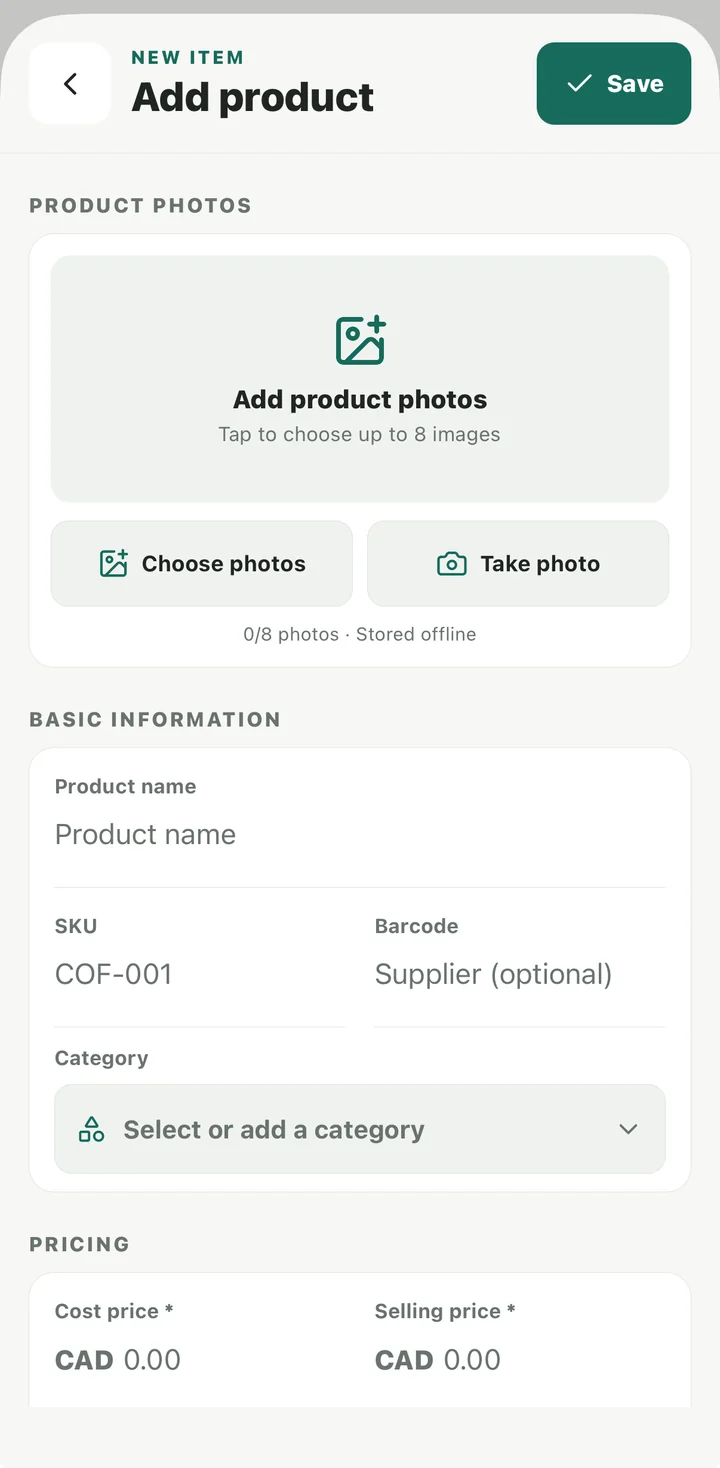
Choose a consistent naming routine and document the unit used for each product. Inventory Pro supports product photos, categories, supplier information, and storage details. Use those fields where they help identify real stock rather than carrying every ambiguous spreadsheet abbreviation into the new routine.
Choose a clear handover point for stock movements
Pick a practical moment when you can account for deliveries, removals, and transfers around the change. Make clear which events are already included in the starting quantity and which will be entered afterward. Otherwise a delivery may be counted once in the opening stock and again as a new receipt.
If stock keeps moving during setup, keep a temporary record of those events and reconcile it carefully. The goal is an explainable opening position, not a seemingly precise total assembled from different moments.
Example: a delivery arrives during setup
A fictional home retailer counts 18 units before a delivery of six. The owner records the count time and keeps the delivery separate. The new opening position is entered as 18, followed by the actual receipt of six, producing an explainable quantity of 24.
If the owner had used the post-delivery count of 24 and also entered the receipt, the record would incorrectly show 30. A clear handover point prevents this particular double entry.
Check physical stock as you prepare the records
Start with a manageable group of products and compare the spreadsheet quantity with the actual stock. Investigate differences rather than assuming the workbook or the first count must be right. Check storage areas and product variants before making a final entry.
Set up product details and quantities deliberately using the supported app workflow. The stock count checklist helps organize the physical review. This article does not claim that Inventory Pro interprets spreadsheet formulas or imports an arbitrary workbook layout.
Verify lookup and a sample movement before expanding
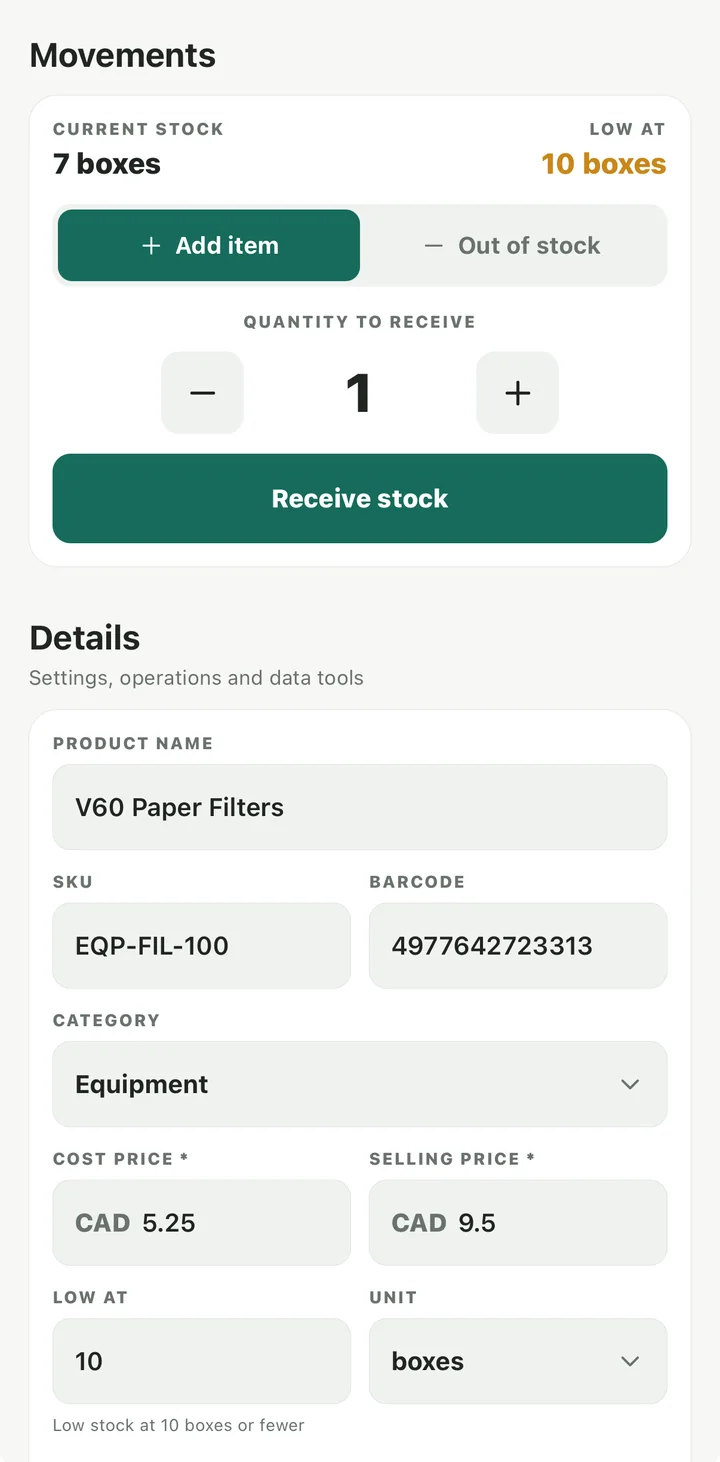
Check several records from both directions: find an app record from a shelf item, then locate the physical stock from its record. Compare the product identity, unit, quantity, location, and relevant prices. Include similar-looking variants in the sample.
Walk through the next genuine receiving or removal event and inspect the resulting history. Avoid adding fictitious movements to your live records merely for practice. Use a separate illustrative sample when you need to learn the workflow first.
Protect the new routine and retain the source archive
After setup and reconciliation, export a complete app backup and keep it accessible outside the app. Retain the old workbook for the historical information it contains. A PDF valuation report is useful for reading but does not replace the complete restore file.
Review the first few days for missed or duplicate movements. The backup and reports guide explains recovery files, while movement history helps investigate the events recorded after your handover point.
Common questions
Does Inventory Pro automatically import any Excel file?
This guide does not assume an automatic import feature. It describes source preservation, product cleanup, and deliberate setup.
Should opening quantities come only from the spreadsheet?
Compare them with physical stock and explain differences before relying on the new starting position.
Can stock move during the transition?
Account for those events explicitly so they are included once, on the appropriate side of the handover point.

A practical next step · Available now
NabixSoft Inventory Pro
Support this inventory workflow with NabixSoft Inventory Pro’s product records, stock movements, low-stock views, and reports. Everyday inventory management works offline on iPhone and iPad.
Available on the App Store for iPhone and iPad. A Google Play download link has not been confirmed.